Printing out QR codes and changing description on the printout
Benefits of a QR code for checklists
Using checklists on the go with your smartphone or tablet has a lot of advantages:
- Using a QR code to quickly fire up a checklist is quick and simple. It requires almost no training or onboarding and filling out the checklist is simple as well.
- QR codes are widely used and most people know how to use them on their iPhone, iPad, Android smartphone, or tablet.
Step by step instructions
-
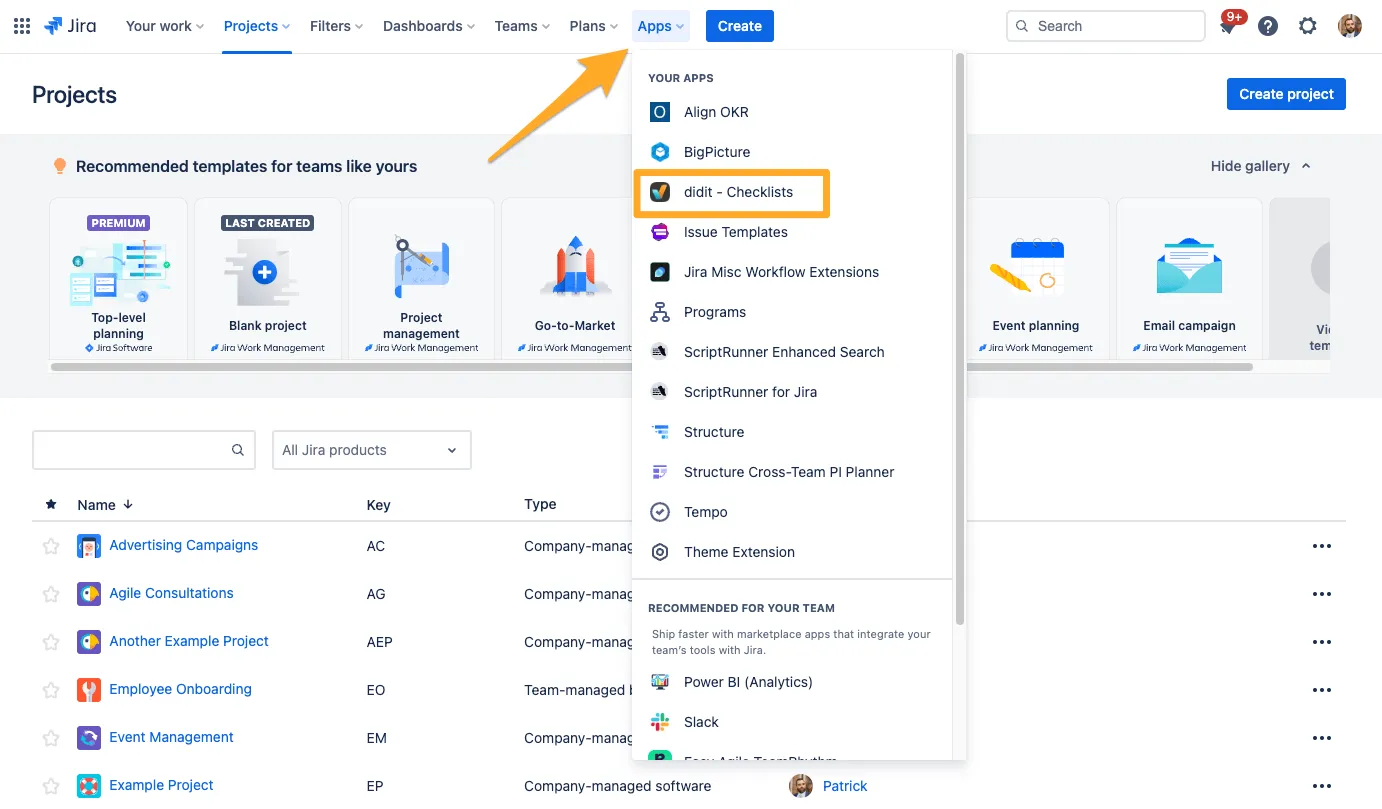
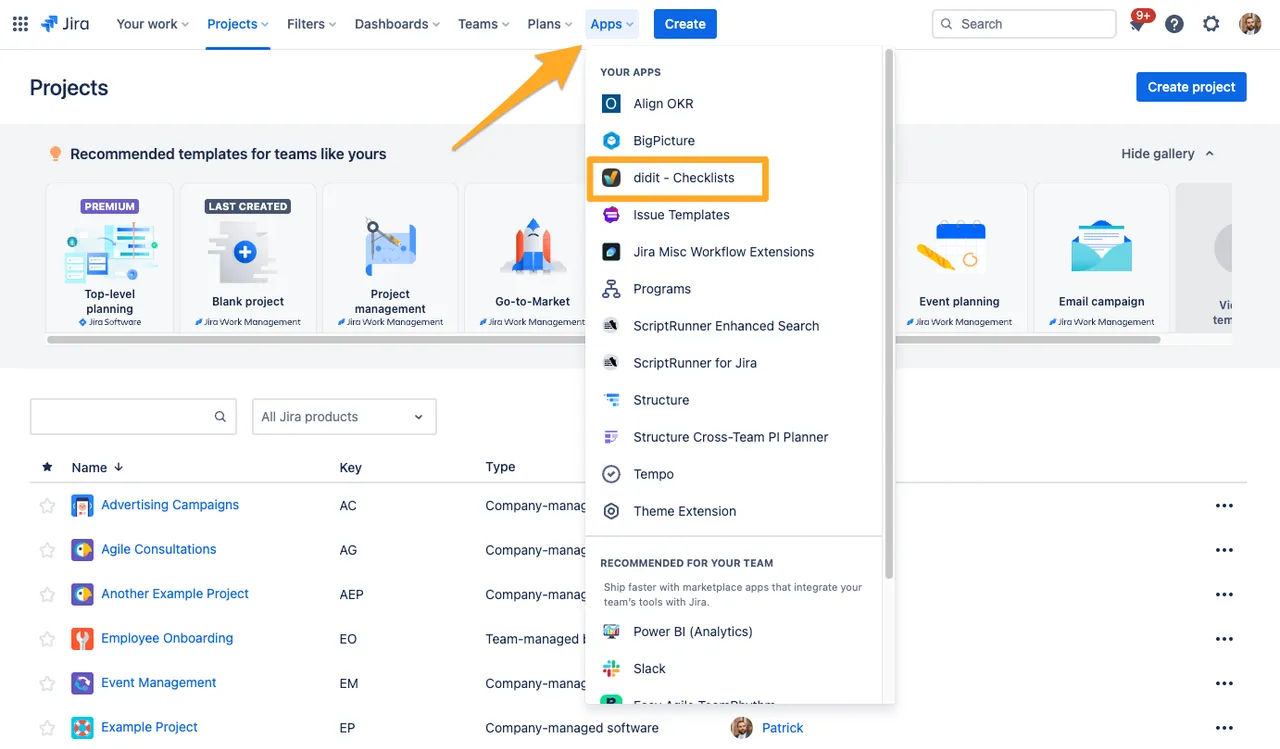
Access the Didit - Checklists hub.
-
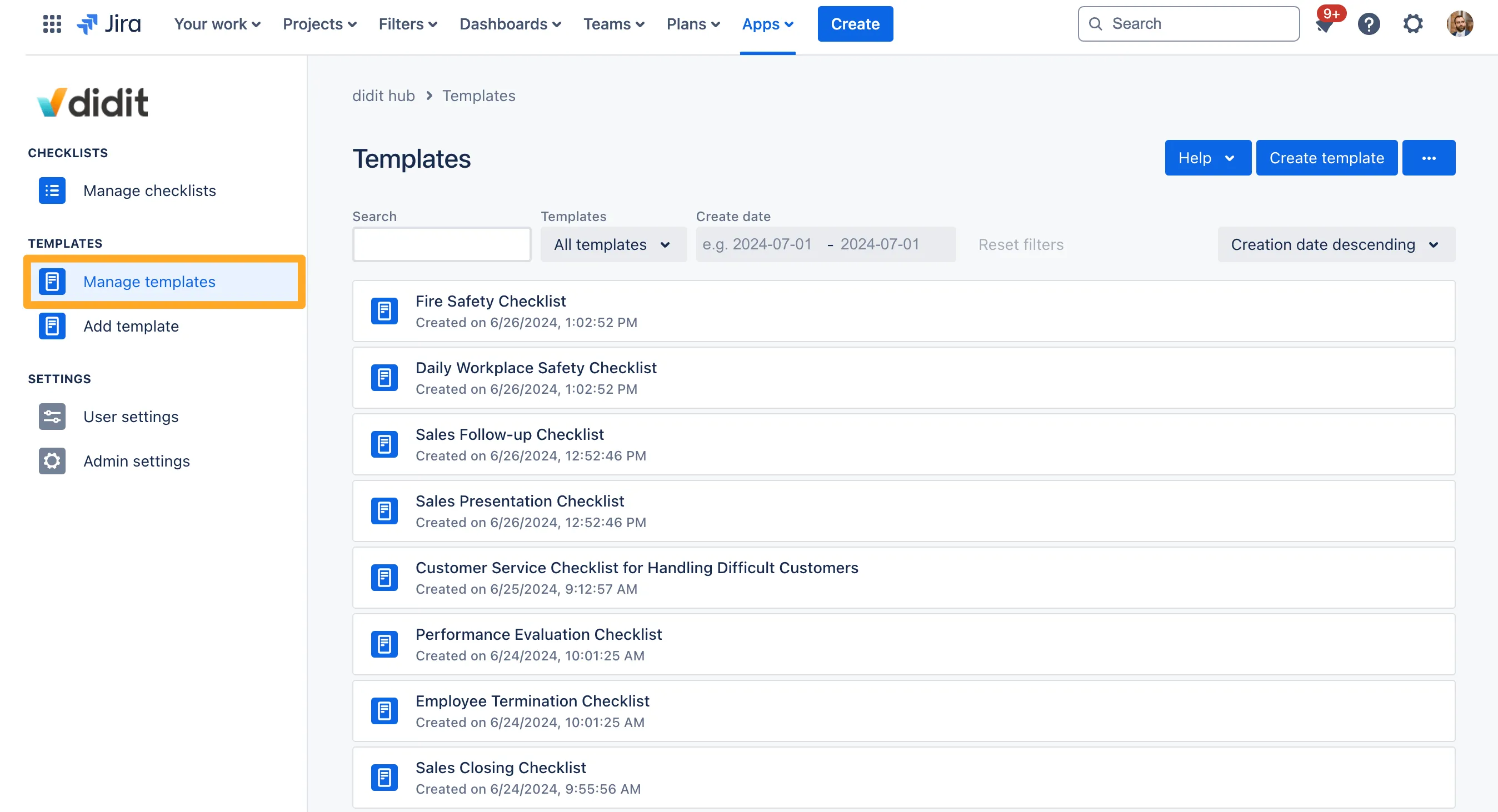
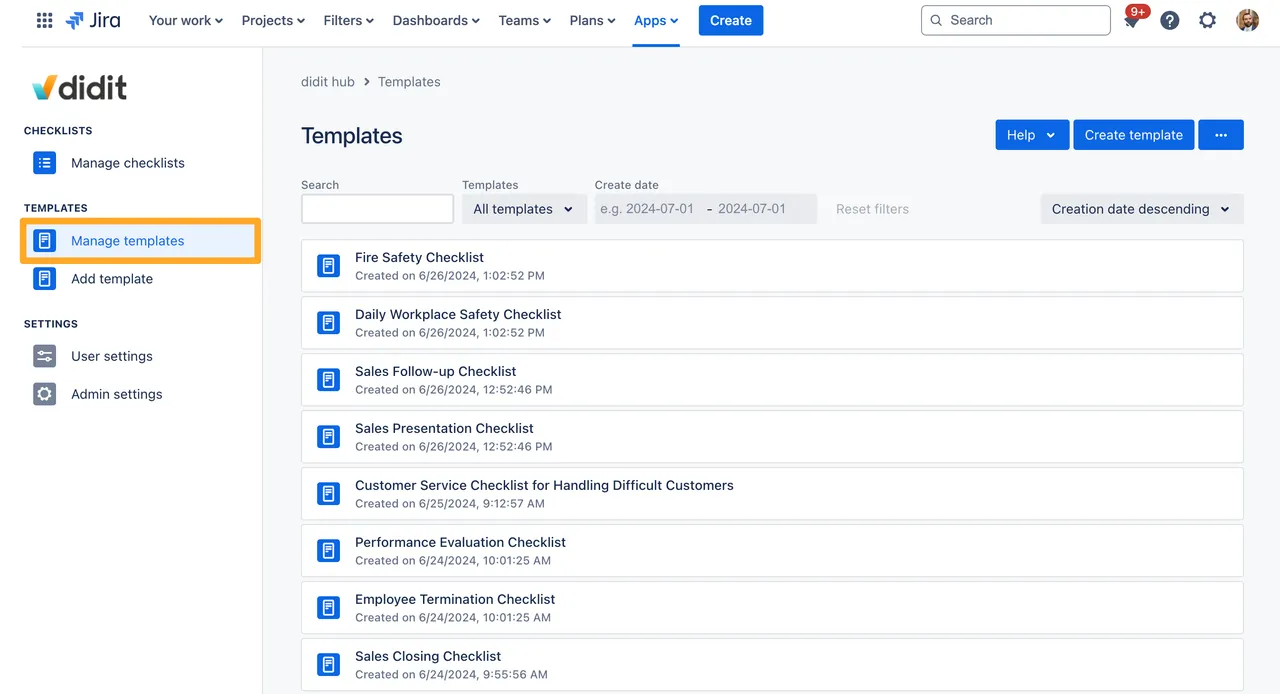
Click on “Manage templates.” You might be on this tab already by default.
-
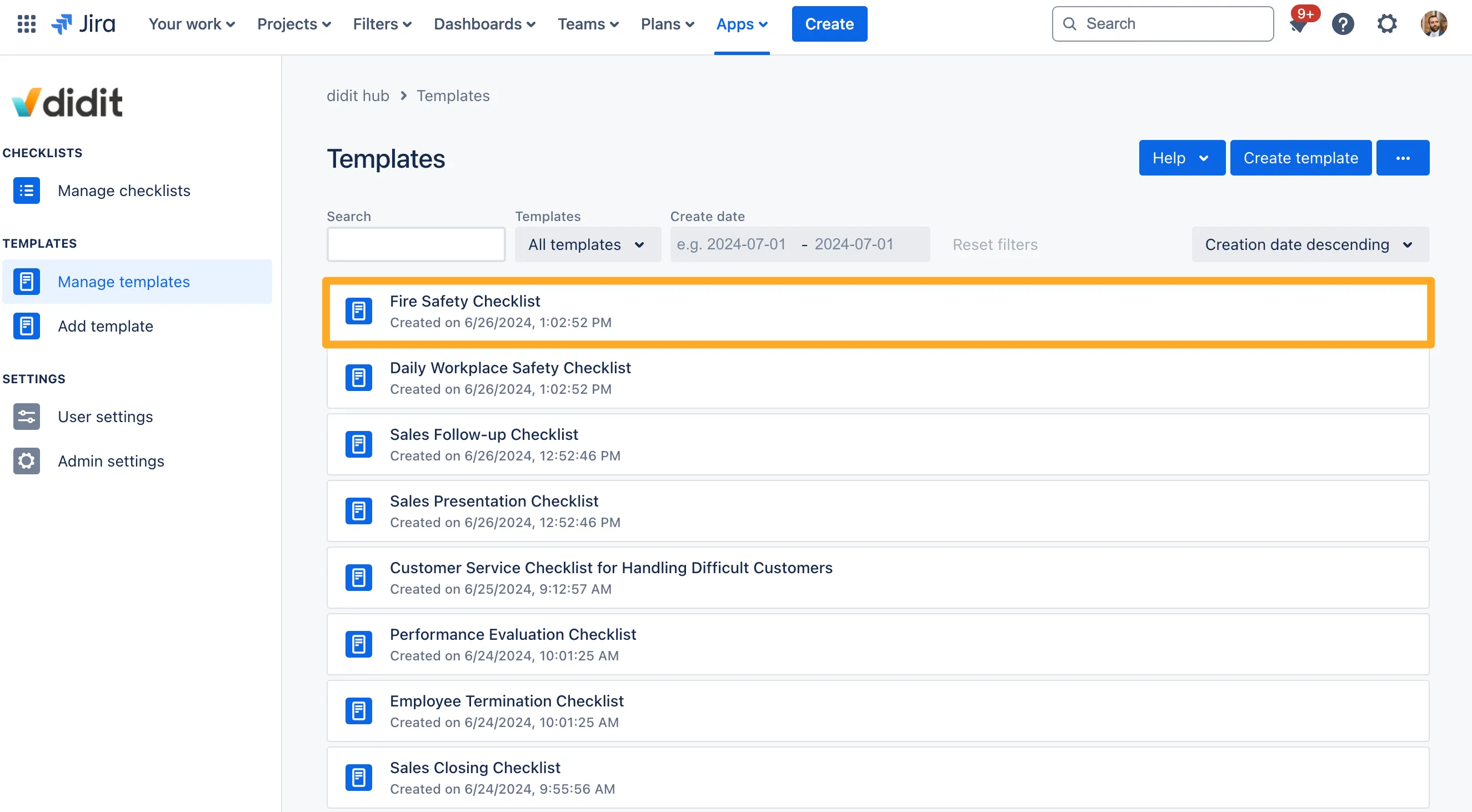
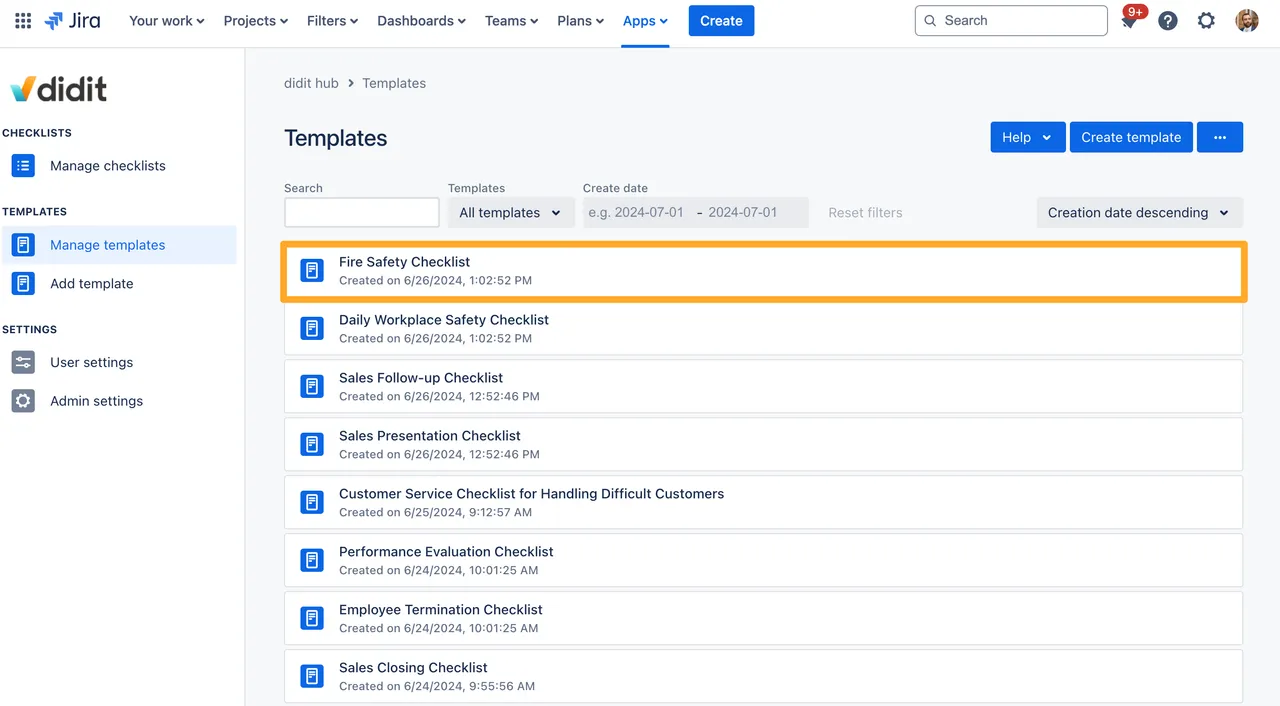
Choose the checklist template that you want to print.
-


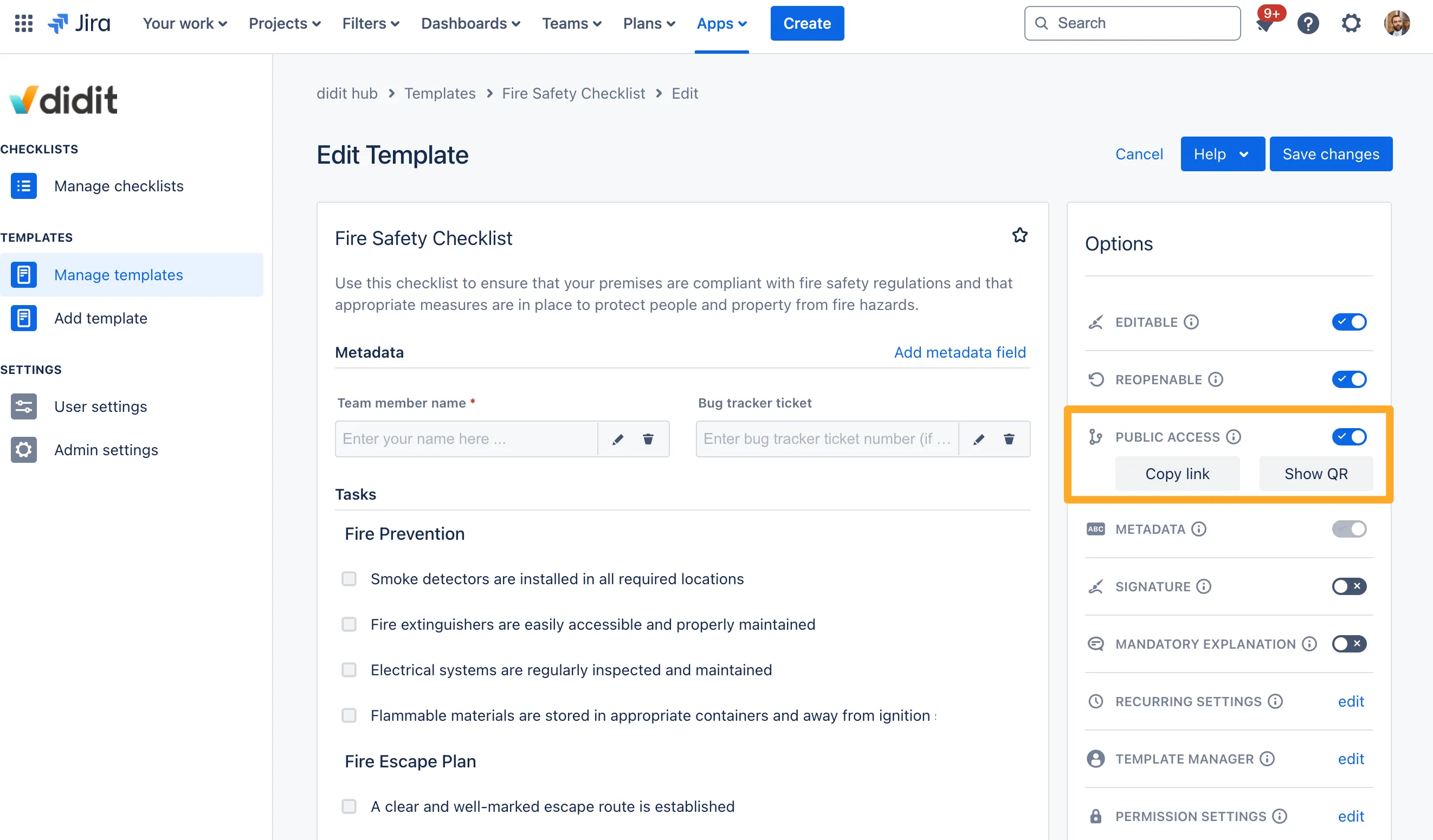
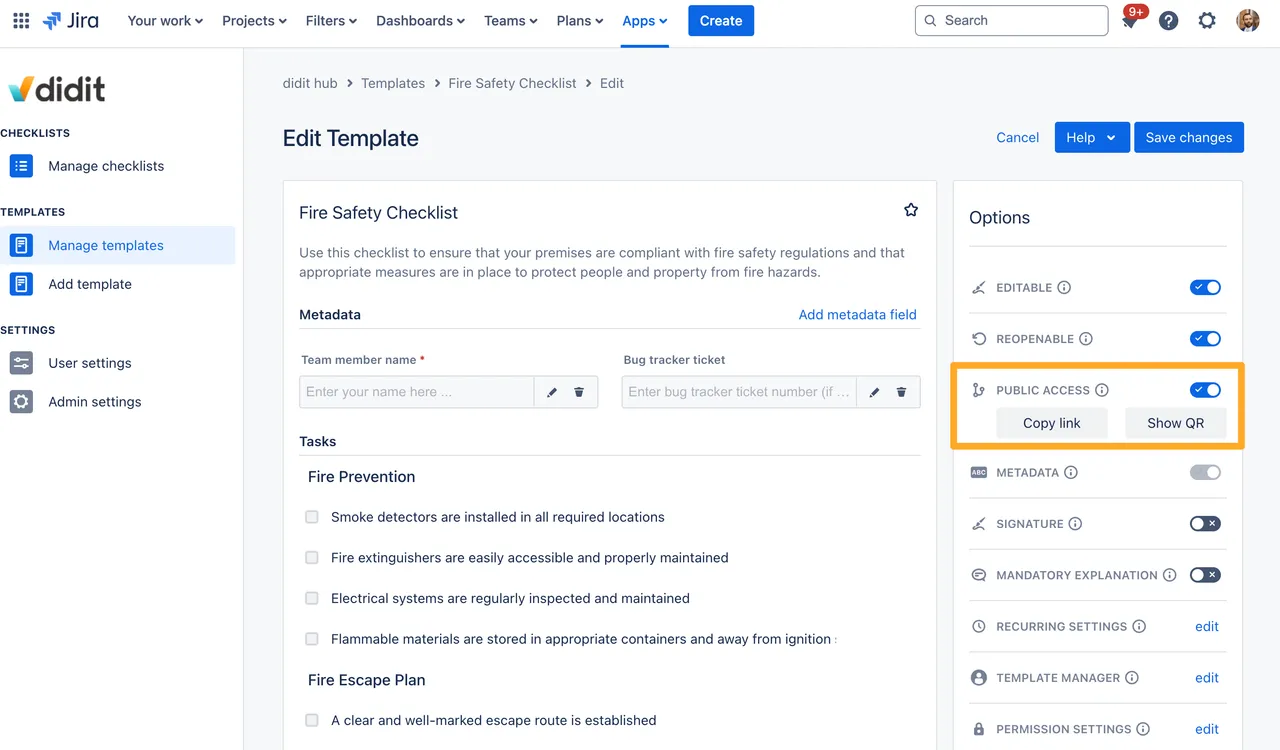
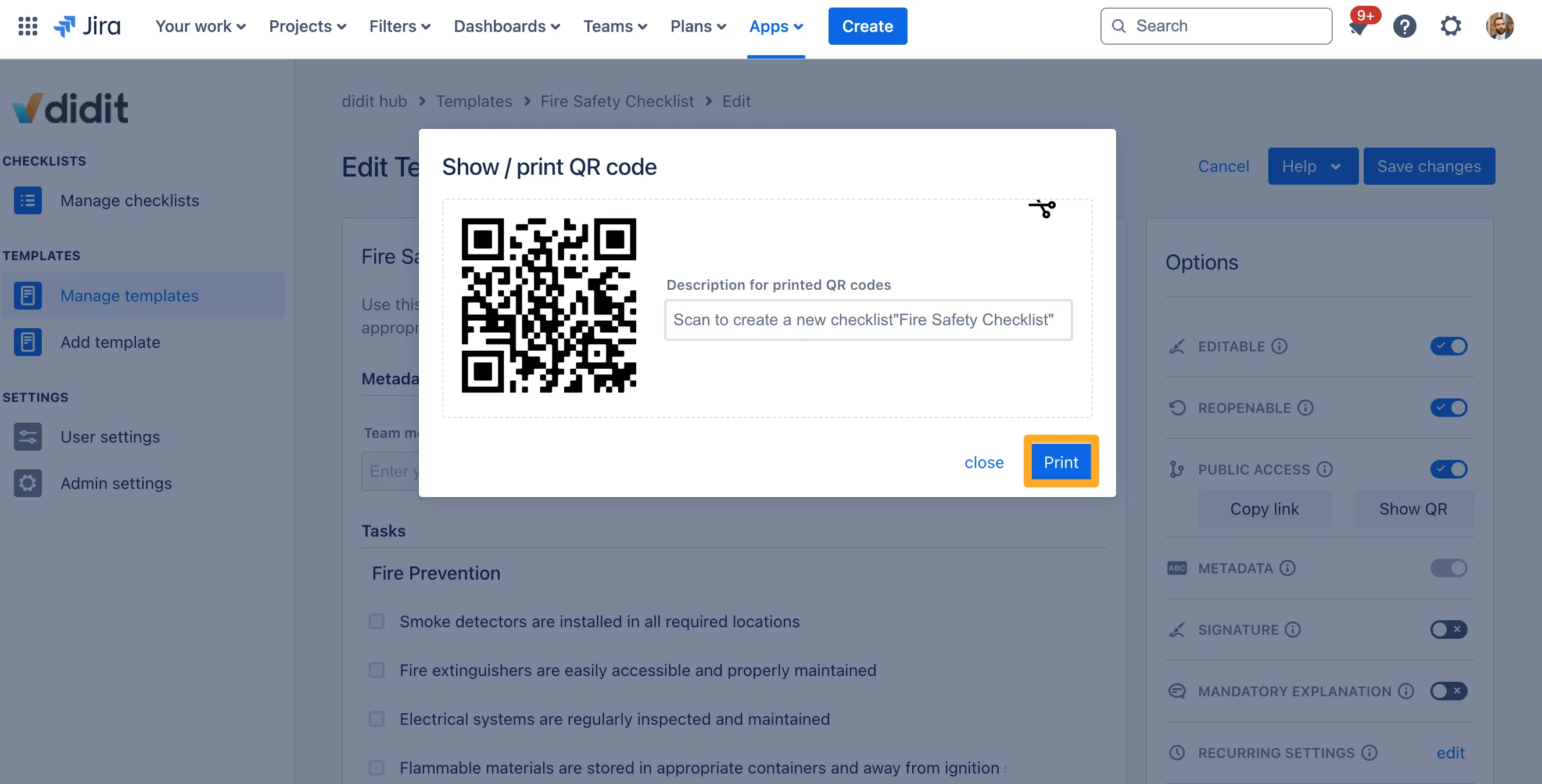
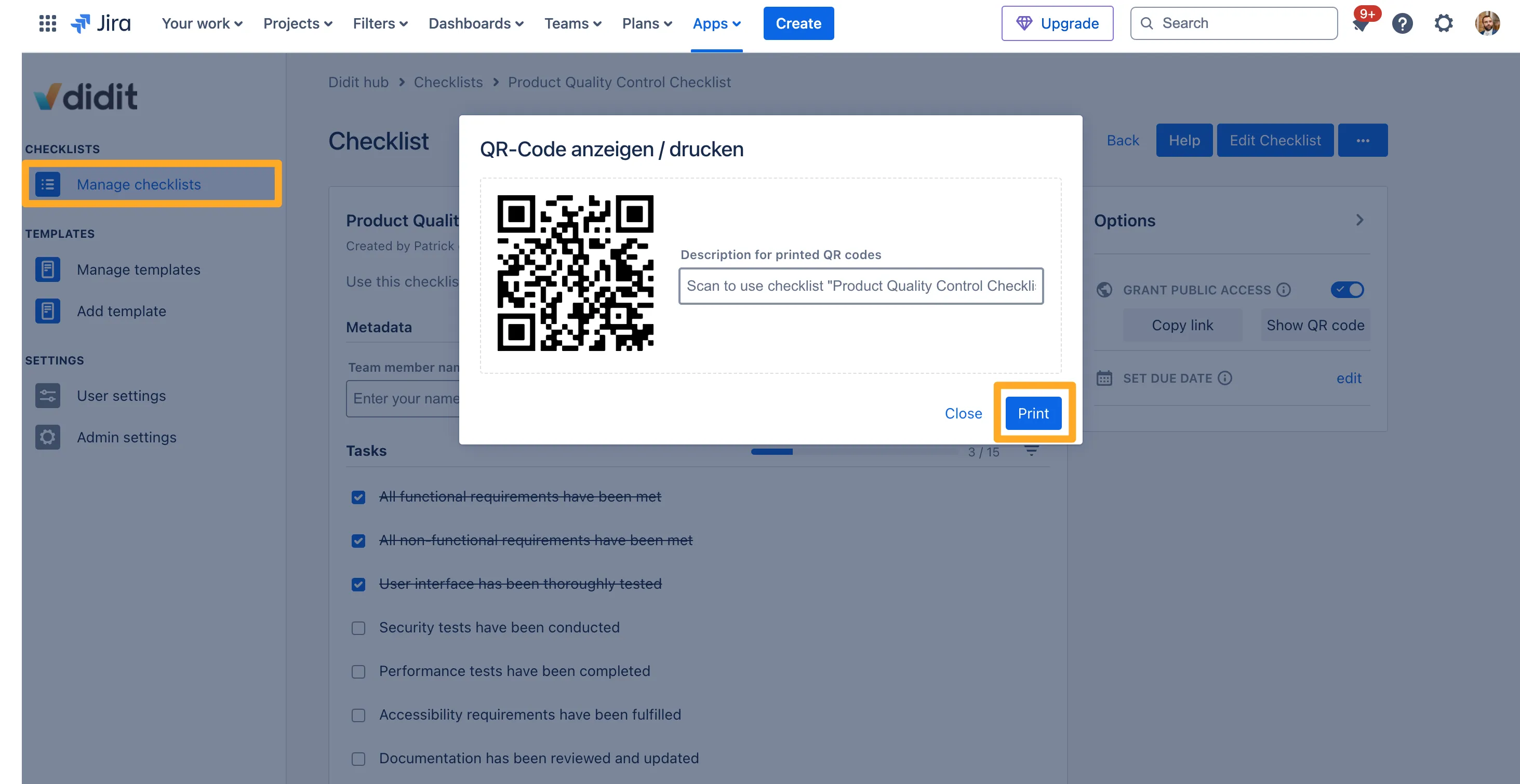
Find the “Public Access” section of the template editing screen and click “Show QR.”
-
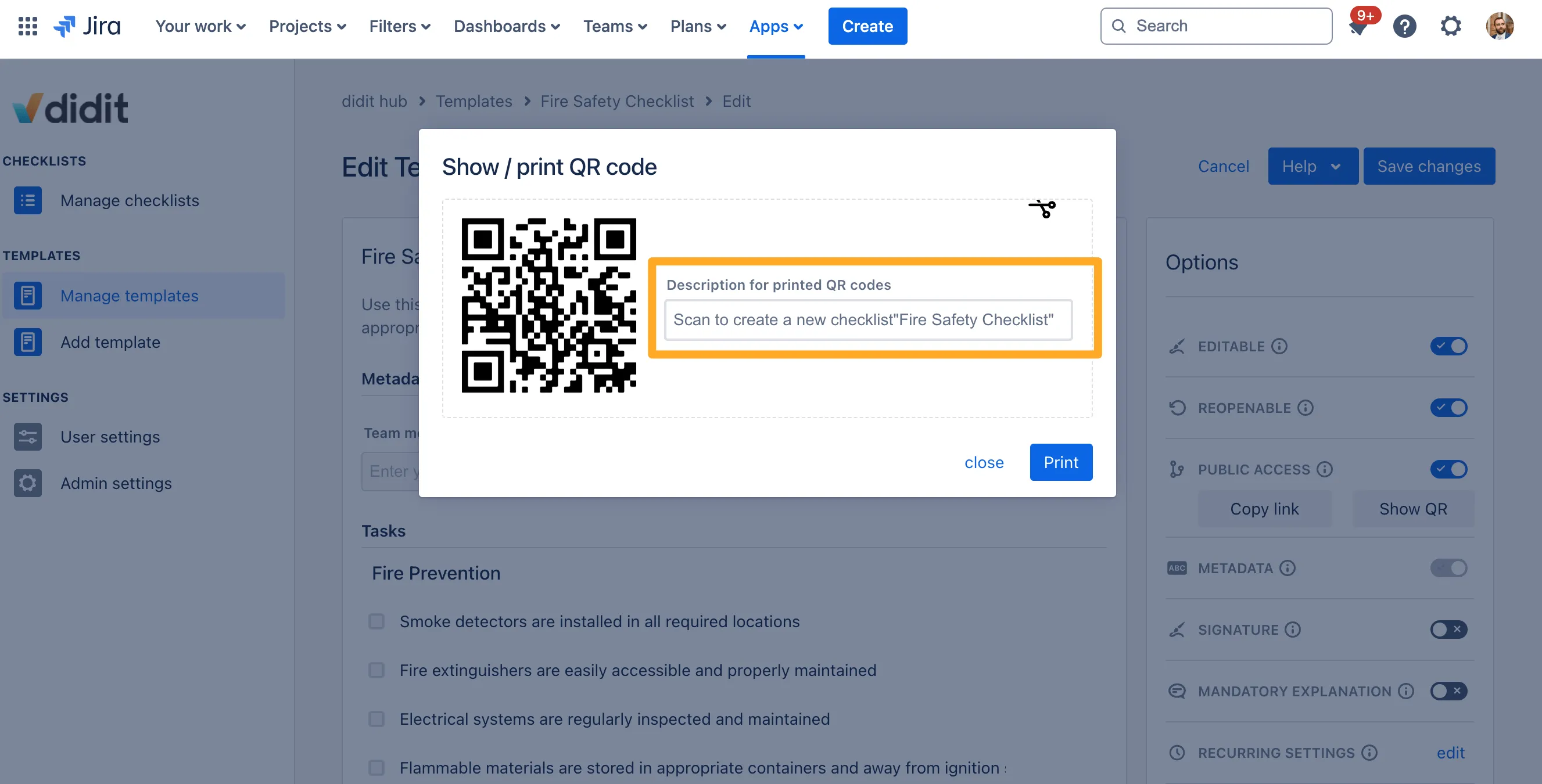
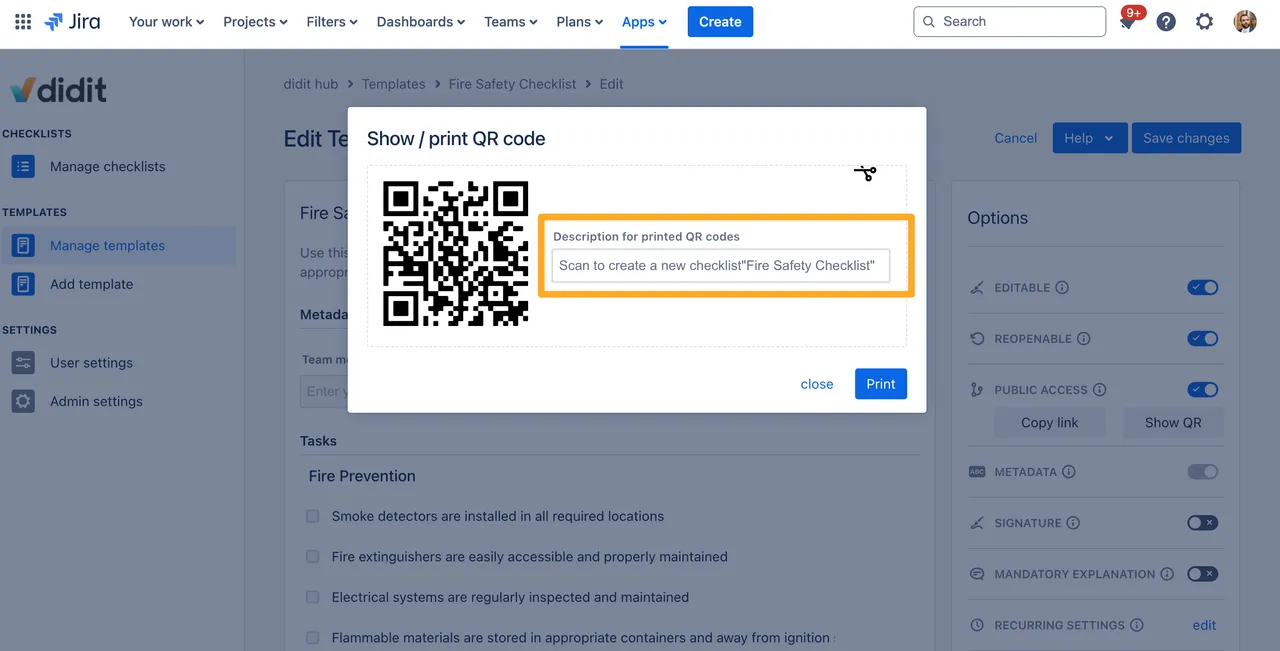
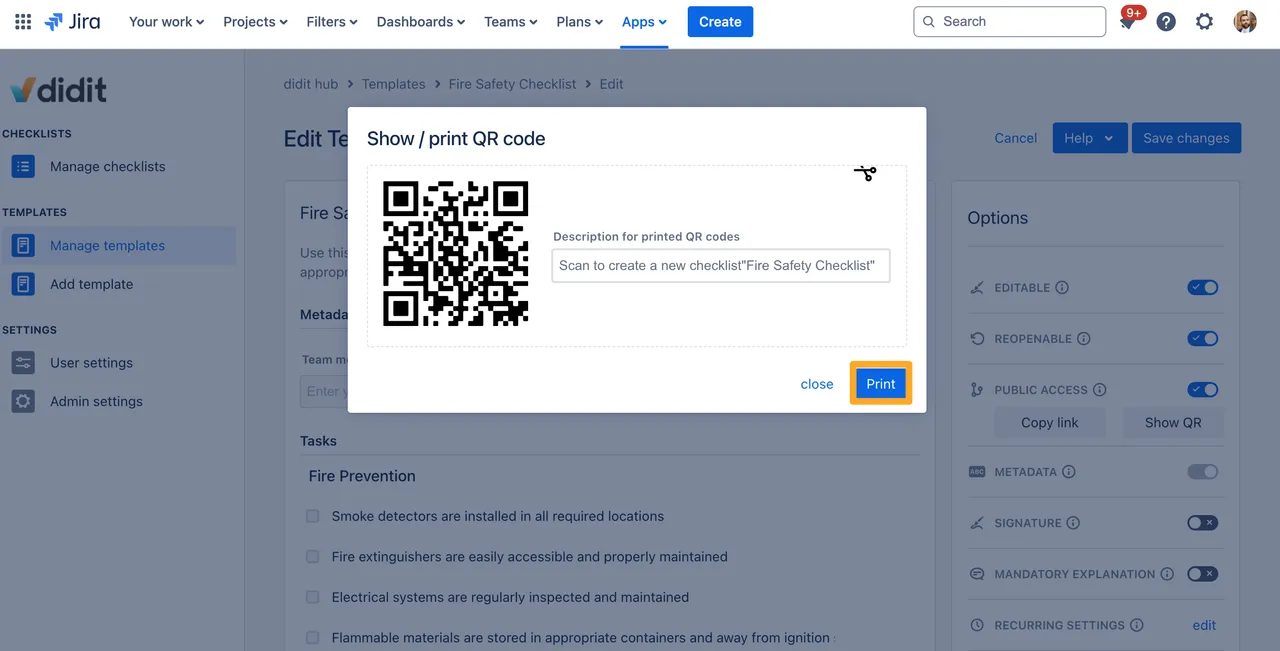
Add a description for the printout in the field “Description for printed QR codes” if you want.
-
Click the “Print” button.
-
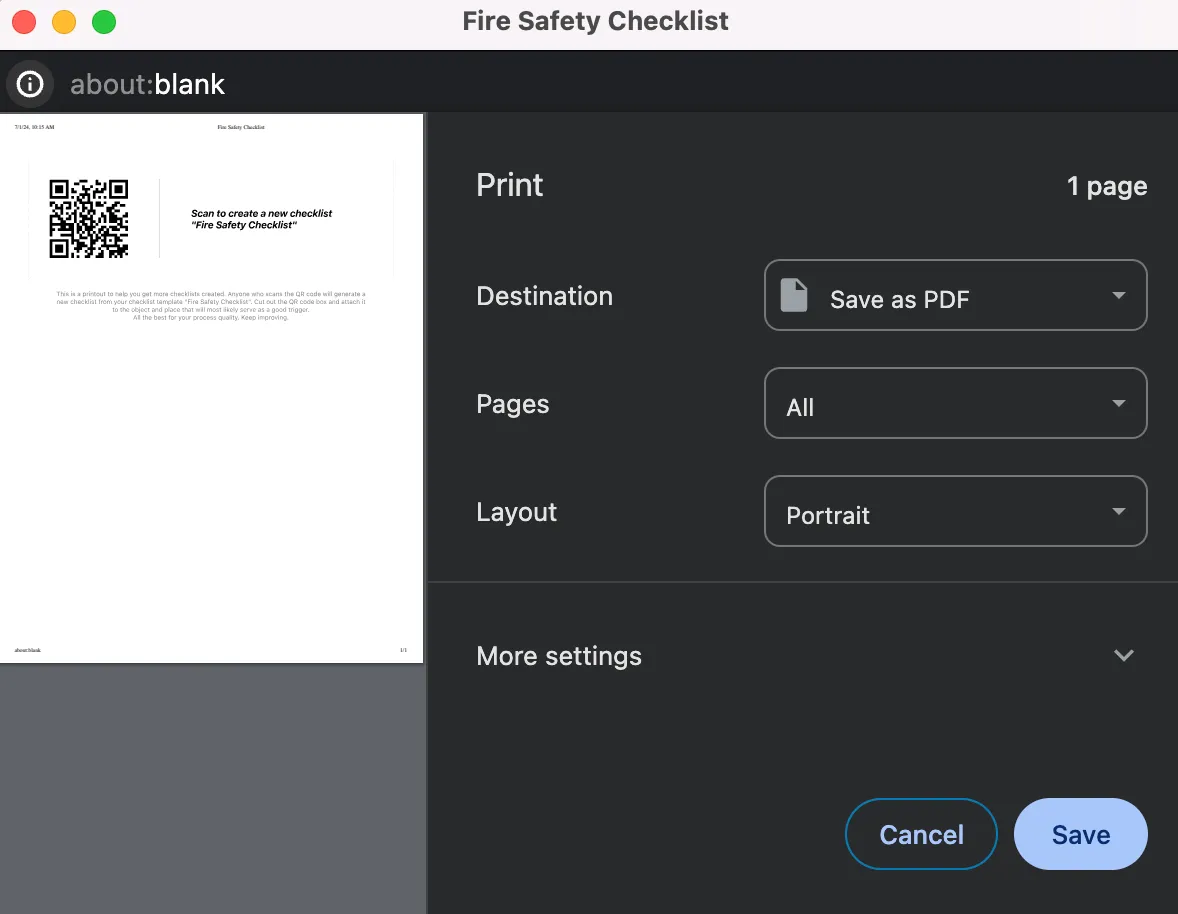
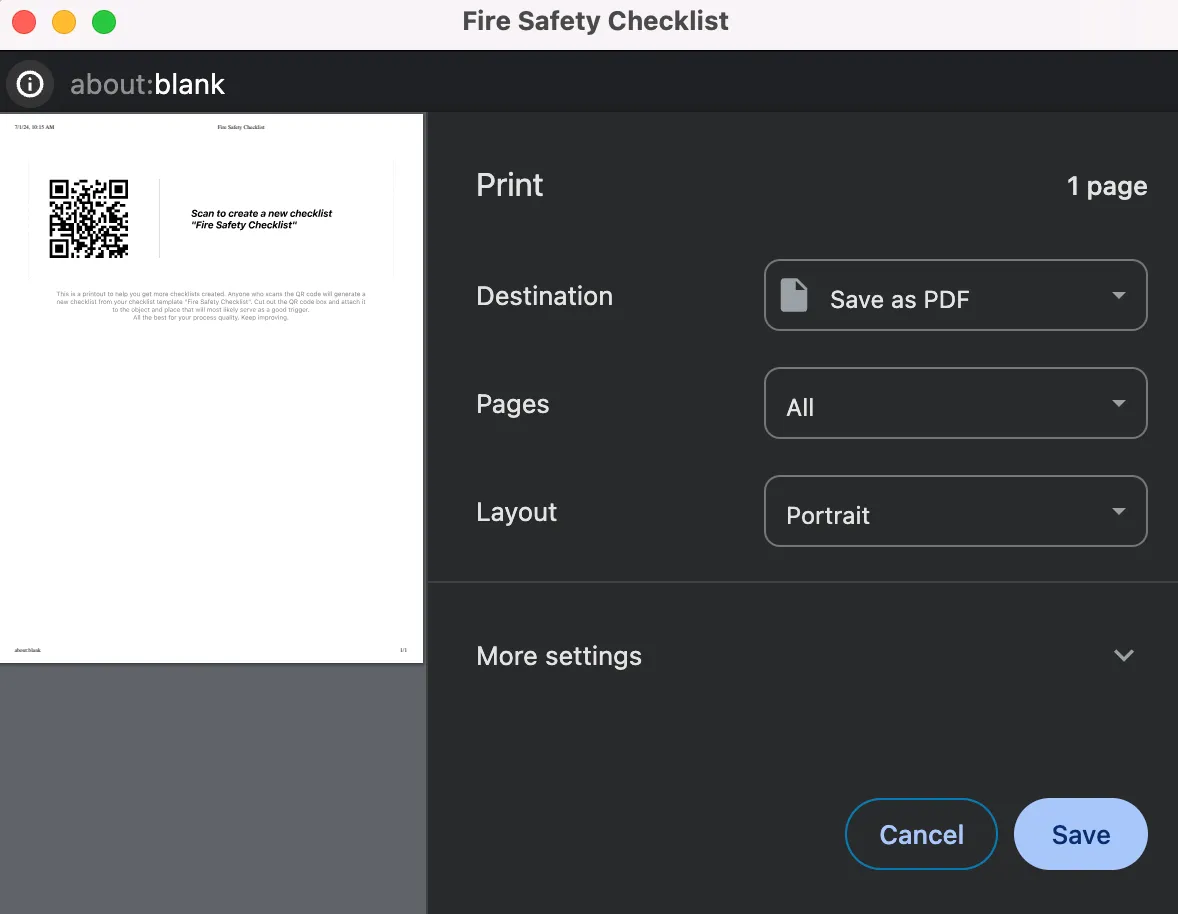
You will be redirected to print on your local printer and can print the QR code.
-
Scan a QR code to create a new checklist with your smartphone.
QR codes for checklist instances
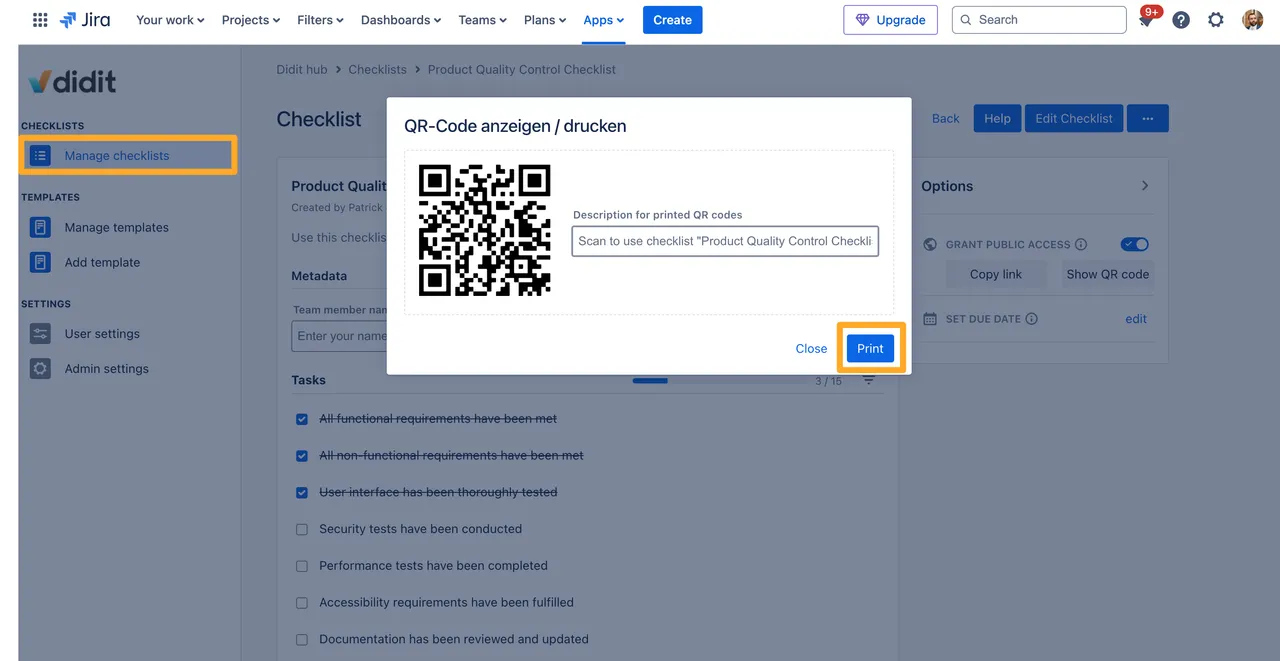
You can also print QR codes for individual checklist instances! Try it out by navigating to the Didit hub > Manage checklists > Show QR code (make sure “Grant Public Access” is turned on).
Link to this page: https://seibert.biz/checklistsprintqrcode