Release in October 2026
As announced in March, Didit Checklists is moving to Atlassian’s Forge platform, and the update starts rolling out shortly. Your checklists, templates, and data don’t change. You get a refreshed interface and native Didit actions in Jira Automation. The one change to prepare for is how the checklist panel appears on Jira work items, and a one-time click handles it.
What’s new and improved?
Didit Is Moving to Atlassian Forge COMING SOON
With this release, Didit for Jira and Confluence runs on Forge, Atlassian’s current platform for cloud apps. During the rollout, the same app supports both Connect and Forge.
- A refreshed interface: The Didit hub, the checklist and template editors, the Jira work item panel, and the Confluence macros use Atlassian’s current design system. Everything is where you expect it, just faster. The getting started guides show the new screens.
- No data migration: Checklists, templates, permissions, settings, public links, the mobile apps, and the Didit API work as before.
- A future-proof foundation: Atlassian is ending support for the older Connect platform, so every cloud app on the Marketplace is making this move.
Keep Checklists Visible on Jira Work Items ACTION
On the Connect on Forge version 5.x, the Didit checklist panel no longer opens by itself. It only appears after someone clicks the Apps button on the work item. To show it on every work item again:
-
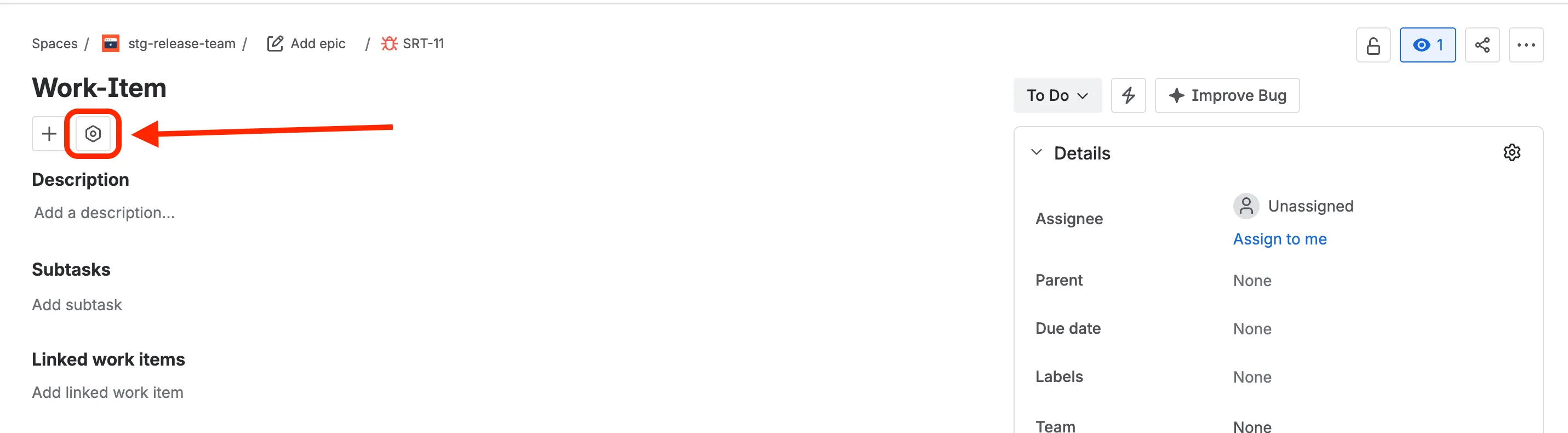
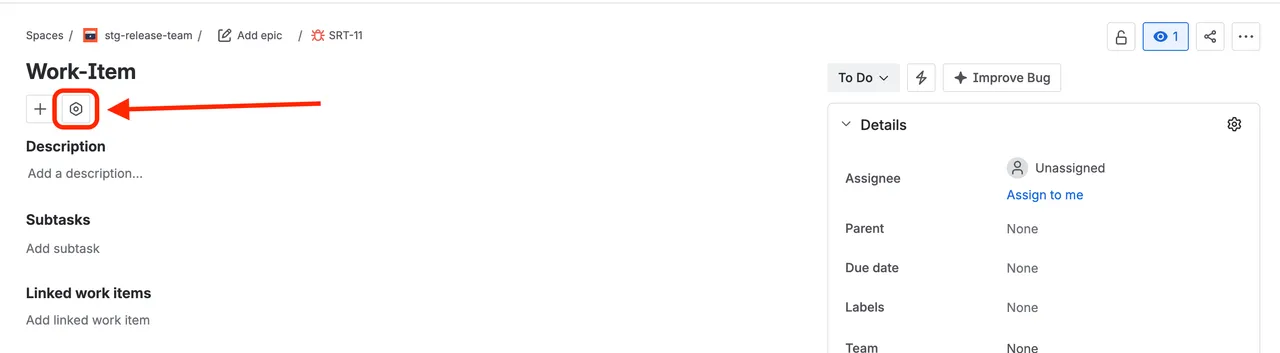
Open any work item and click the Apps button (the hexagon icon next to ”+”, below the work item title).
-
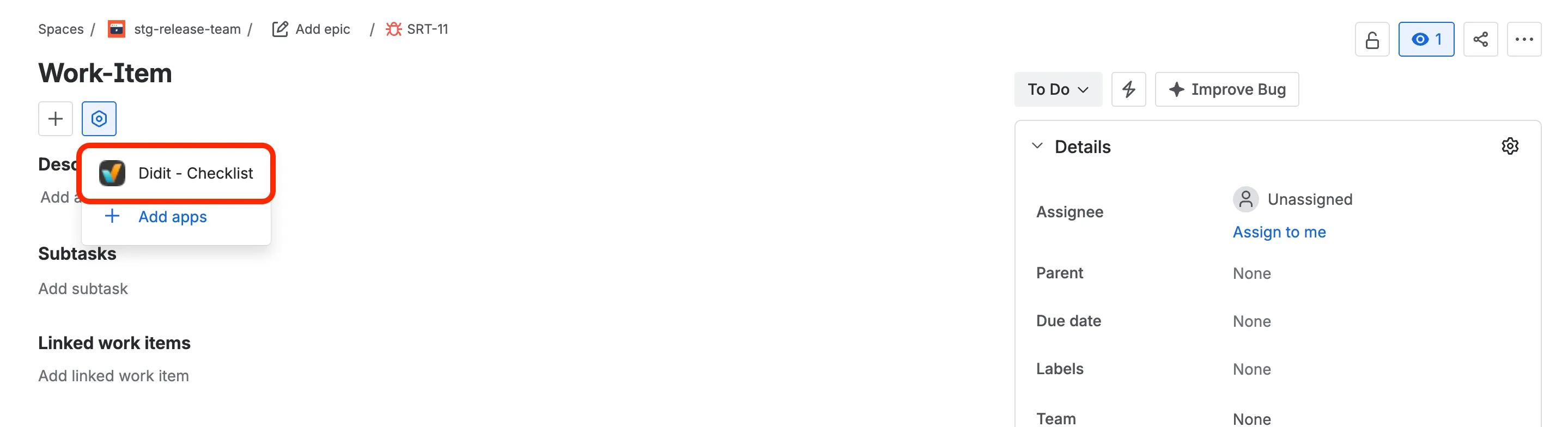
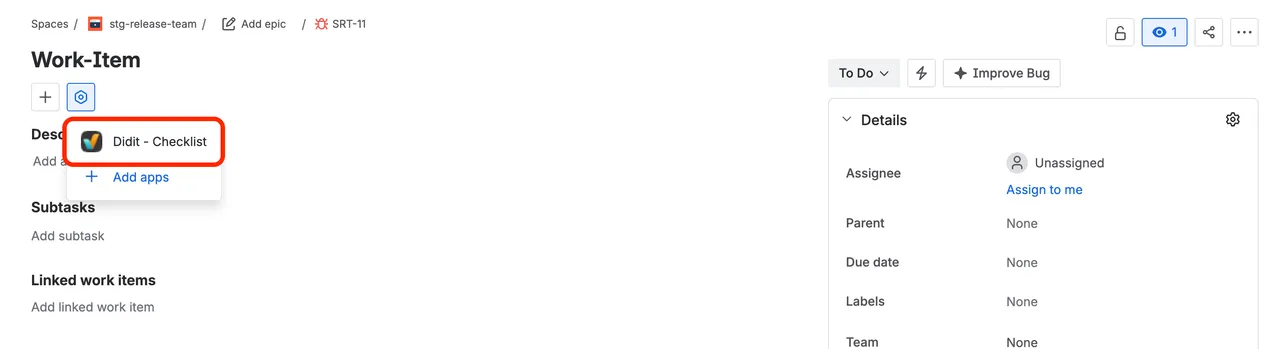
Select Didit - Checklist.
-
In the panel, open the ⋯ menu in the top-right corner and click Show for all work items.
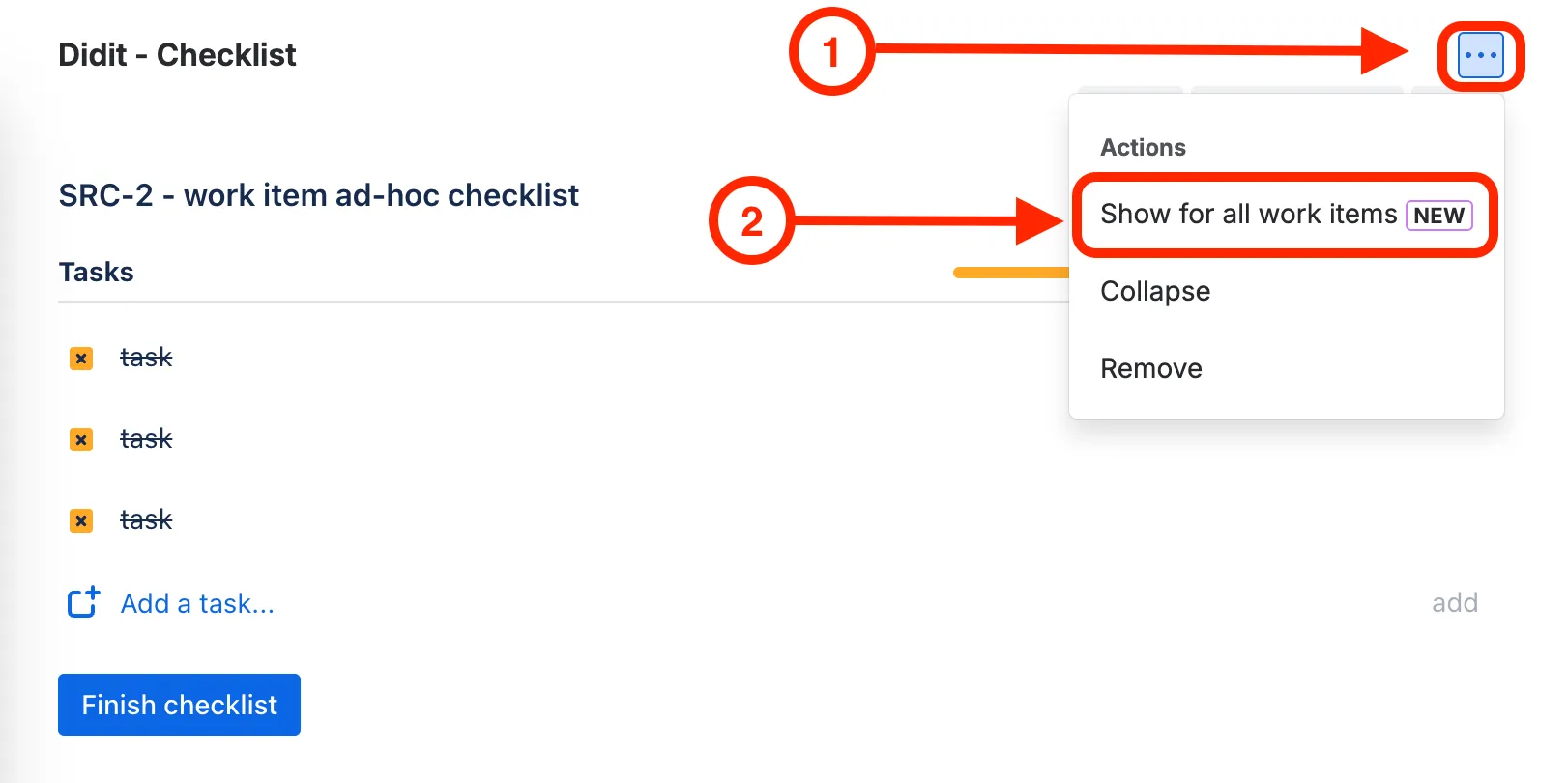
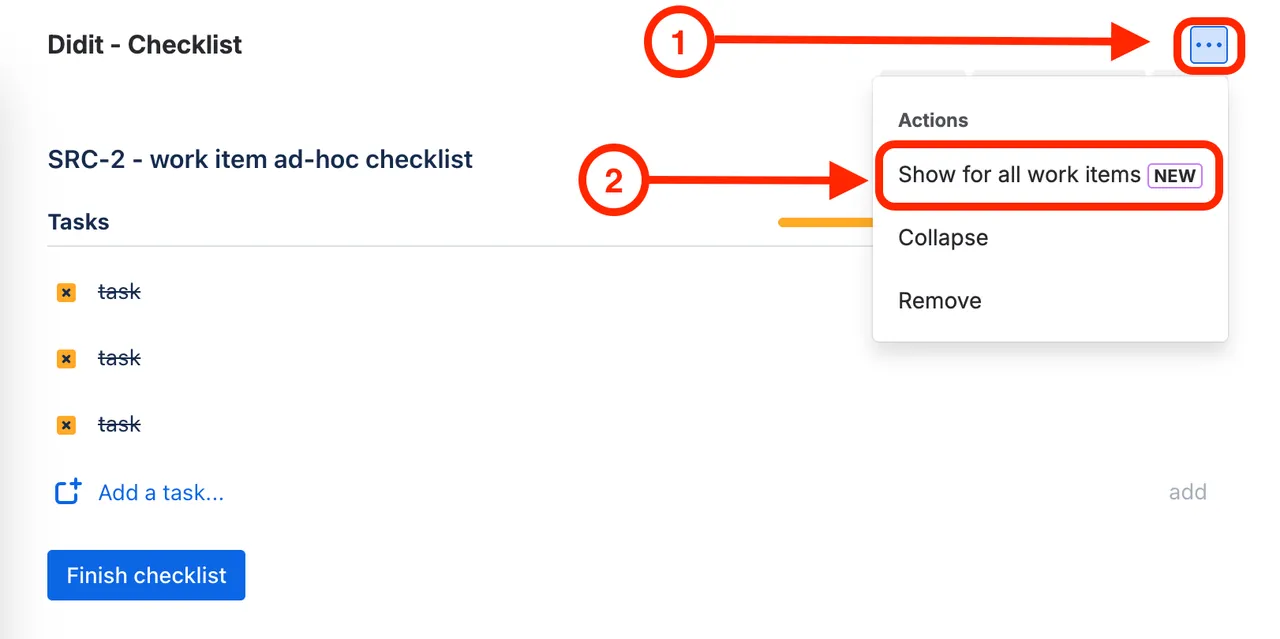
Only project admins see this option, and it applies per project, so repeat it in each project that uses checklists. To share these steps, send How to keep the checklist panel visible on Jira work items to your project admins.
Native Didit Actions in Jira Automation NEW
No more property keys and JSON in a “Set entity property” action: Didit now has three actions in Jira Automation’s rule builder. Click Add action, search for the action by name, and find it under Other apps:
-
Create checklist from template: Creates a checklist from one of your templates. You choose what happens if the work item already has a checklist.
-
Create checklist from markdown: Creates a checklist from Markdown you write in the action. It replaces the old Markdown trigger.
-
Set checklist metadata: Fills a metadata field on the work item’s checklist, for example with a date or an owner.
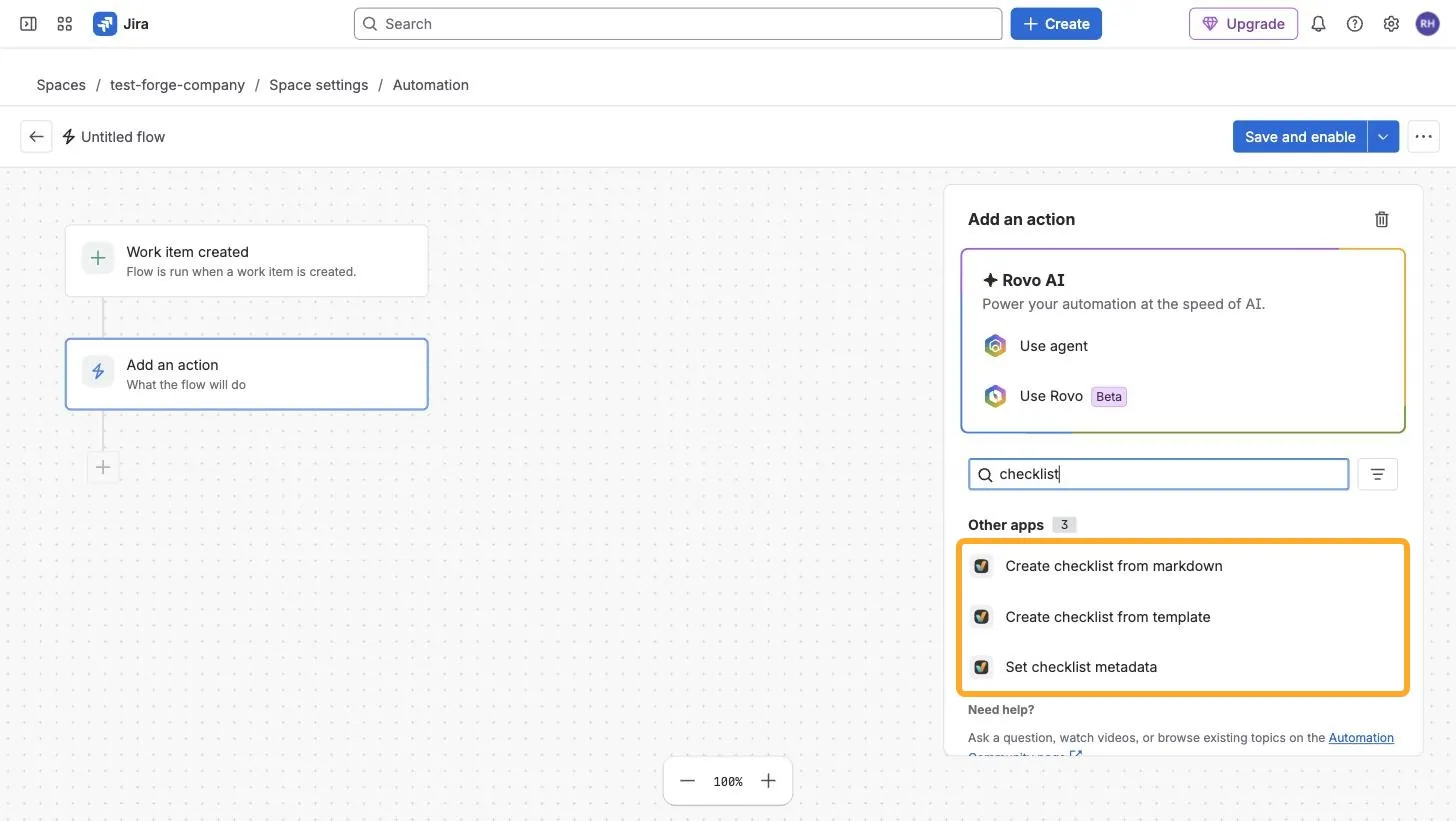
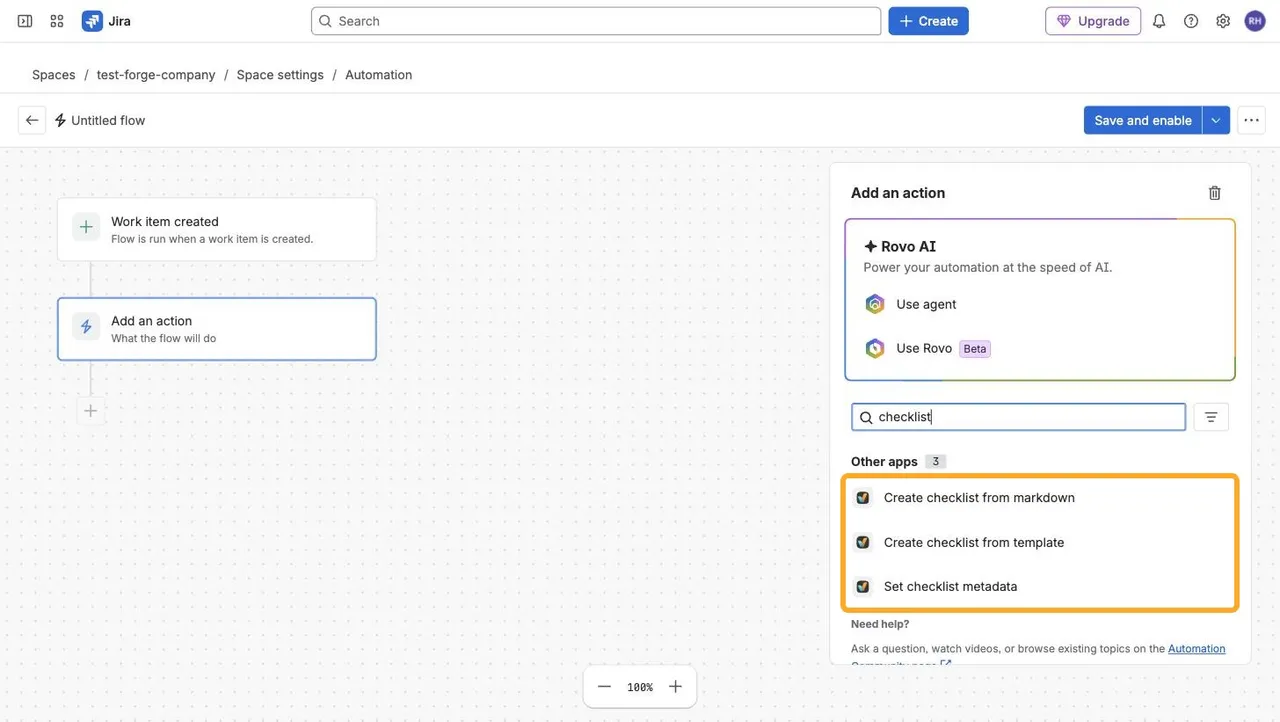
The first time you add a Didit action, Jira asks you to Connect Atlassian Automation to Didit. See How to use the Didit actions in Jira Automation.
A Smarter Automation Wizard IMPROVED
Open the automation wizard from a template’s ⋯ menu and choose what your rule should do. The wizard tells you which action to pick in Jira Automation and ends with a pre-filled preview of the action’s form. Click any value, like the template ID, to copy it.
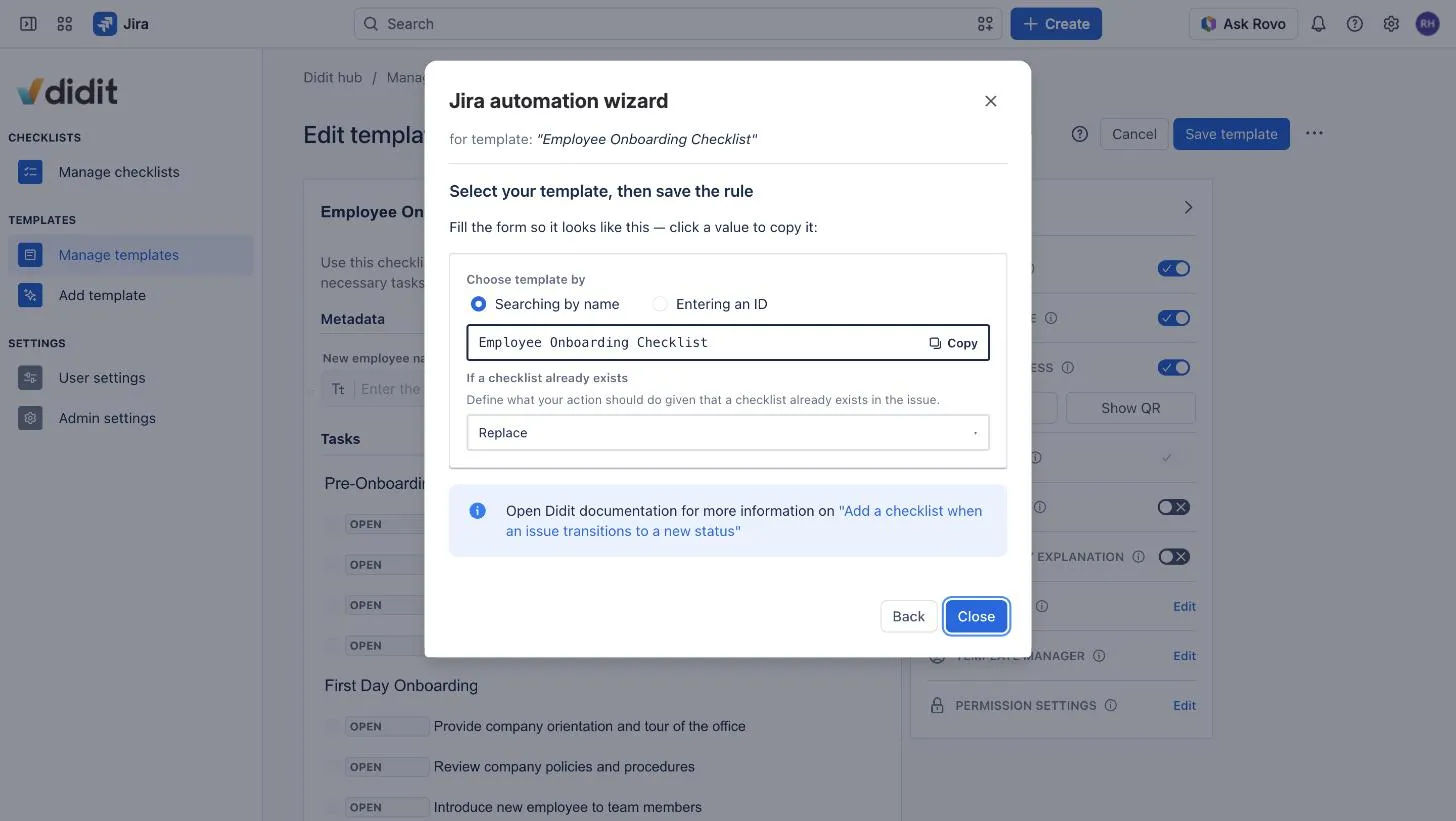
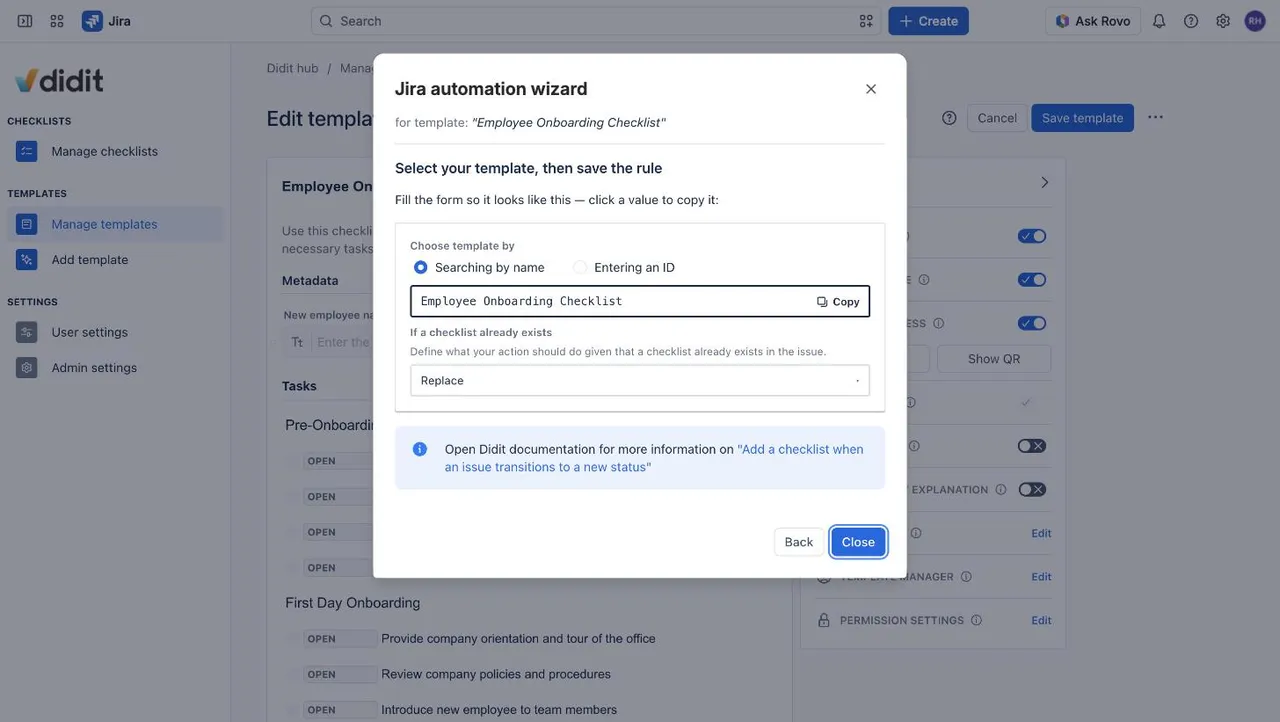
See How to use the Didit automation wizard.
The Update Itself GOOD TO KNOW
Users only see a one-time Allow access prompt. For Jira and Confluence admins:
-
Watch “Manage apps”: The Forge version arrives as a major app update.
-
Approve the new permissions if asked: Forge lists every permission an app uses. This doesn’t change what Didit does with your data. Until an admin approves, the current version keeps running.
-
Tell your teams about “Allow access”: Forge also asks each user once for consent. One click on Allow access, and Didit shows as usual.


-
Update both apps: Jira and Confluence update separately, so approve the update in both.
-
Restrictive networks: If you use a VPN or an outbound allowlist, allow the domains and IP ranges on Atlassian’s official list. Otherwise Didit may load slowly or not at all.
-
No reconfiguration: Apart from Show for all work items, there’s nothing to set up.
Compliance questions, timing for your site, or something looks off after the update? Our support team is happy to help.