Mention people and assign tasks
Name a person right on the step that needs them. Type @, pick the person and save. Didit shows their name in the checklist and emails them through Jira. The first person you mention in a task’s title owns that task, and it shows up on their Manage my tasks page.
Mention someone
-
Type @ in a task, then choose the person.
A plain @ suggests the people the work item already involves. Keep typing to search everyone on your site.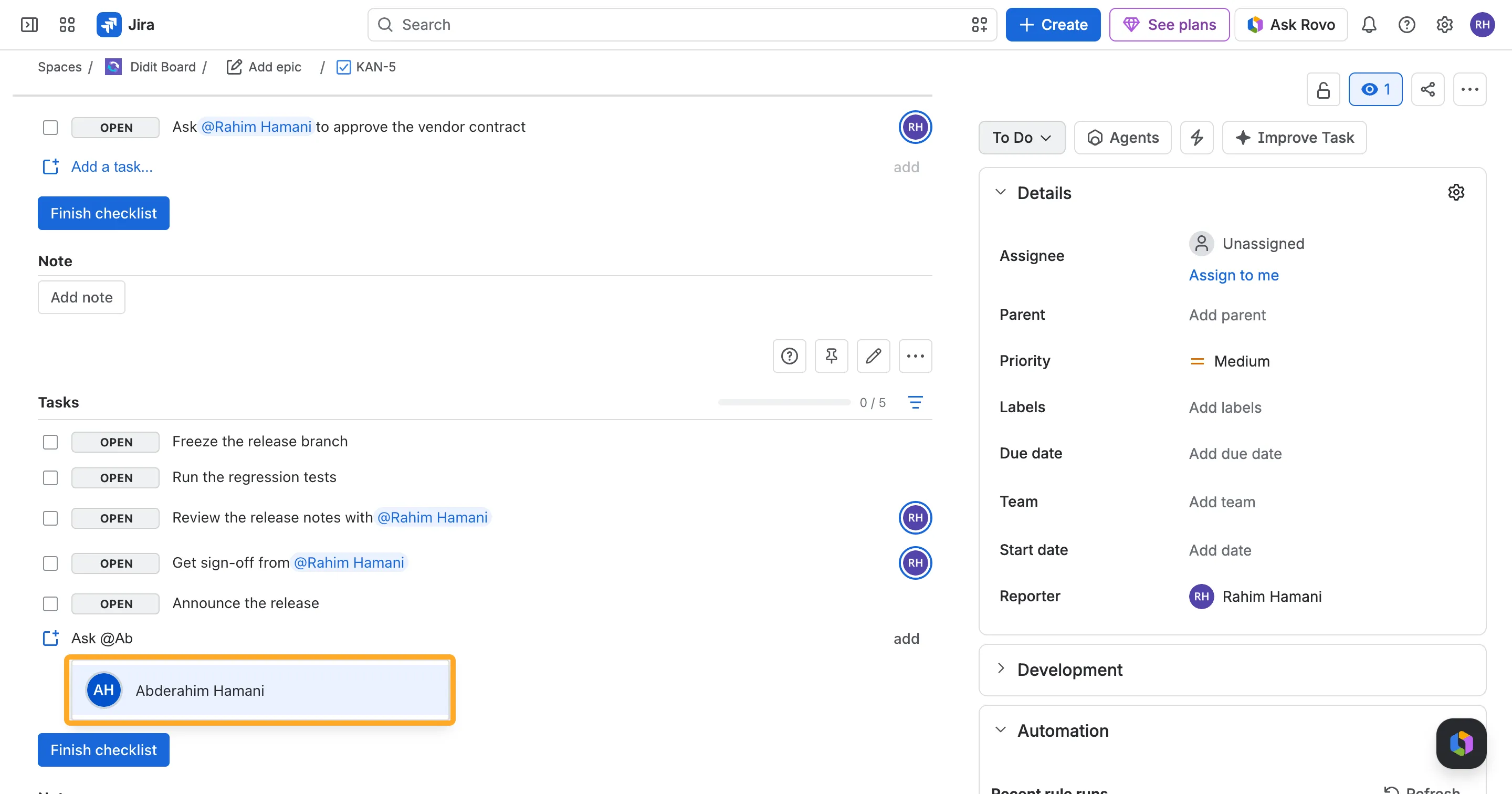
-
The name turns into a chip. Keep writing.
Backspace removes the whole name at once. Under the field, Didit shows who will own the task.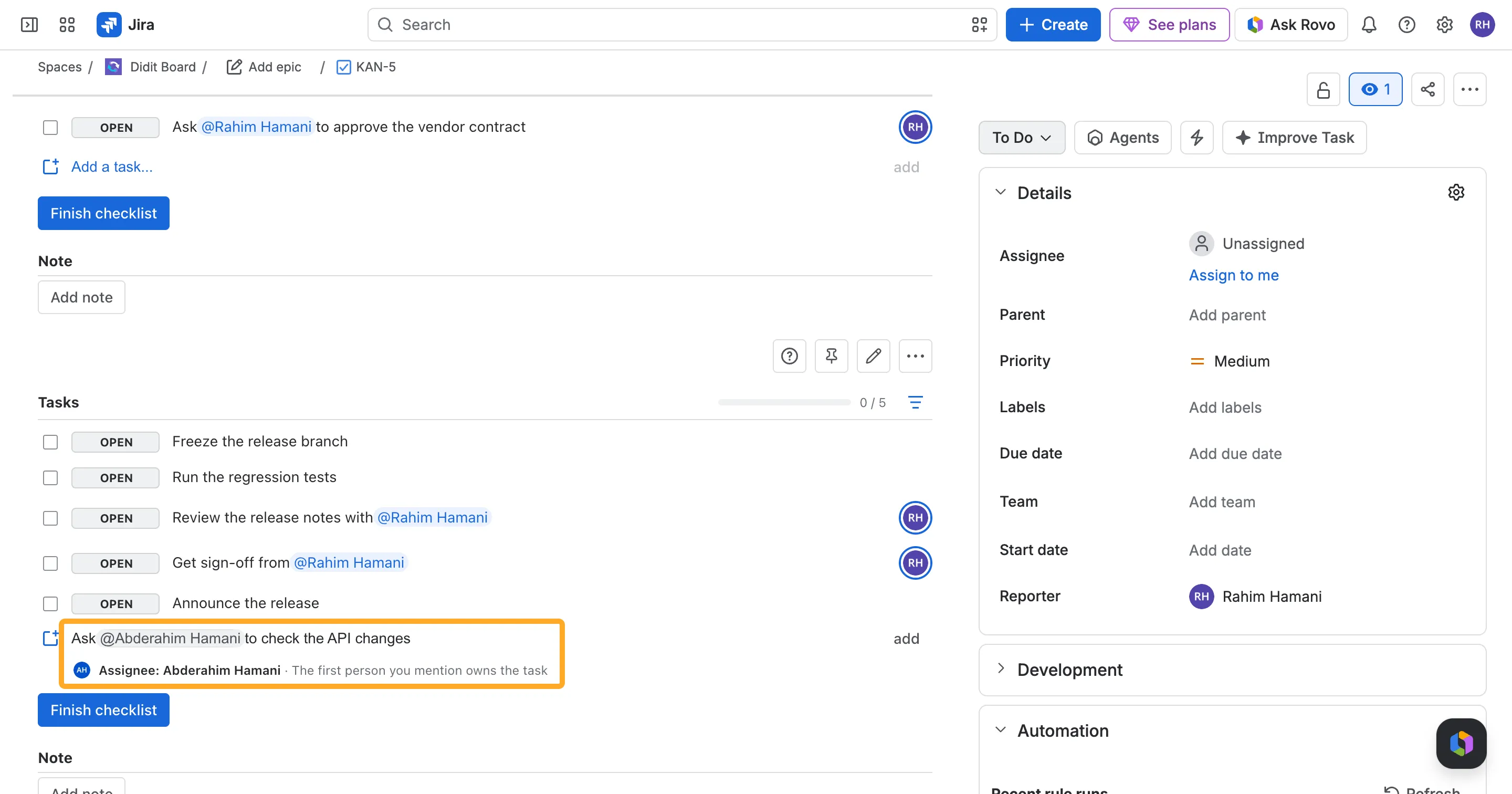
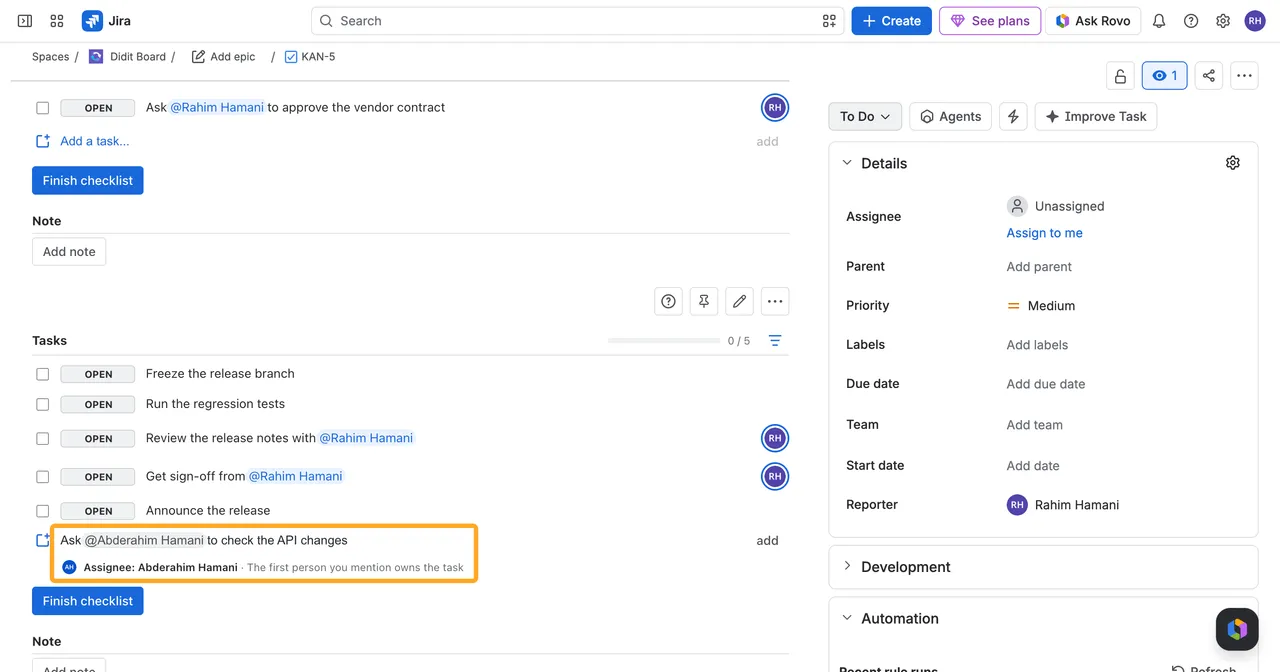
-
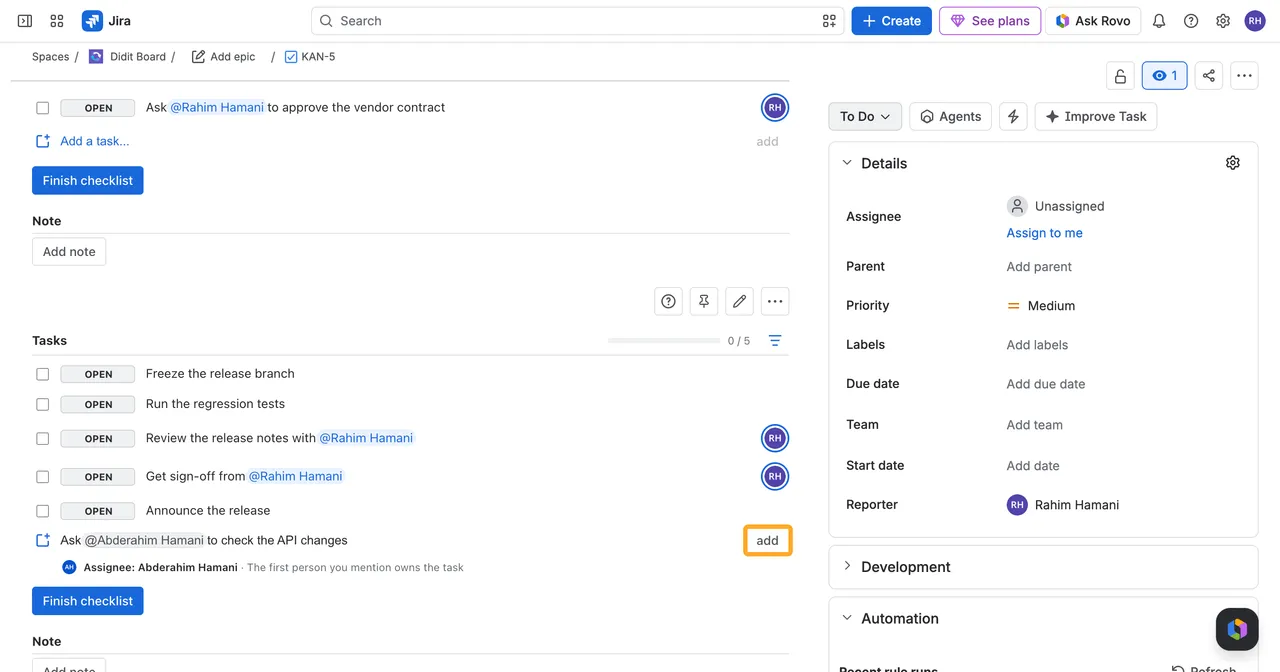
Click “add” or press Enter to save the task.
On a checklist that is linked to a Jira work item, the person now gets an email.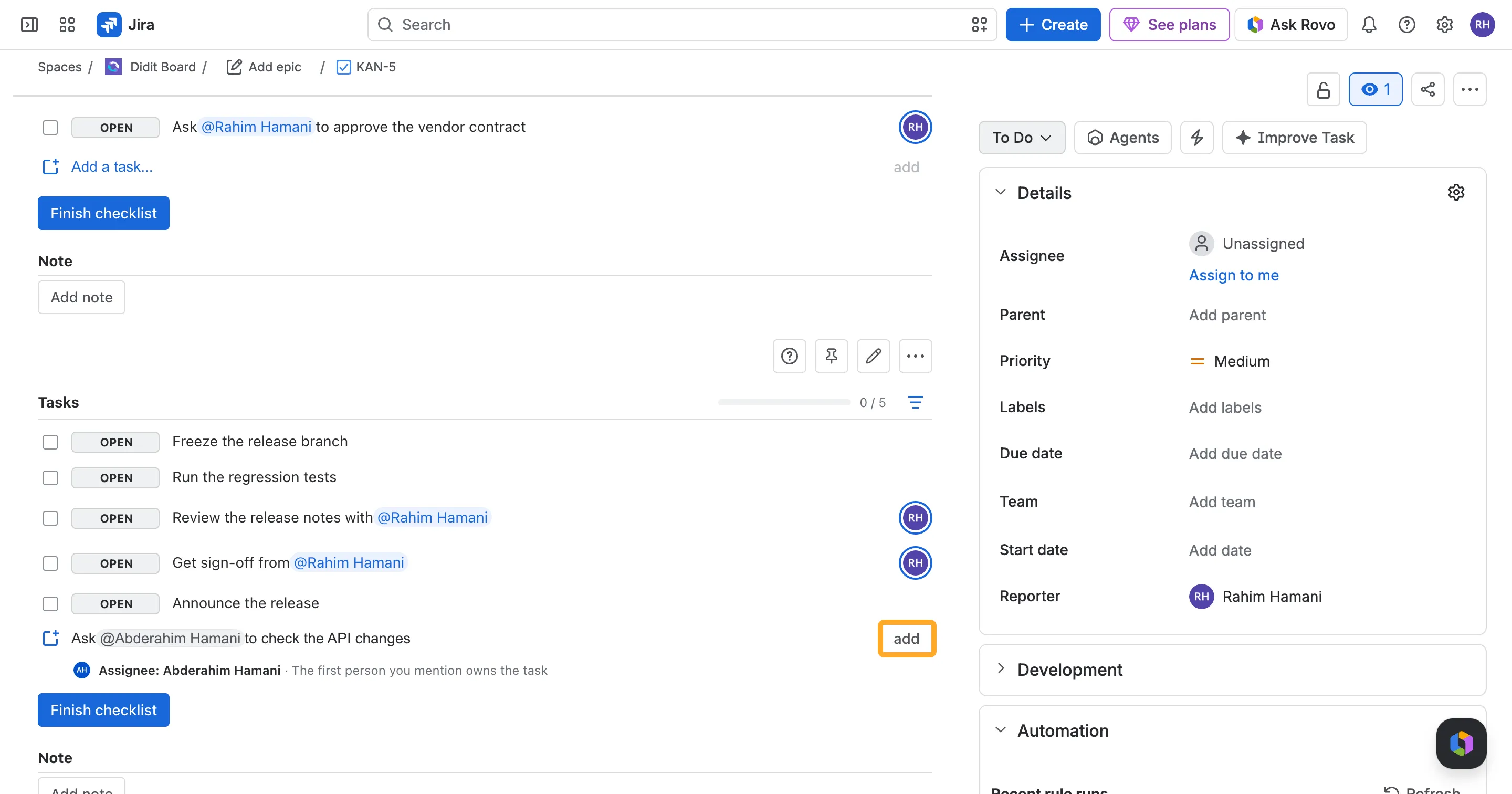
Your own name shows in blue, other people’s names in grey. A red name belongs to someone who can’t open the checklist.
Assign a task
The first person you mention in a task’s title owns the task. In “Ask @Ben whether @Lena rotated the key”, Ben owns the task and Lena is only mentioned.
- The owner’s picture shows at the end of the task, with a ring when it’s you.
- The task is on the owner’s Manage my tasks page until it’s done or skipped.
- The owner’s email says they were assigned the task.
Mentions further along the title, or in a description or note, don’t assign. Headings have no owner.
When someone can’t open the checklist
A mention or an assignment doesn’t give access. Only the people and groups in the checklist’s permissions can open it, and a checklist takes its permissions from its template when it’s created.
If you mention or assign someone who can’t open it, Didit shows them in red:
- their name in the text;
- the ring around their picture, when they own the task;
- the line under the field, for example “Abderahim Hamani can’t see this checklist”. In a template it reads “won’t see the checklists created from this template”.
Hover a red name to see why. The person won’t find the task on Manage my tasks, and the checklist won’t open for them, even if Jira emails them about the work item.
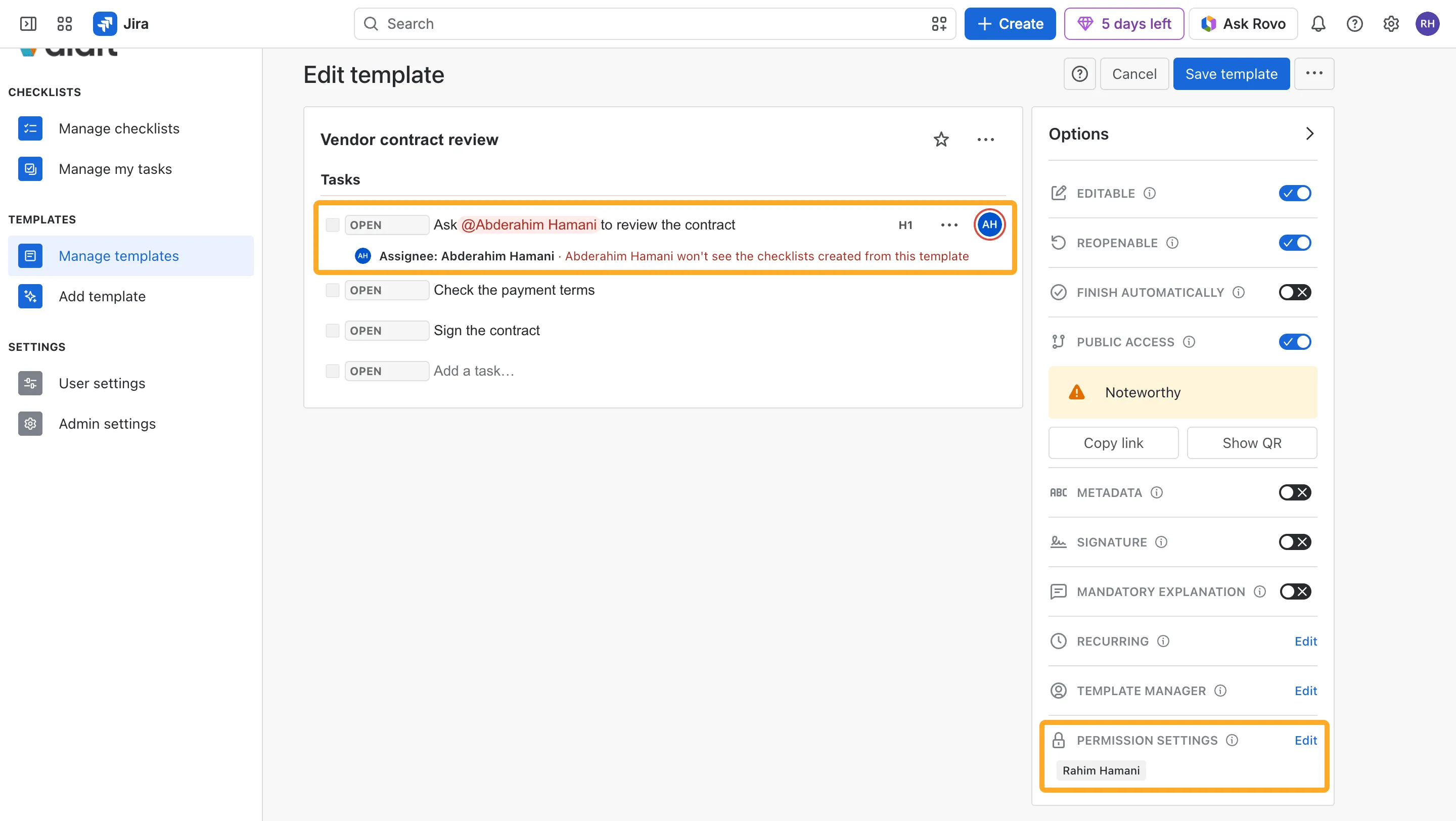
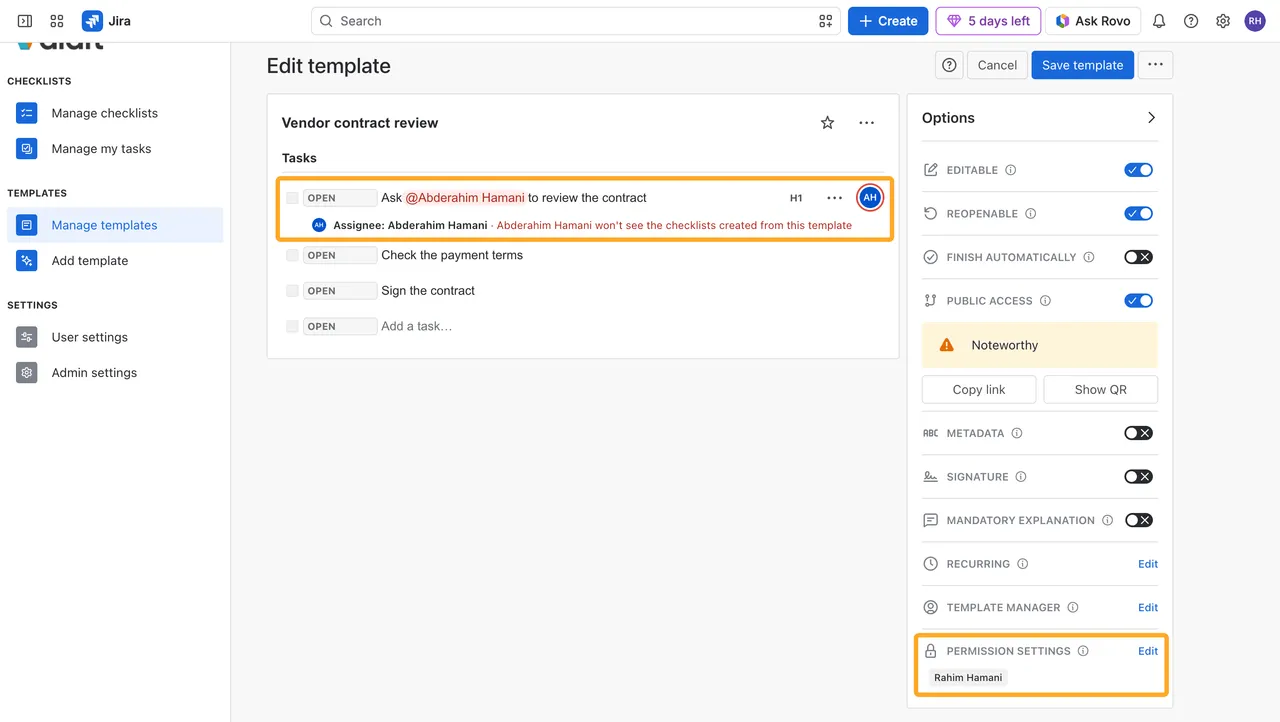
To fix it, open the template, choose Edit next to Permission settings and add the person or one of their groups. The template editor updates the red marks as you type, before you save. New checklists from the template get the new permissions. A checklist that already exists keeps the permissions it started with.
Where you can mention
- Task and heading titles
- The description of a task, a heading or the whole checklist
- Task notes and the checklist note
- Templates: every checklist made from the template names the same people
Copying a task keeps its mentions when you paste it into another task.
The email
Jira sends the email, so it follows each person’s Jira notification settings and only reaches people who can open the work item. It names the steps that mention the person, and Jira adds a link to the work item. A task owner’s email says they were assigned the task.
The email goes out when:
- someone adds a mention and saves, on a checklist linked to a Jira work item;
- a checklist made from a template is added to a work item, either as the project’s default template when the work item is created, or when someone picks the template in the work item;
- a Jira Automation rule adds a checklist. The email says a rule added it. When a rule adds a template to a checklist that’s already there, only people who weren’t mentioned in it yet get an email.
There is no email for checklists that aren’t linked to a work item (including Confluence checklists), for mentioning yourself, for editing a task that already mentions the person, or for checklists created through the API.
Admins can turn the email off for the whole site: How to turn mention emails on or off.
See your tasks
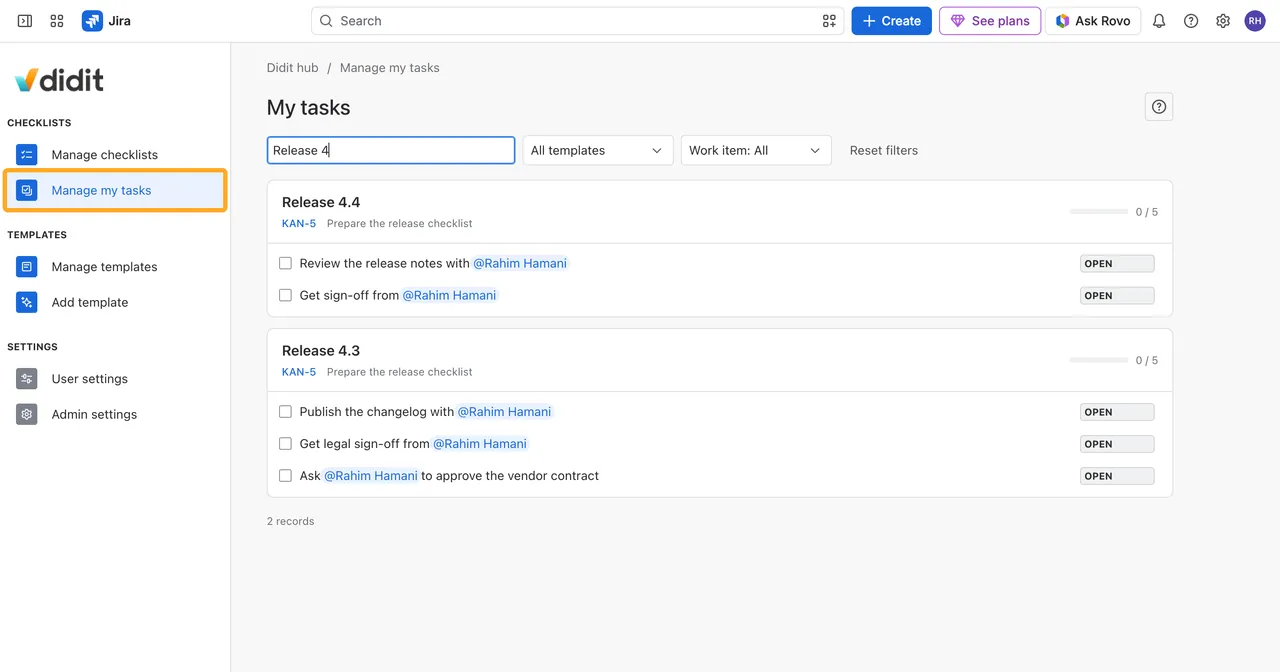
In the Didit hub, choose Manage my tasks. Each checklist where you own an open task gets a card with those tasks, the progress, the work item and the due date. Click a card to open the checklist and work on the task there. The search finds checklists by name and by task title.
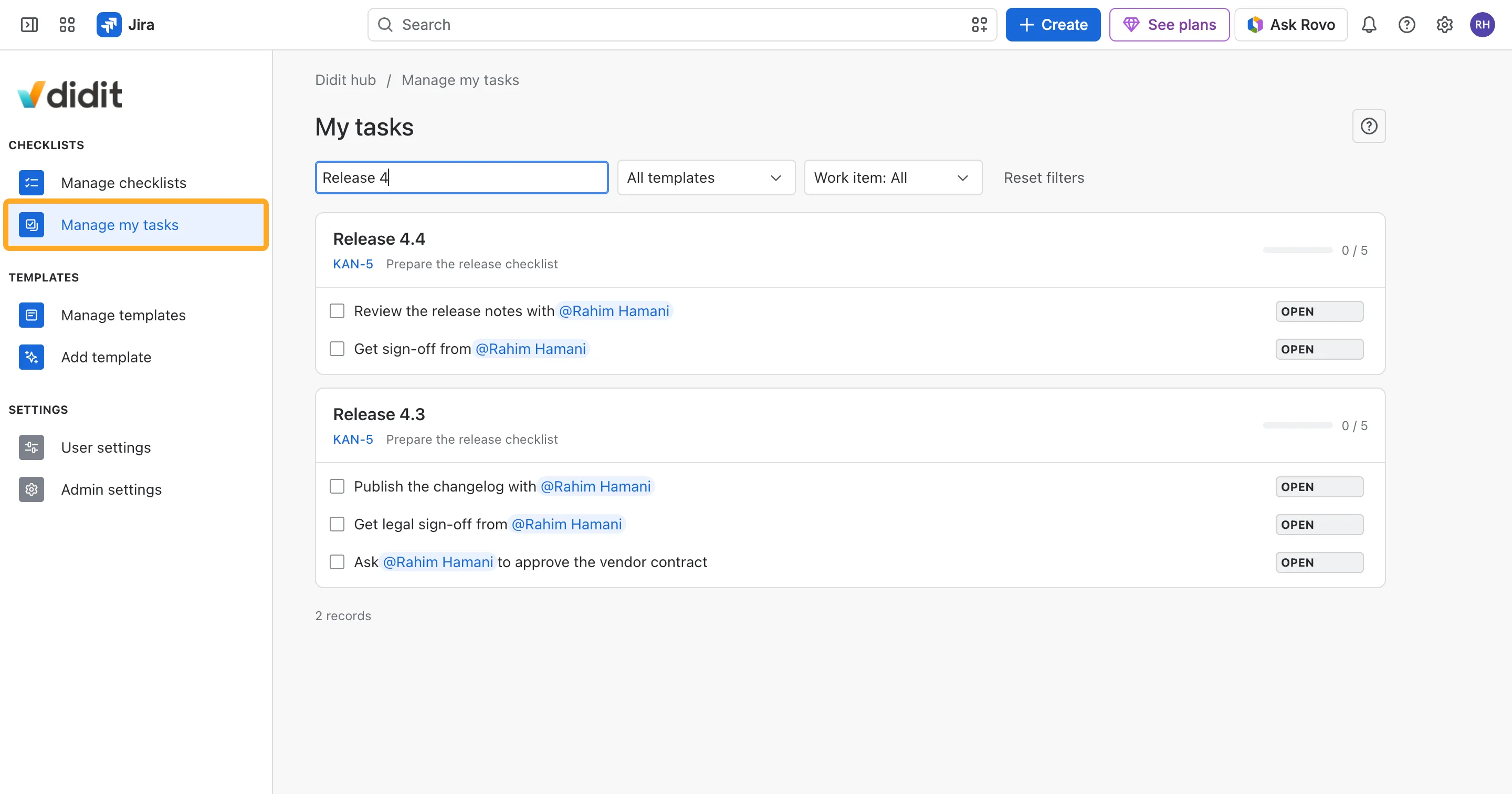
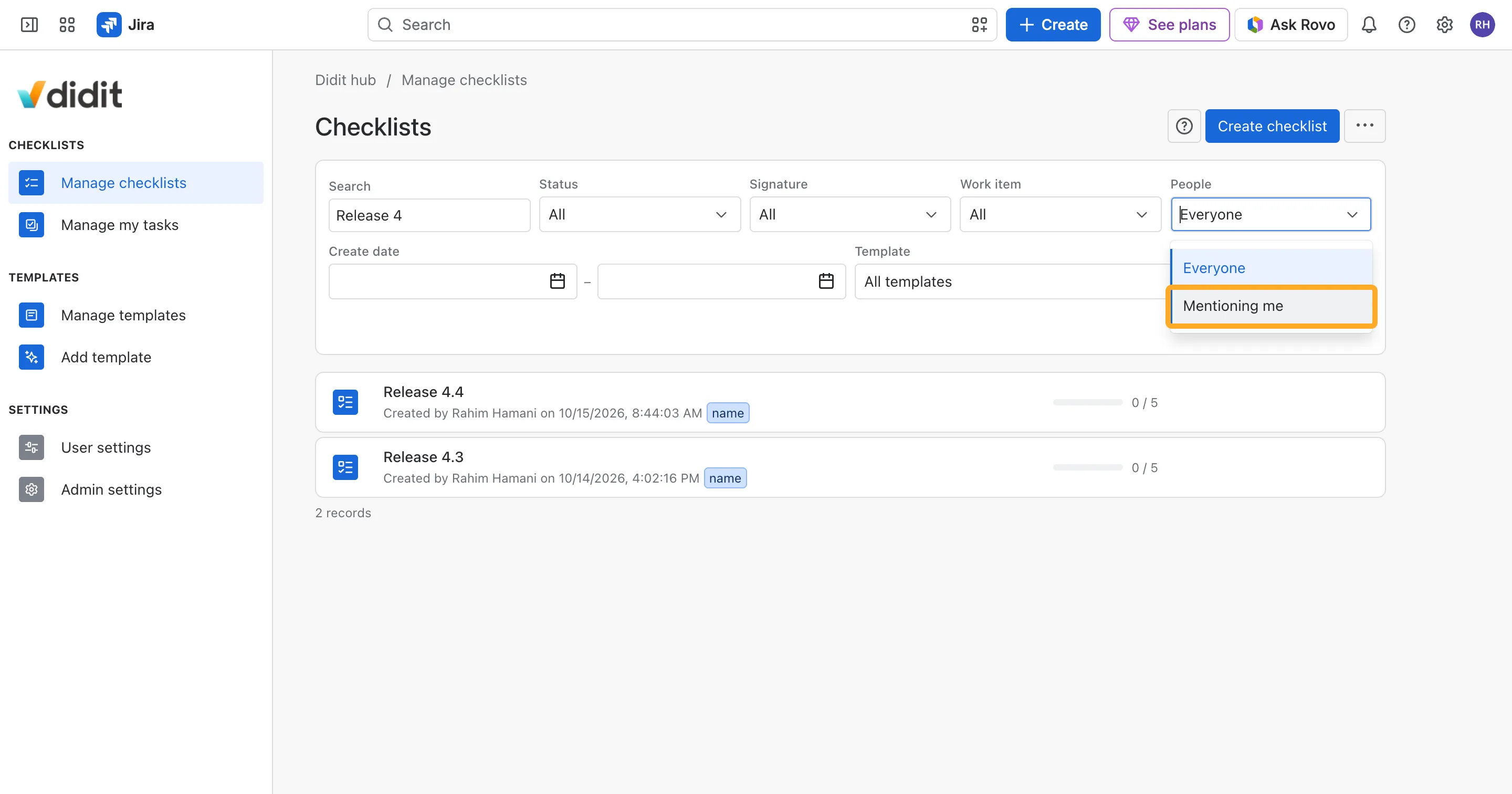
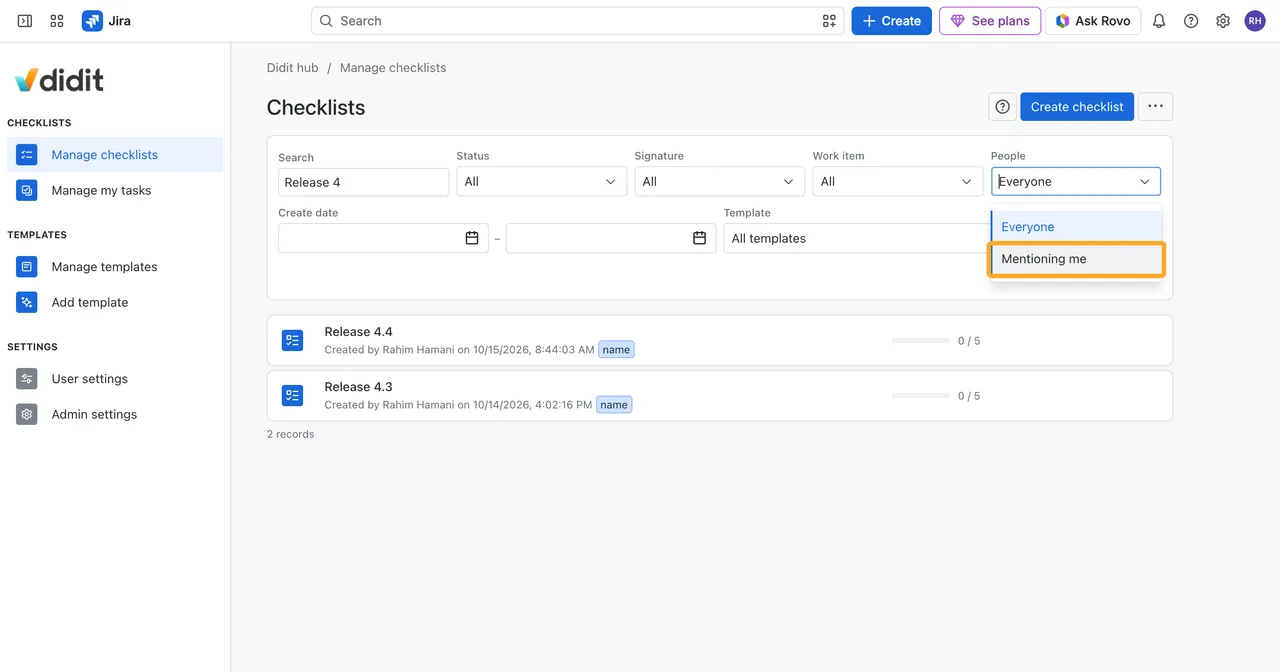
On the Checklists page, set the People filter to Mentioning me to find every checklist that names you, including the ones where you own no task.
Find work items in Jira
Every Jira work item has two read-only fields for its checklists:
- Checklist mentions lists everyone mentioned.
- Checklist assignees lists everyone who owns an open task.
Use them in filters, boards, dashboards and automation:
"Checklist mentions" = currentUser()
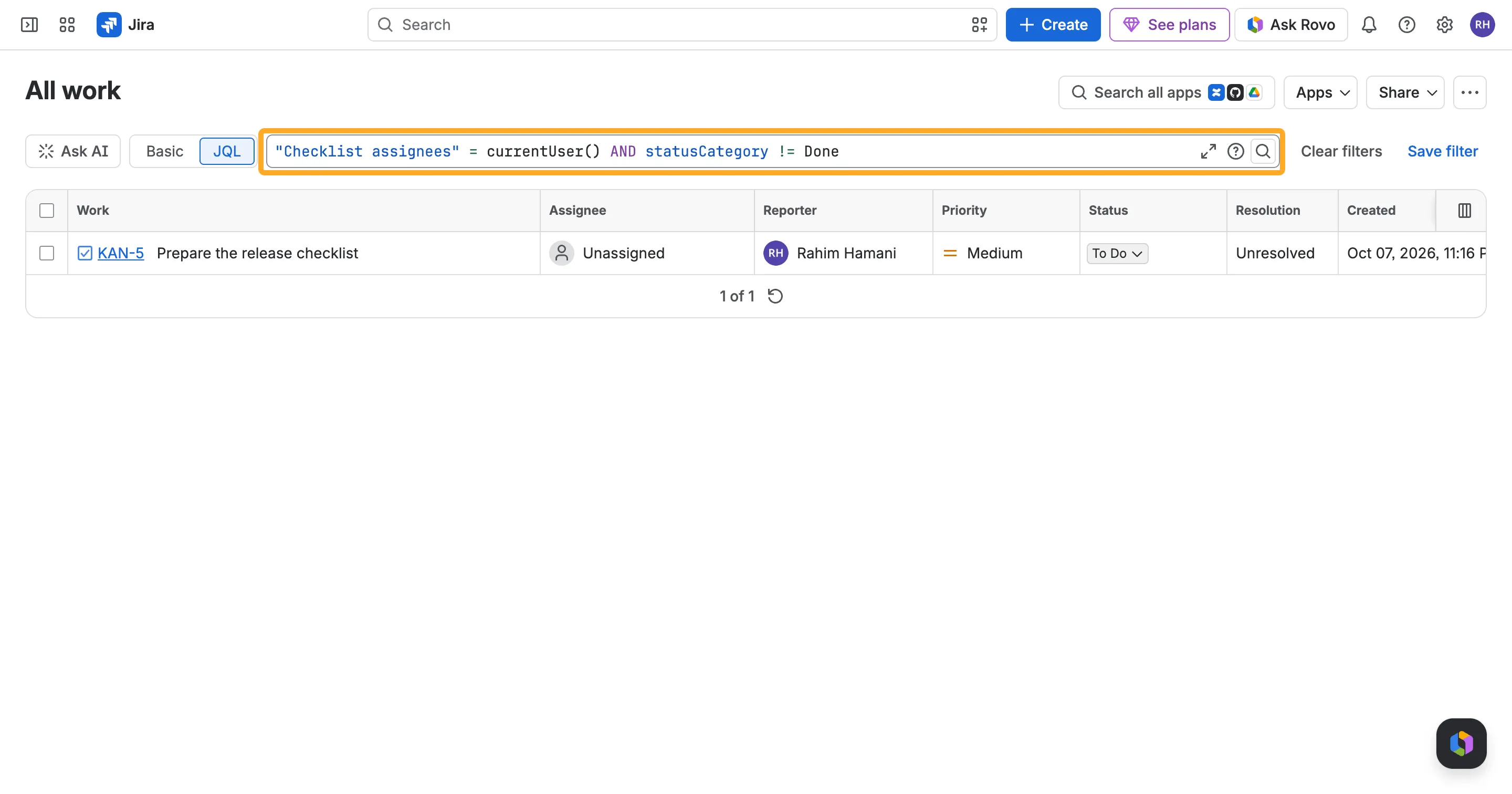
"Checklist assignees" = currentUser() AND statusCategory != Done