How to migrate your automation rules to Forge
Once Didit runs fully on Atlassian Forge, automation rules that start Didit by setting the didit.action issue property stop working: Forge apps aren’t notified when an issue property is set (Atlassian ticket FRGE-55). Migrate these rules to the Didit actions, which come with the Connect on Forge version 5.x of Didit.
Old rules fail silently
After the full Forge release, these rules still run and report success in their audit log, but Didit does nothing. Migrate them before then.
Everything else keeps working
Only rules that set didit.action need migrating. Didit custom fields in rules (for example, checking whether a checklist is complete), workflow validators and post functions, and Didit for Confluence keep working as they are.
Before you start
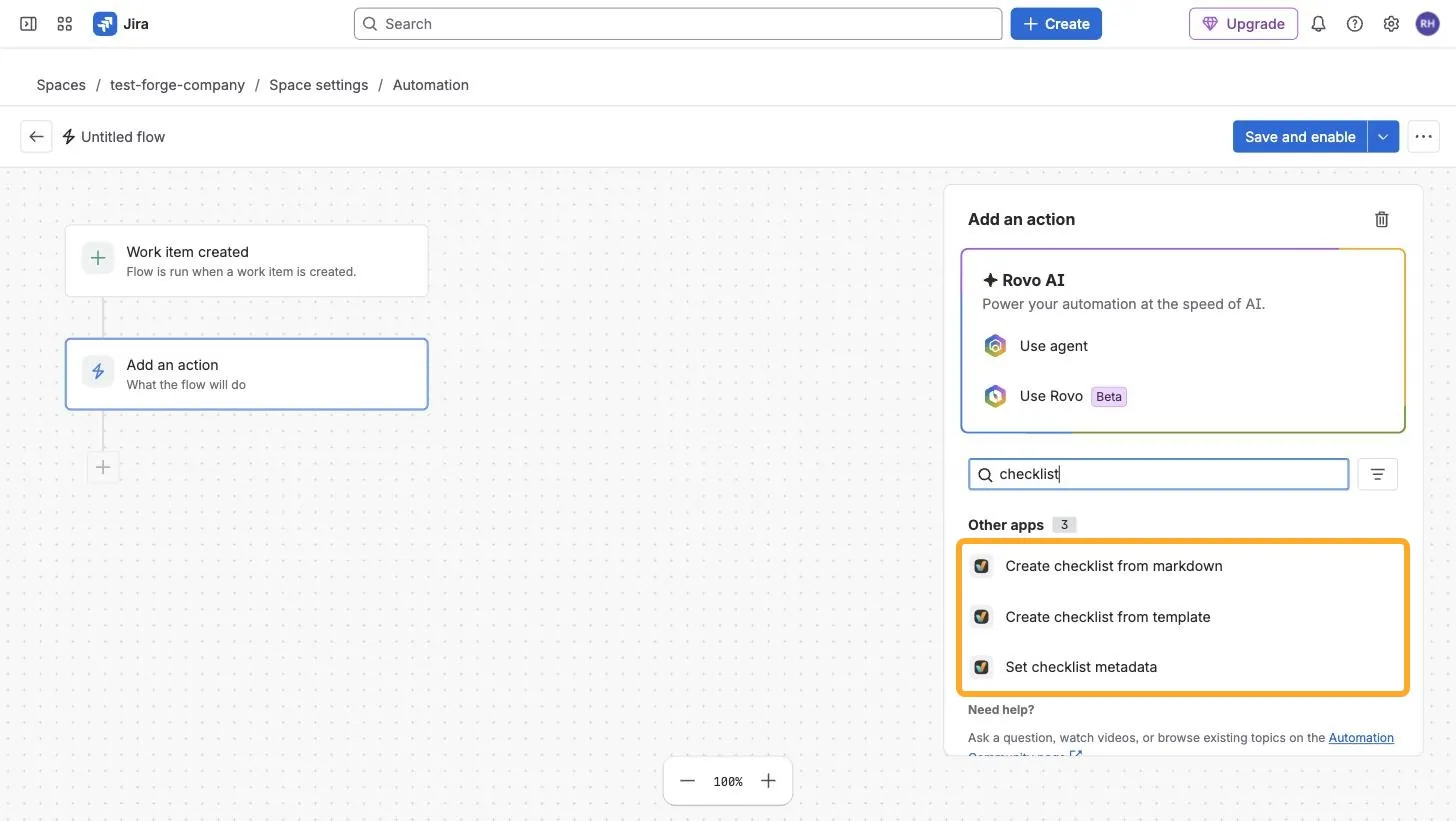
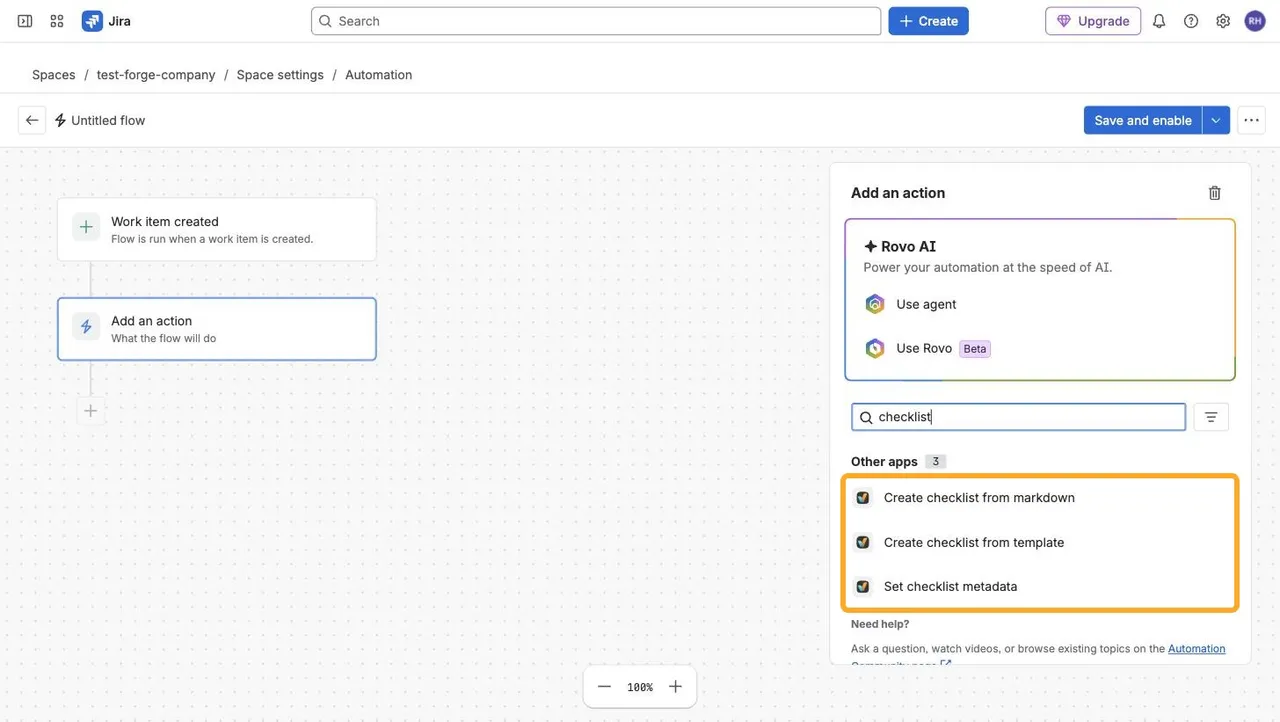
- Make sure you have the Didit actions. Search for “checklist” in a rule’s actions: you should see the three Didit actions under Other apps. If not, update Didit to the latest version 5.x.
- Check your permissions. As a Jira administrator, you can migrate the rules of all projects at once, including global rules, with the script or by hand. Project admins can only migrate their own projects’ rules, by hand. The script, the Forge readiness tab, and the export of all rules need a Jira administrator.
Rules or flows?
Jira now calls automation rules flows and projects spaces. This guide uses rules and projects, like Didit.
Migrate your rules
With more than about 10 rules to migrate, we recommend the script: it migrates all your rules at once. With fewer, migrating them manually is usually quicker.
In every rule that sets didit.action, including global rules, the script swaps the old action for the matching Didit action and connects it in your name. The rest of the rule stays as it is. The script runs on your computer with your own account, writes a backup first, and sends nothing to Didit.
What you need
- A Jira administrator account and Node.js 18 or later.
- An API token for your account, with a short expiry date.
- One rule that already uses a Didit action, so the script can read your site’s Didit details.
-
Export all your rules: in Jira settings (⚙), select System → Automation flows, then More actions (…) → Export flows. Click Next, then Done.
-
Download the migration script into the same folder, and open a terminal there.
-
Set your email address and API token.
On macOS or Linux:
export ATLASSIAN_EMAIL=you@example.com
export ATLASSIAN_API_TOKEN=your-api-token
On Windows, in PowerShell:
$env:ATLASSIAN_EMAIL = "you@example.com" $env:ATLASSIAN_API_TOKEN = "your-api-token" -
Do a dry run with your export file and your Jira site. It lists the rules it would change, and changes nothing.
node migrate-automation-rules.mjs api automation-rules-202610051200.json --site your-site.atlassian.net -
If the list looks right, run it again with
--apply.node migrate-automation-rules.mjs api automation-rules-202610051200.json --site your-site.atlassian.net --applyTo try one rule first, add
--ruleand the rule’s name, like--rule "Add DOD". If some rules fail, run the same command again with--only-failedand the results file the script wrote. -
Rebuild the rules marked ⚠ manually.
The script skips values it doesn’t recognize. It also doesn’t connect rules that have other connections, like Slack: open these rules, click the Didit action, and click Connect.
-
Delete the API token, and keep the backup file until you’ve tested your rules.
To undo the changes, run
restorewith the backup file. Without--applyit’s a dry run that lists what it would restore. Run it again with--applyto restore. It skips rules you’ve changed since.node migrate-automation-rules.mjs restore didit-rules-backup-1791275303544.json --site your-site.atlassian.net


Find the rules that use the old trigger with the Forge readiness tab, as shown in How to check if your site is ready for Forge (opens in a new tab). Then rebuild each rule: swap only the action, and keep the rule’s trigger, conditions, and branches.
-
Open the rule and copy the property value of its Set entity property action with the key
didit.action.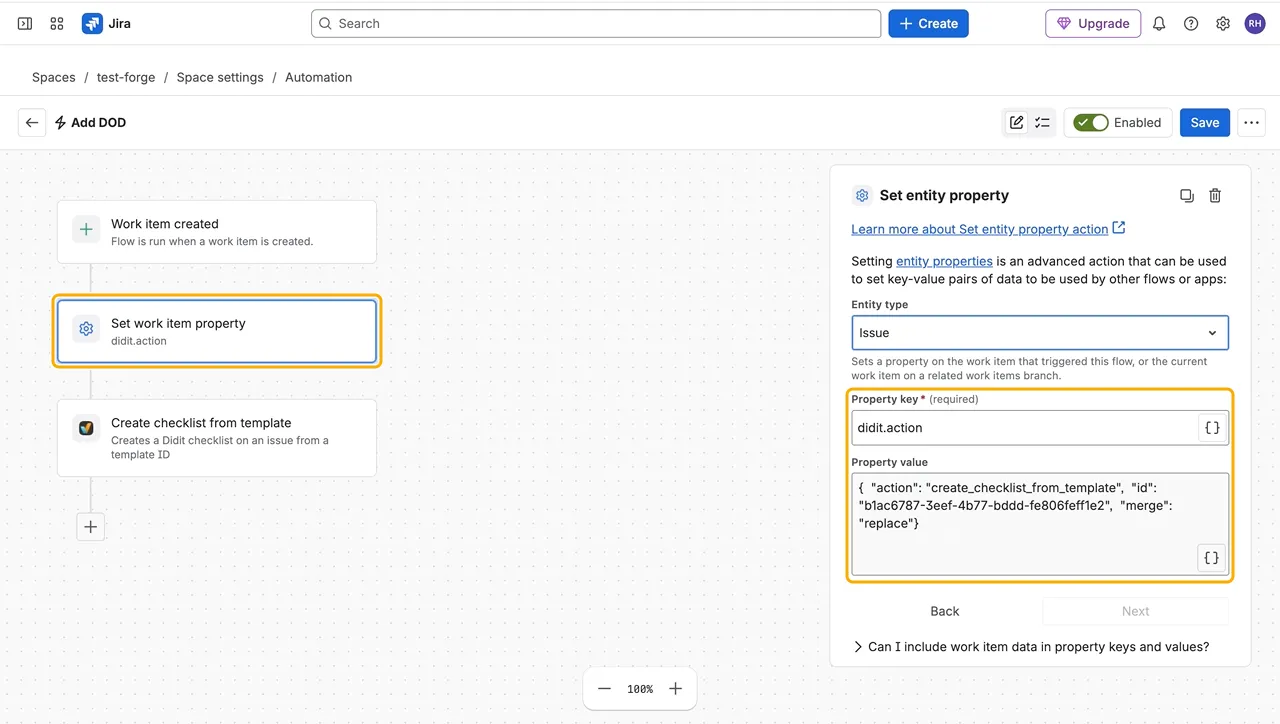
-
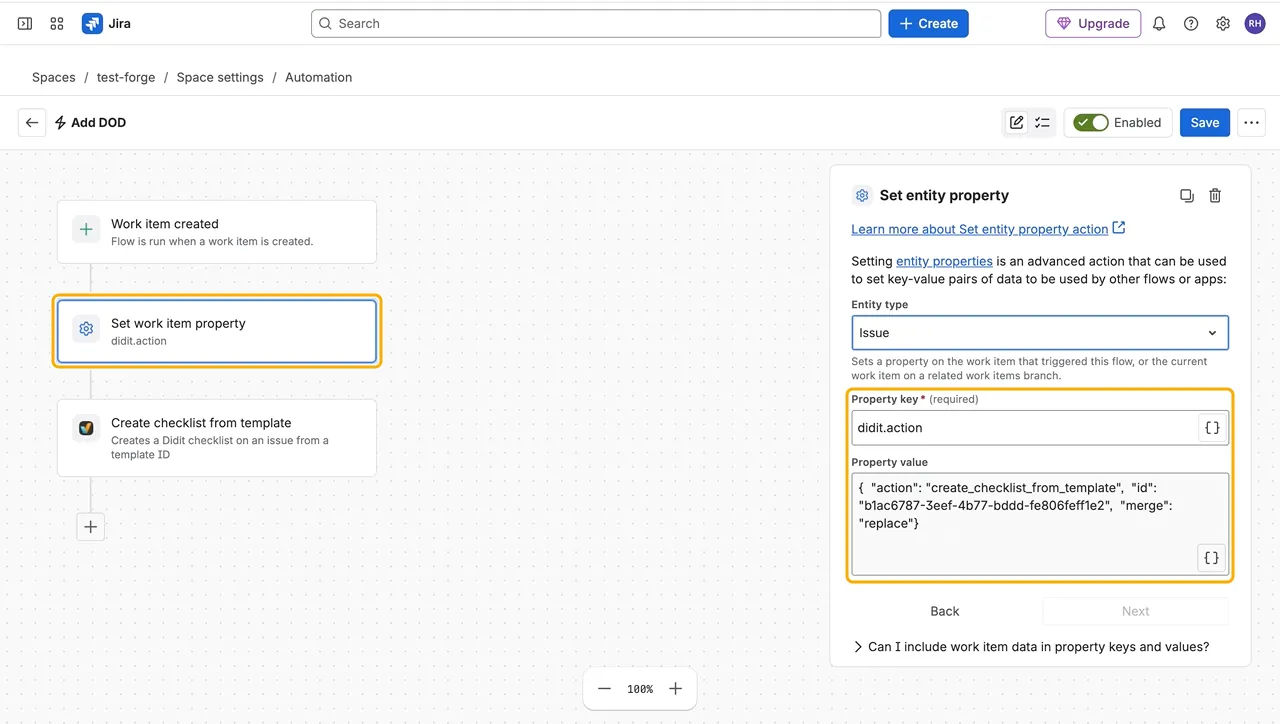
Right below it, click + → Action, search for “checklist,” and pick the Didit action under Other apps.
Pick the ones with the Didit icon. In older rule builders, click Add component → THEN: Add an action.
-
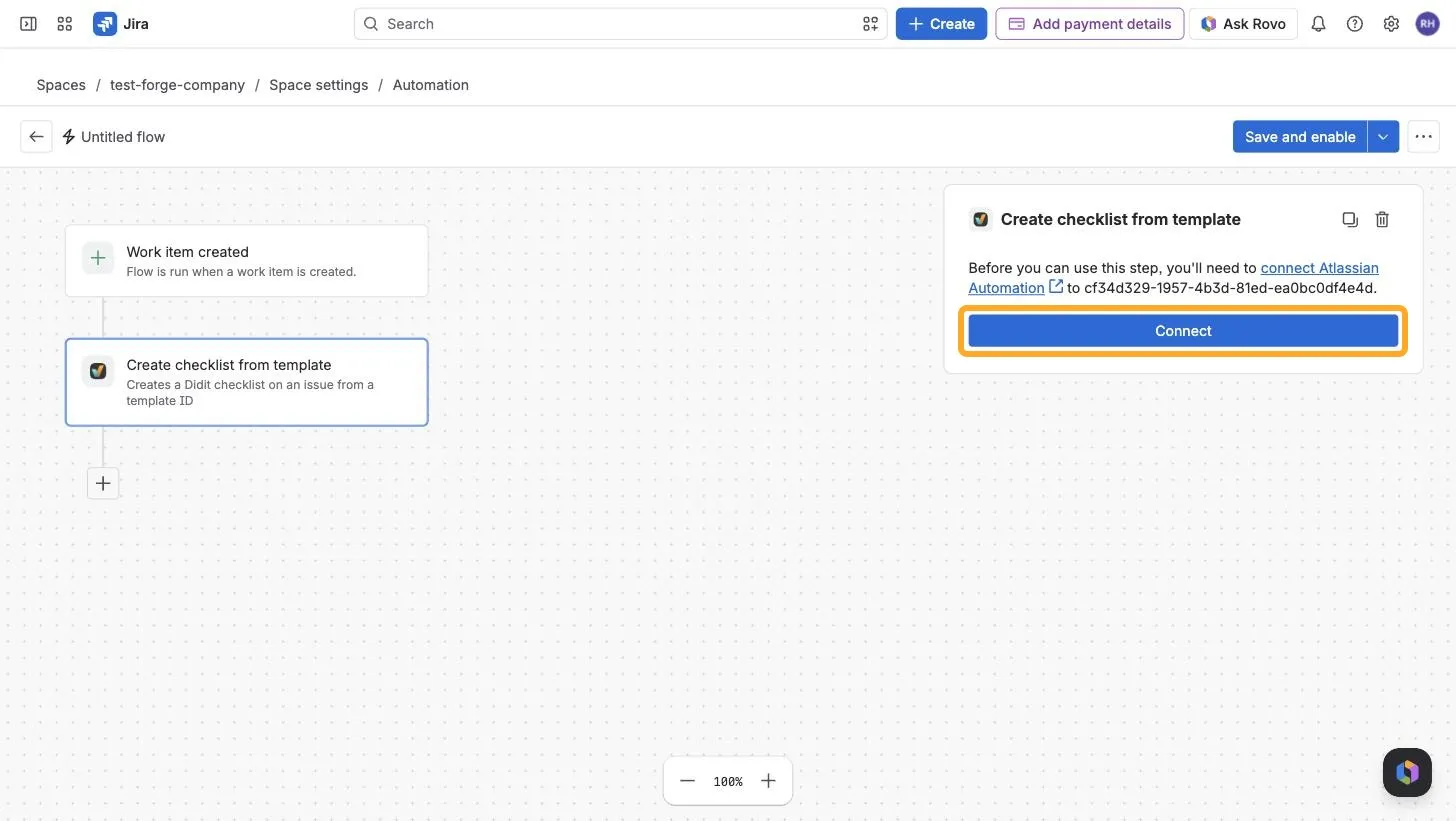
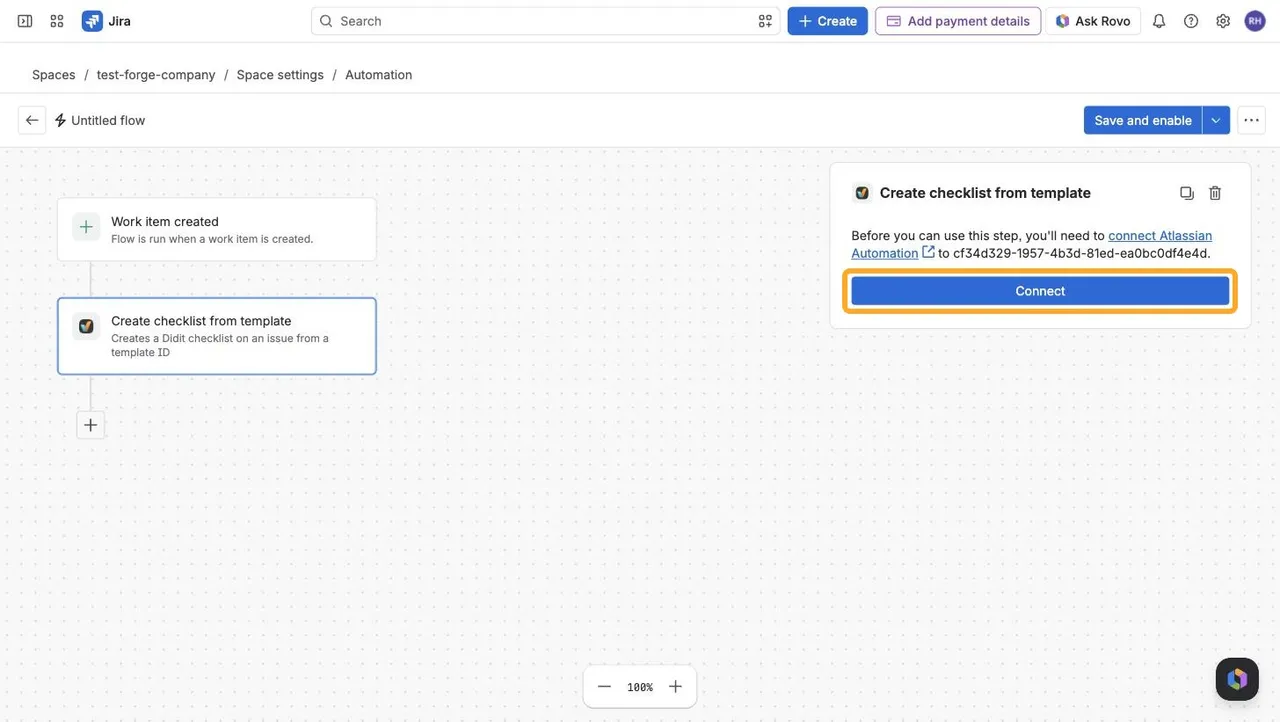
If Jira asks you to connect Atlassian Automation to Didit, click Connect. One connection covers the whole rule.
-
Fill in the Didit action with your old values, as shown in Which value goes where.
-
Delete the old Set entity property action.
Don’t keep both: until the full Forge release, the rule would run Didit twice.
-
Save the rule and make sure it’s turned on.
Which value goes where
| Old value | Didit action | Fill in |
|---|---|---|
"action": "create_checklist_from_template" | Create checklist from template | Template: choose Entering an ID and paste the "id". If a checklist already exists: the option in "merge", or Fail if there’s no "merge". |
"action": "set_metadata" | Set checklist metadata | Metadata field name: the "name". Value: the "value". |
Markdown (it starts with #) | Create checklist from markdown | Markdown: the whole value. |
- The template action preselects Replace, so change it if your old value has no
"merge". - Smart values like
{{issue.summary}}work in the new actions too. - Unlike before, Fail and invalid Markdown show an error in the rule’s audit log.
To see each action’s form, go to How to use the Didit actions in Jira Automation.
Tips
- If the old action sits inside a branch, like For: Sub-tasks, add the Didit action inside the same branch.
- If a rule sets
didit.actionmore than once, add one Didit action for each. - To copy a template’s ID, open the Didit automation wizard from the template’s ⋯ menu under Manage templates.
Test your rules
-
Trigger the rule on a test work item, for example by creating one.
-
Check that the checklist appears or the metadata is set, and that the rule’s audit log shows a successful run.
Then confirm you’re done: export all your rules again and drop the file on Check if you’re all set in the Forge readiness tab. Projects with no old rule left drop off Impacted projects, and if no rule uses the old trigger, the tab says All good, as described in How to check if your site is ready for Forge (opens in a new tab).
Frequently asked questions
Before the full Forge release. Until then, old and new rules both work, so you can migrate at your own pace.
Atlassian doesn’t let apps read or change automation rules. That’s why the migration script runs with your own account.
Need help? Reach out to our support team or chat with us.