Show checklists as tabs
When a work item has more than one checklist, the Didit panel shows them one below the other. Switch to Tabs to get one tab per checklist, so only the checklist you’re working on is open.
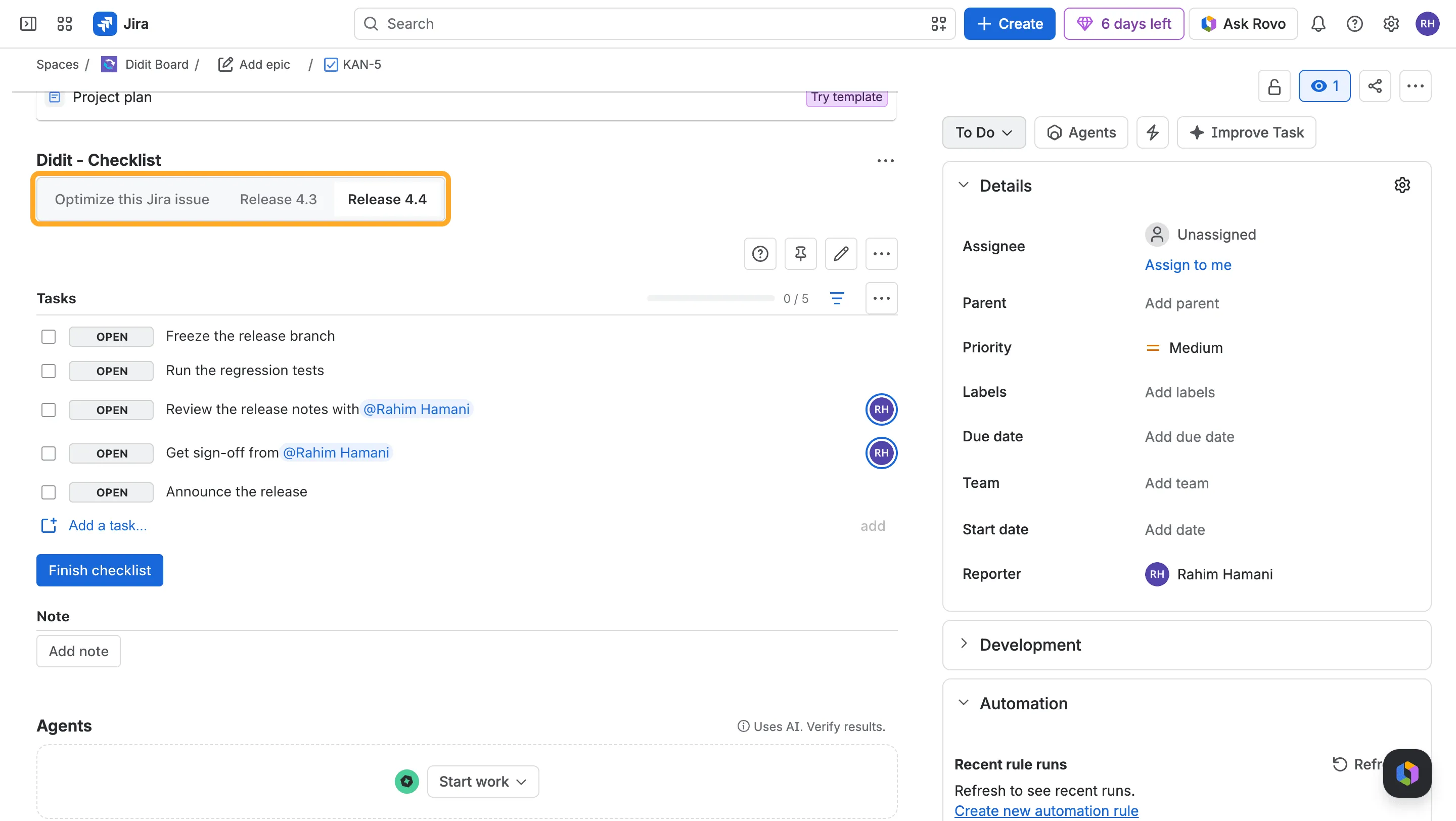
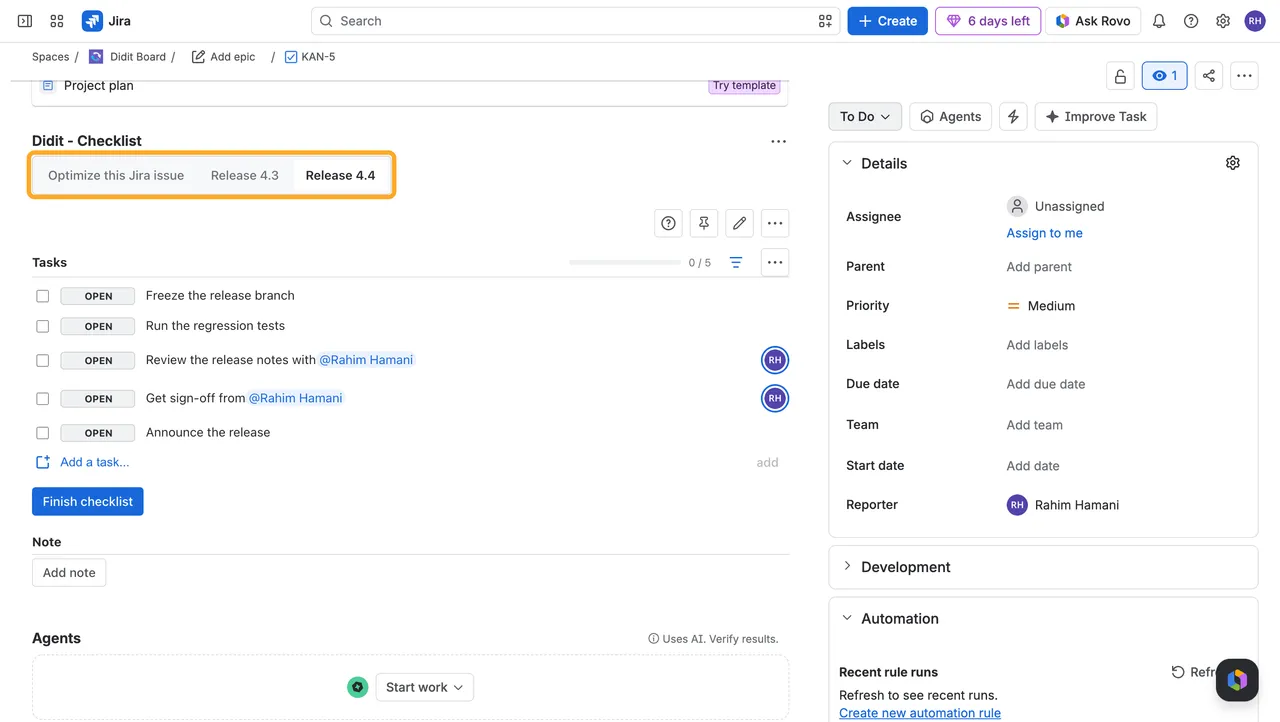
Turn on tabs
-
Open the Didit hub and choose “User settings.”
-
Under “Checklists on a work item,” choose “Tabs.”
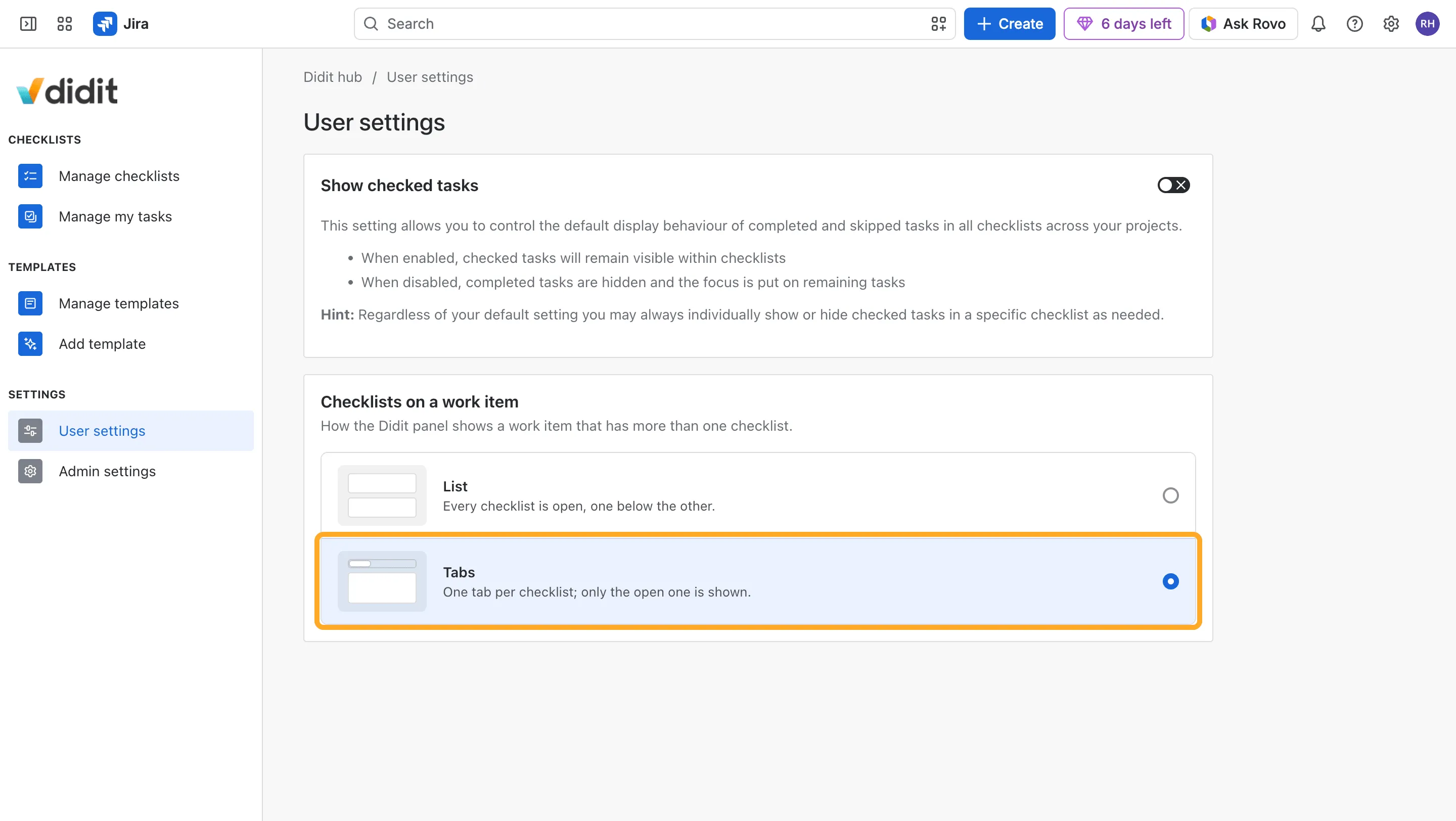
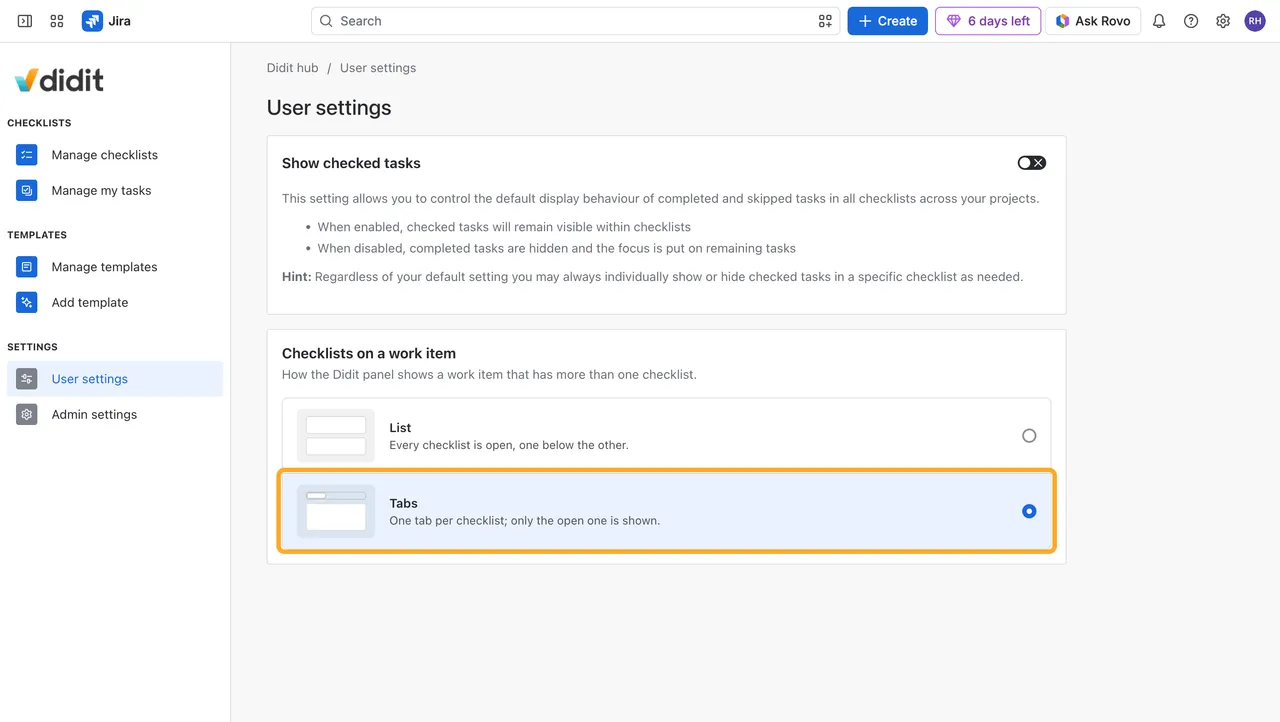
The setting is saved right away and is yours alone; everyone else keeps their own choice. List is the default.
Work with tabs
- Switch checklists: Click a tab, or use the arrow keys once a tab has focus.
- Long names: A long checklist name is cut off in its tab. Point at the tab to see the full name.
- One checklist: A work item with a single checklist looks the same in both layouts.
Add a checklist
Choose Add new checklist to issue in the checklist’s ”…” menu. A New checklist tab opens, and you fill out the new checklist there.
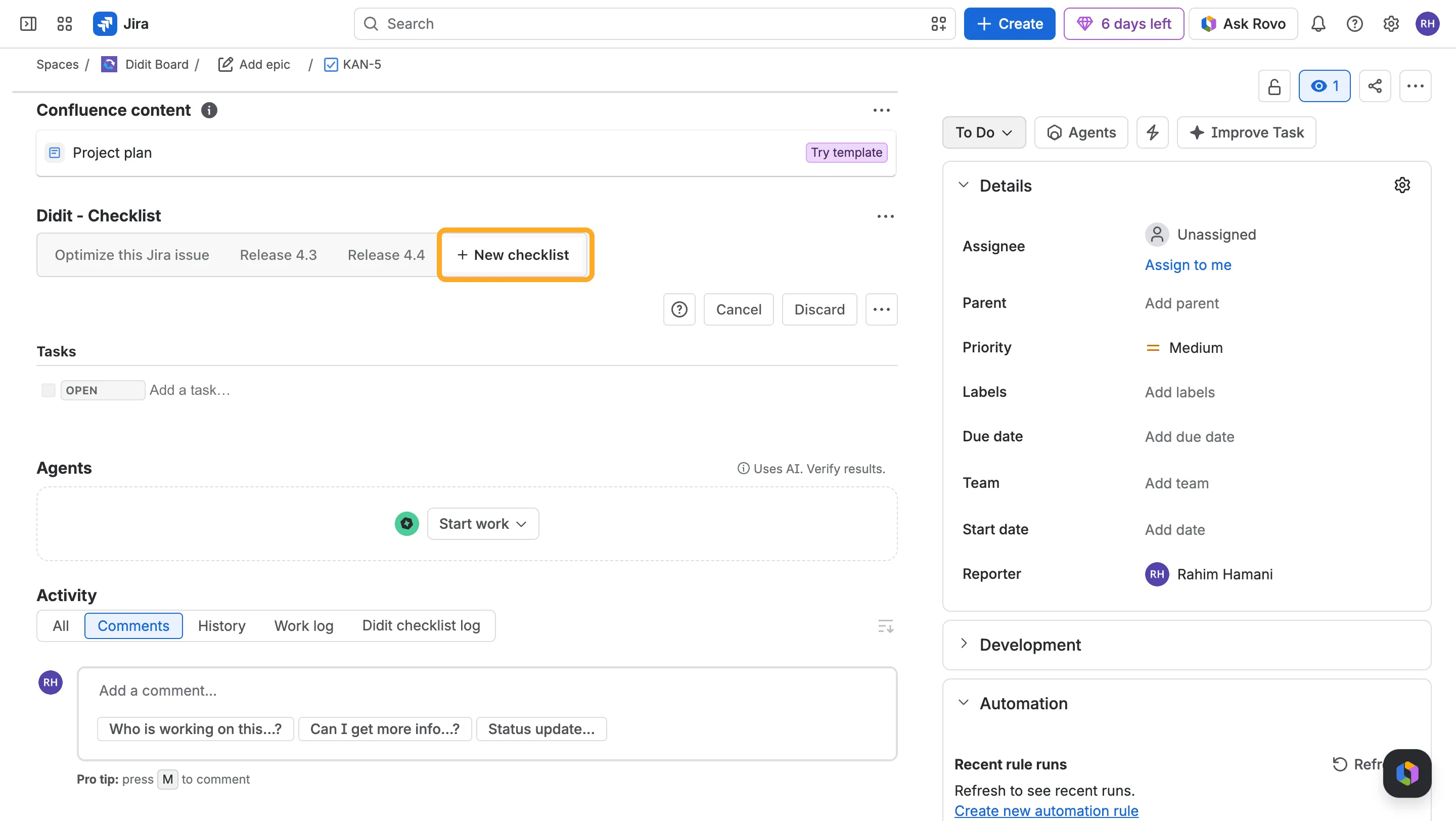
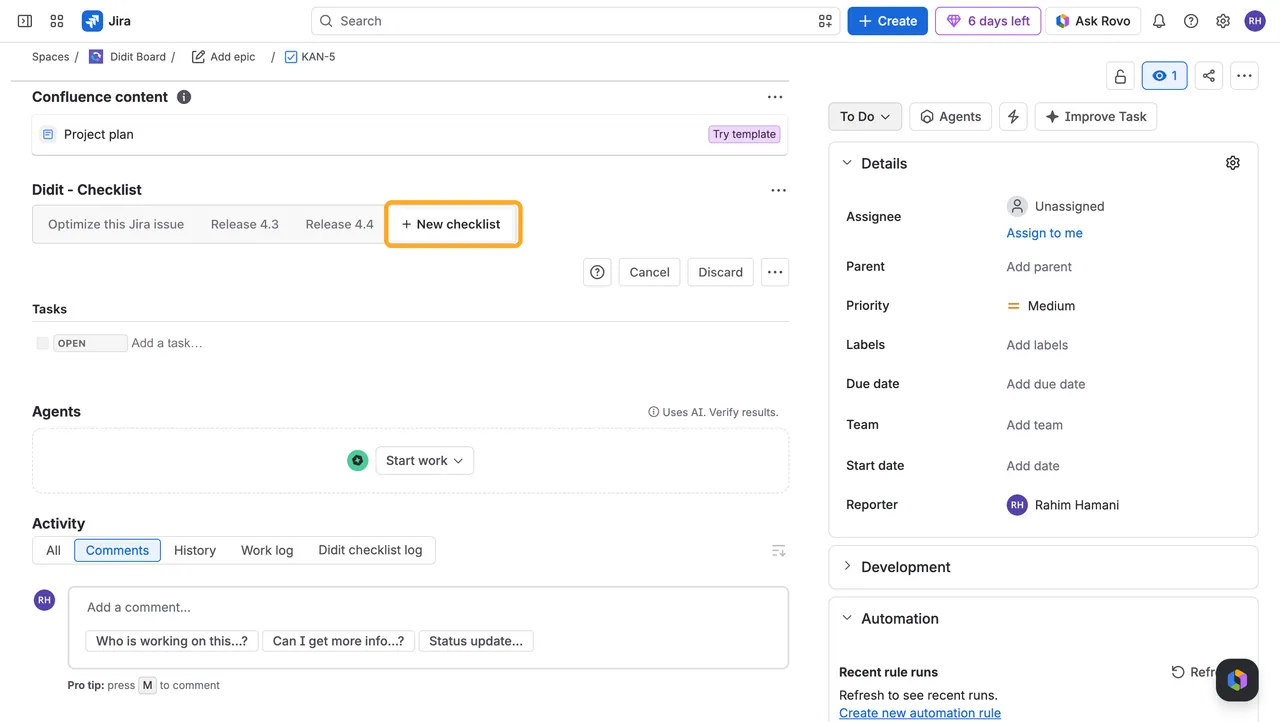
- What you’ve typed stays while you look at other tabs.
- When you save, the new checklist gets its own tab, named after it.
- Discard removes the tab and takes you back to the checklist you had open.
Good to know
Does the setting change anything in Confluence?
No. It only applies to the Didit panel on Jira work items.
Do tabs hide anything from other people?
No. Each person chooses their own layout, and every checklist stays on the work item.