Release in November 2026
Put a person right on the step that needs them. Type @ in a checklist, and Didit shows their name and emails them through Jira. The first person in a task’s title owns the task and finds it on their own task list. And checklists now finish themselves as soon as their last task is done. Mark the tasks that have to be done, check or uncheck a whole checklist with one click, and let Jira workflows and automation rules work with single tasks.
What’s new and improved?
@Mentions in Checklists NEW
Type @ in a task, a heading, a description or a note, and pick a person. Their name appears in the text as a chip. Mentions work in templates too, so every checklist made from a template names the same people.
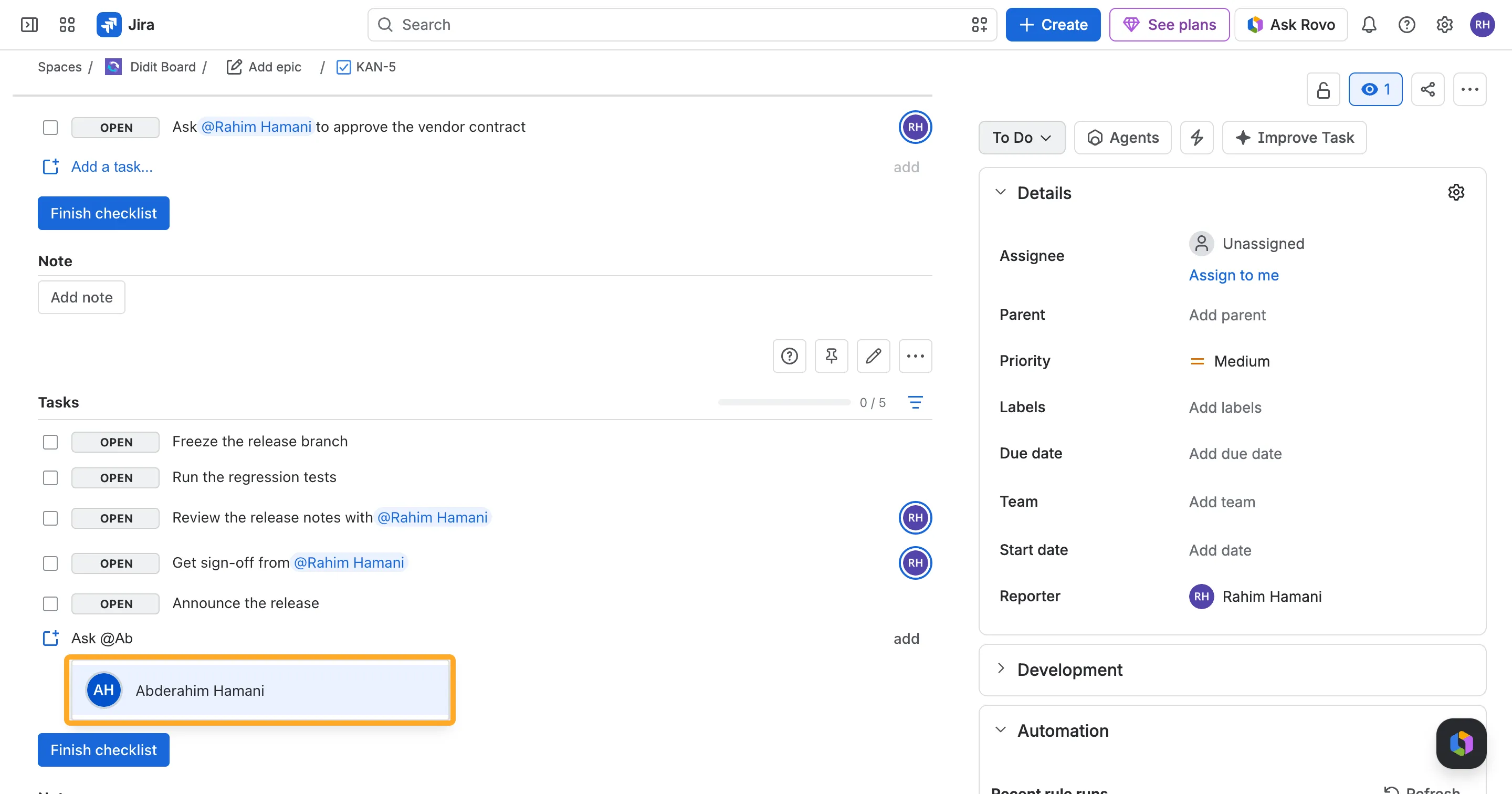
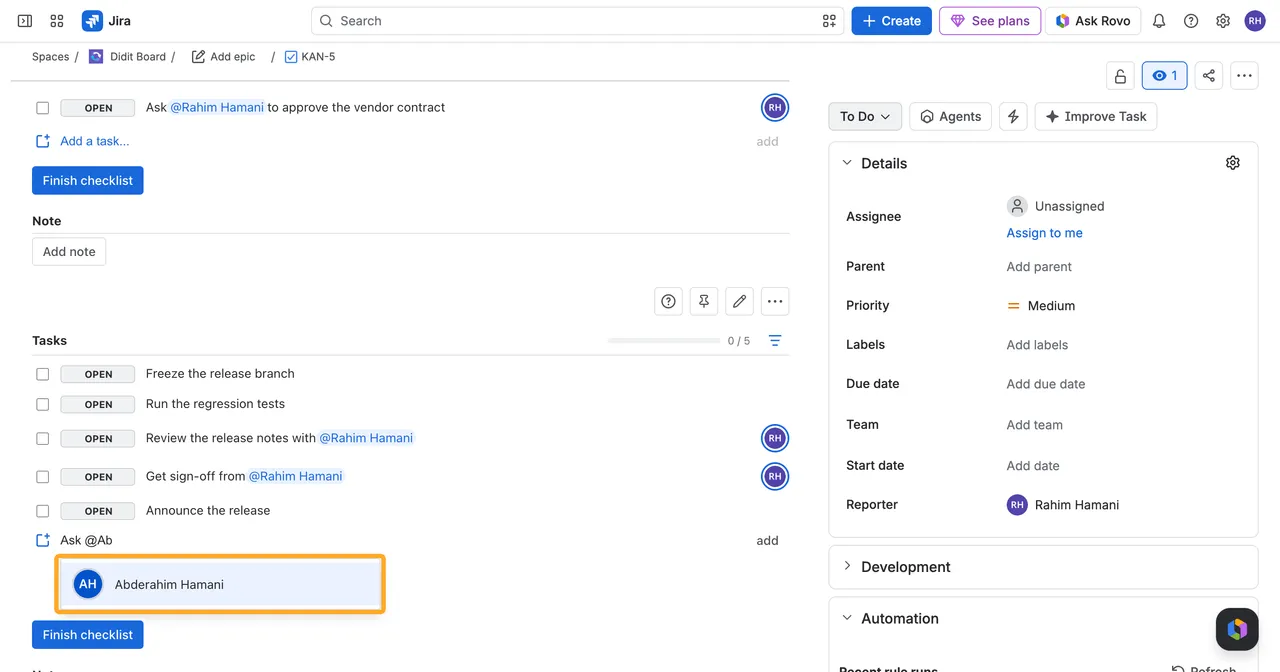
- Suggestions first: A plain @ suggests the work item’s assignee and reporter, the checklist’s creator and anyone already mentioned. Keep typing to search everyone on your site.
- Copy and paste: Copying a task keeps its mentions.
- Always the current name: Didit keeps a reference to the person, not a copy of their name, so a renamed person shows their new name everywhere.
- Red names: A name, and a task owner’s picture, turn red when that person can’t open the checklist. The template editor shows it while you type, so you can fix the template’s permissions before anyone misses a task.
See Mention people and assign tasks.
Assign Tasks with @ NEW
The first person you mention in a task’s title owns the task. Their picture shows on the task, their email says they were assigned it, and the task stays on their Manage my tasks page until it’s done or skipped. Other mentions don’t assign anyone.
Mention Emails Through Jira NEW
On a checklist linked to a Jira work item, the people you mention get an email from Jira that names the steps that mention them, and task owners get one saying they were assigned. Checklists from a project’s default template are included: when the work item is created, everyone the template mentions is emailed once. So are checklists a Jira Automation rule adds with a Didit action.
Admins can turn these emails off for the whole site. See How to turn mention emails on or off. Confluence checklists don’t send mention emails.
Manage My Tasks NEW
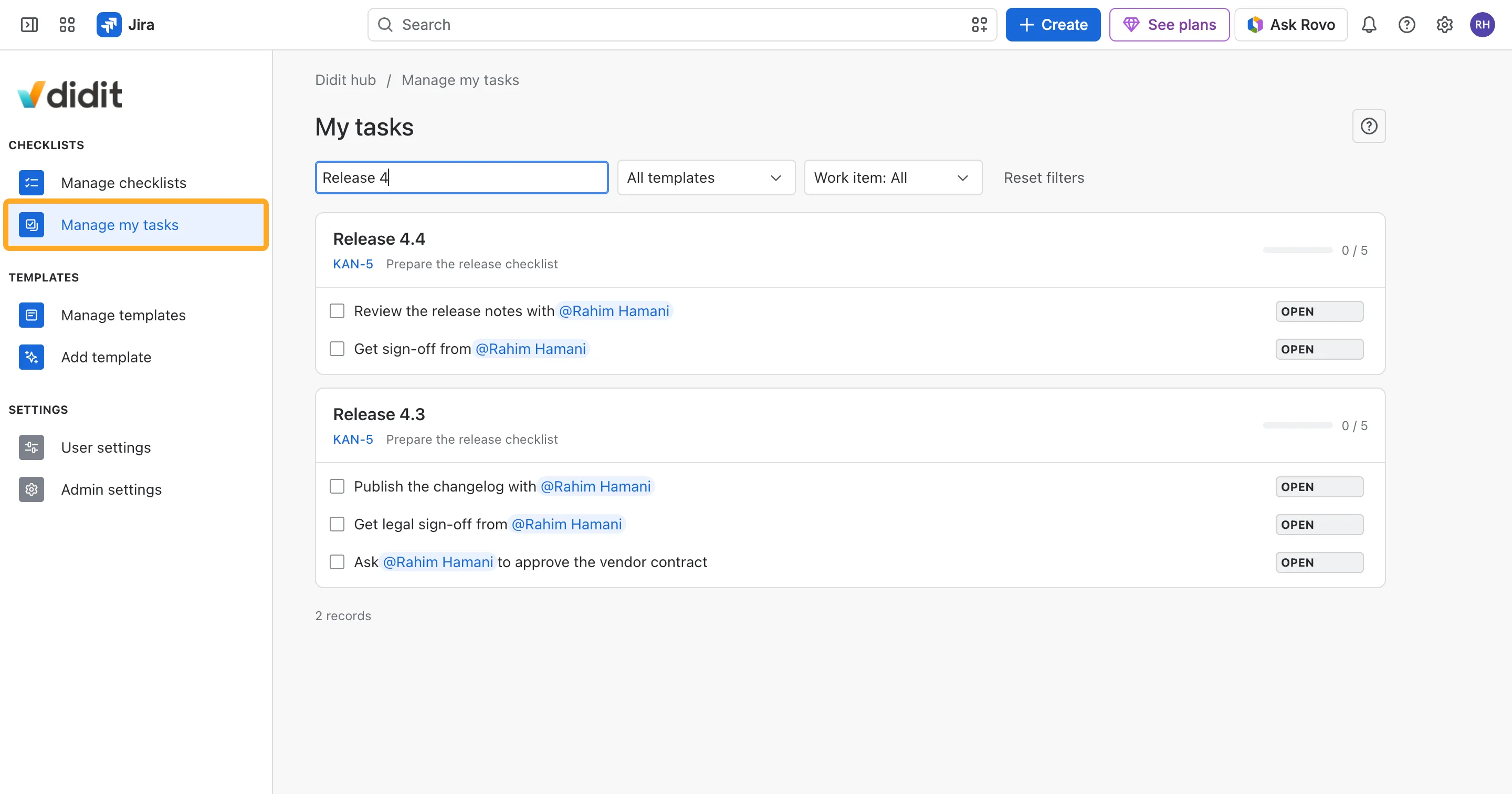
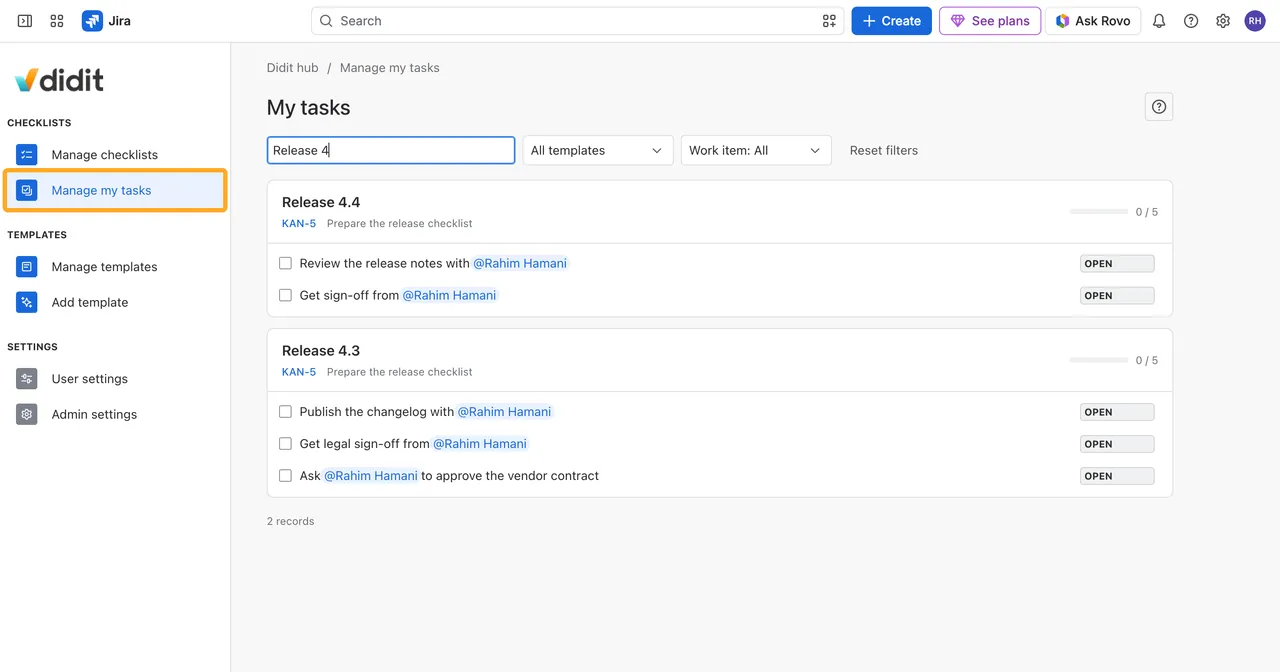
The new Manage my tasks page in the Didit hub, in Jira and Confluence, shows one card for each checklist where you own an open task, with those tasks, the work item and the due date. Click a card to open the checklist. On the Checklists page, the new People filter finds every checklist that mentions you.
Find Work Items by Mention or Assignee in Jira NEW
Two read-only work item fields, Checklist mentions and Checklist assignees, list everyone mentioned in a work item’s checklists and everyone who owns an open task there. Use them in filters, boards and dashboards, for example "Checklist assignees" = currentUser().
Checklists Finish Automatically NEW
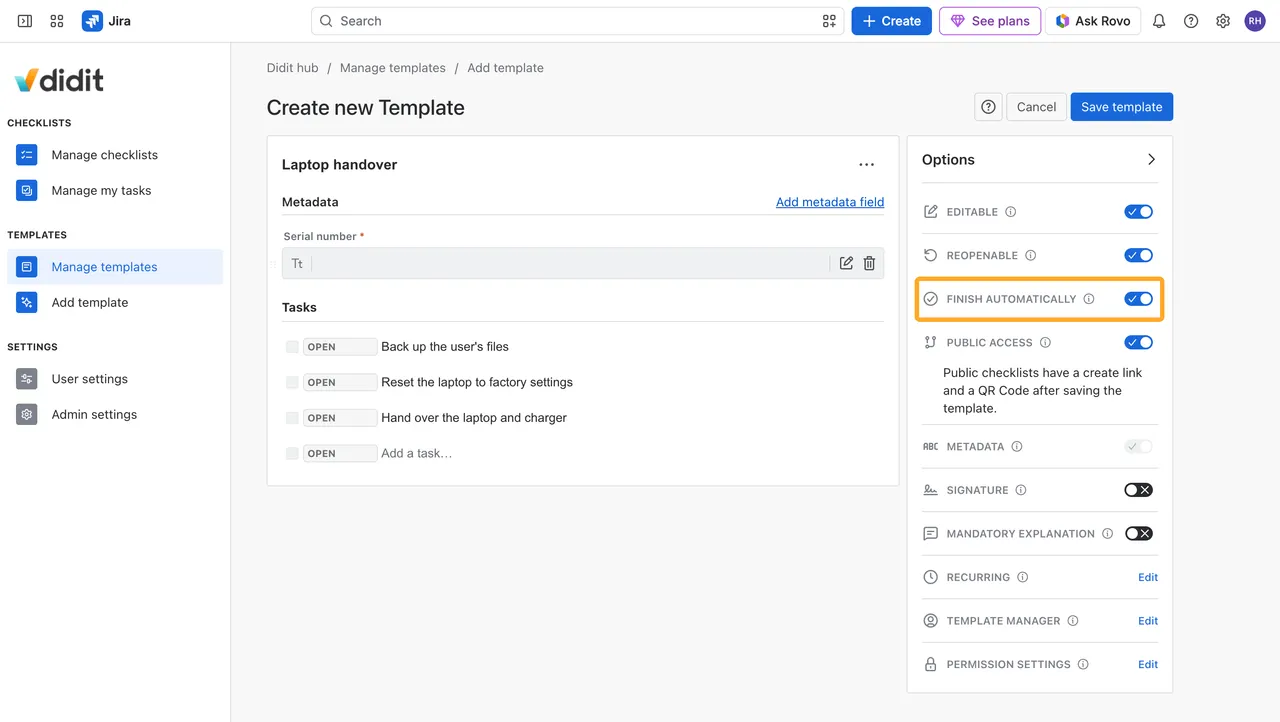
A checklist now finishes as soon as every task is checked or skipped, so nobody has to click Finish. The new Finish automatically option in the template editor decides, and it’s on for every new template. Templates you already have keep their Finish button until you turn the option on.
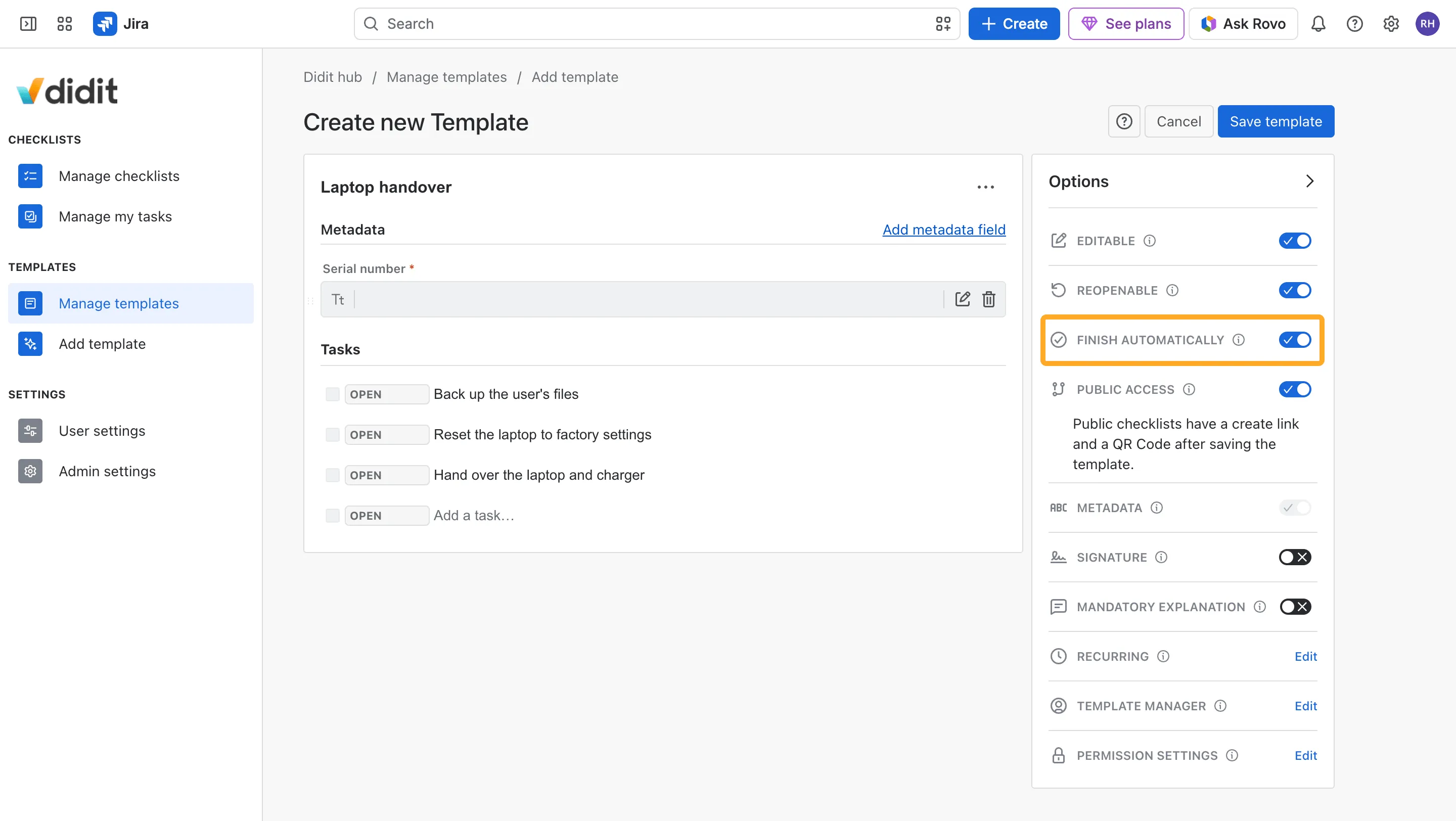
- Waits for what’s missing: An empty mandatory field, or a “No” without its note, keeps the checklist open and says what to fill out. It finishes as soon as the entry is saved.
- Reopening brings the button back: A reopened checklist gets its Finish button again.
- Signatures still finish by signing: The option is locked while a template requires a signature.
See Finish checklists automatically.
Mandatory Tasks NEW
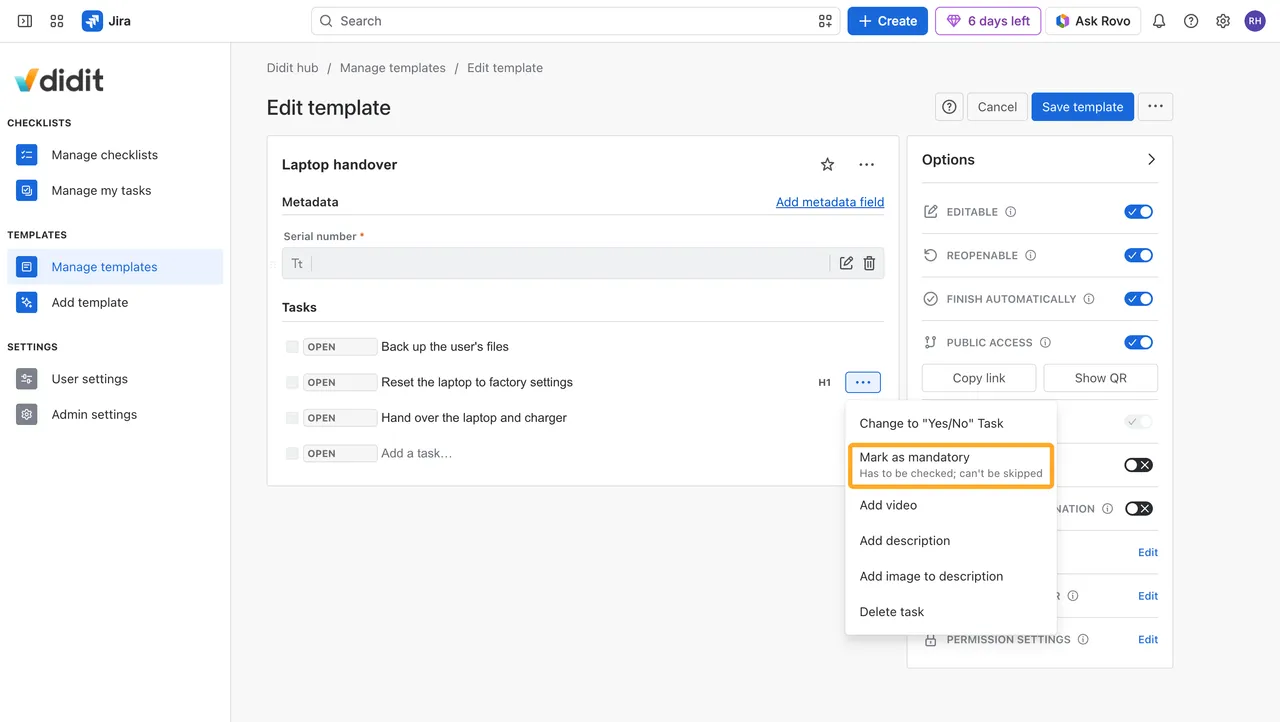
Mark the tasks that have to be done. In the editor, choose Mark as mandatory in a task’s ”…” menu, and a red asterisk marks it. A mandatory task can’t be skipped, and the checklist can’t be finished until it’s checked. Tasks you already have stay optional.
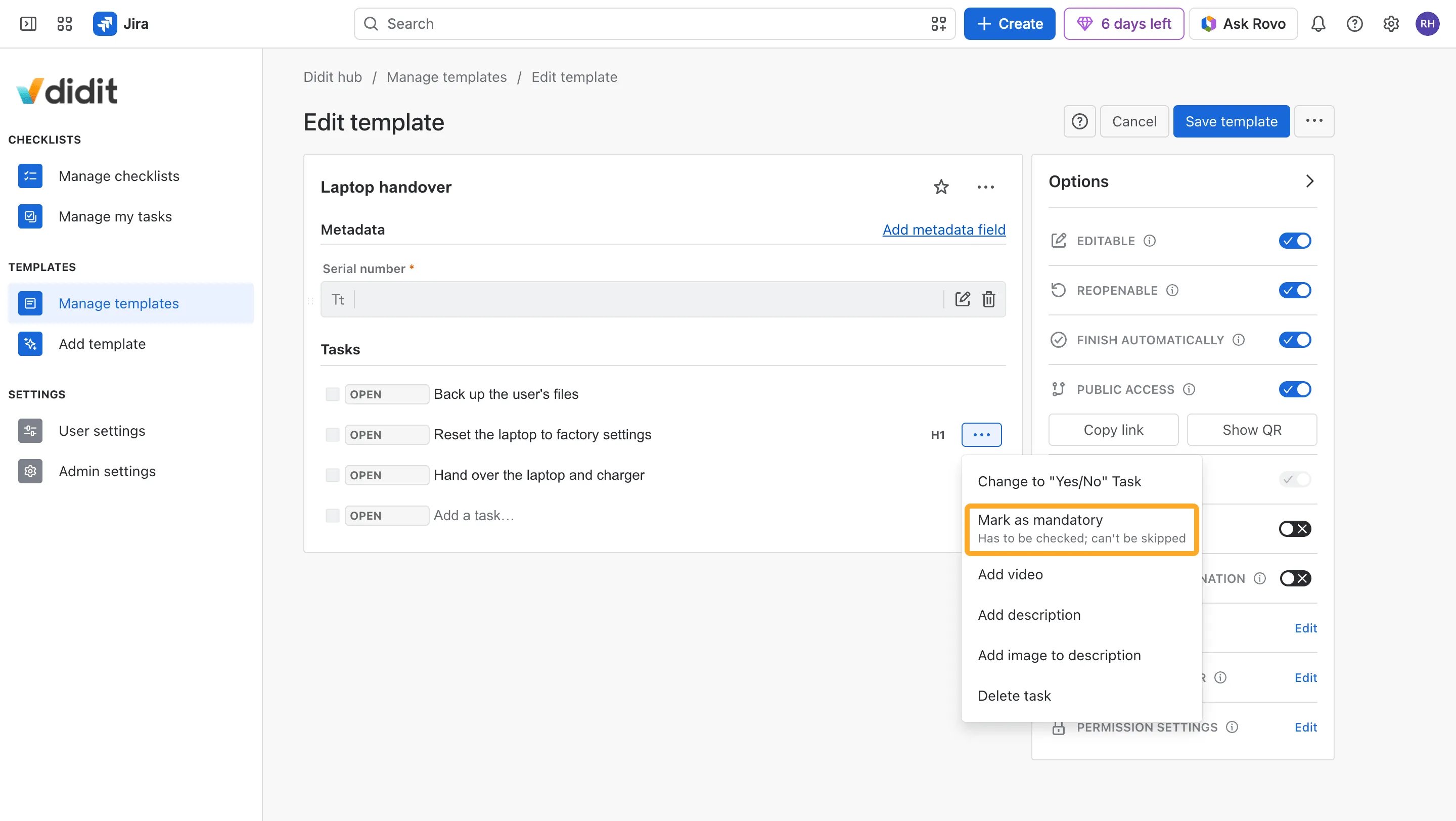
- Finish skips only optional tasks: Open mandatory tasks are highlighted instead.
- In Jira workflows: The new validator “The mandatory checklist tasks are checked” stops a transition while one is open, and the “Skip all open tasks” post function leaves them open.
- For JQL and automation: The field “Didit open mandatory tasks” counts the open ones.
See Mandatory tasks.
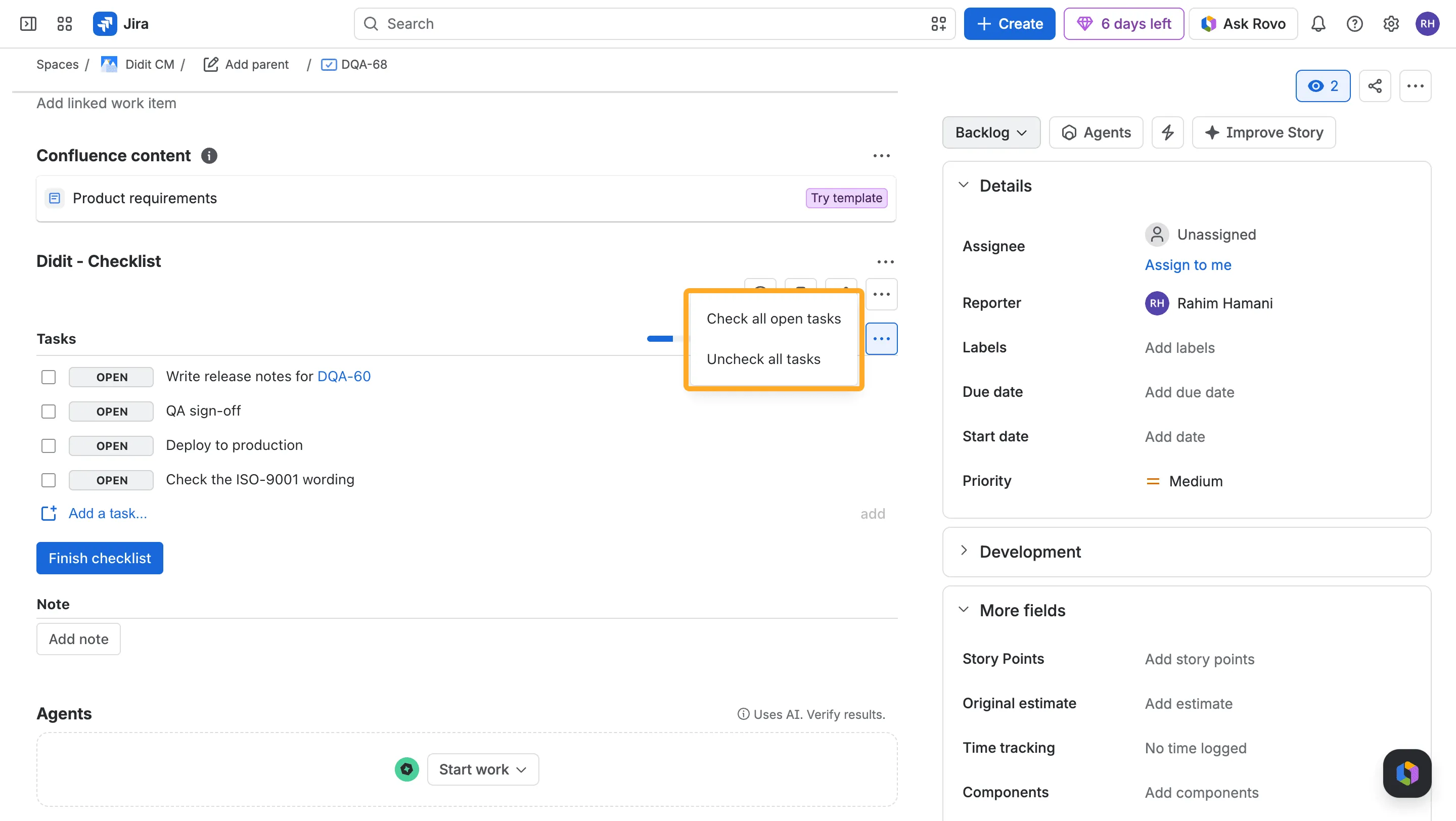
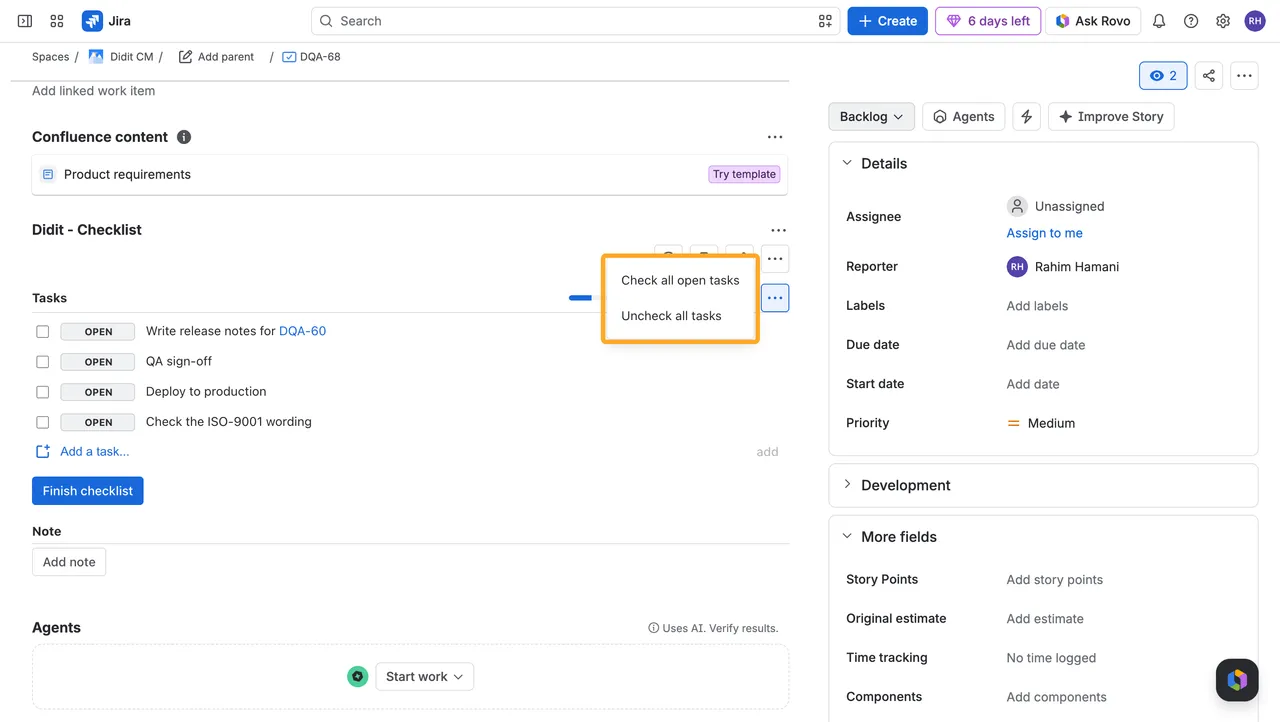
Check or Uncheck All Tasks NEW
The new ”…” menu above the tasks checks every open task at once, or opens every task again. Yes/No questions wait for a person’s answer, and notes and pictures stay. See Check or uncheck all tasks.
Work Item Links in Checklists NEW
In Jira, a work item key like DQA-12 in a task, a description or a note now links to the work item, for everyone who can open it. See Work item links in checklists.
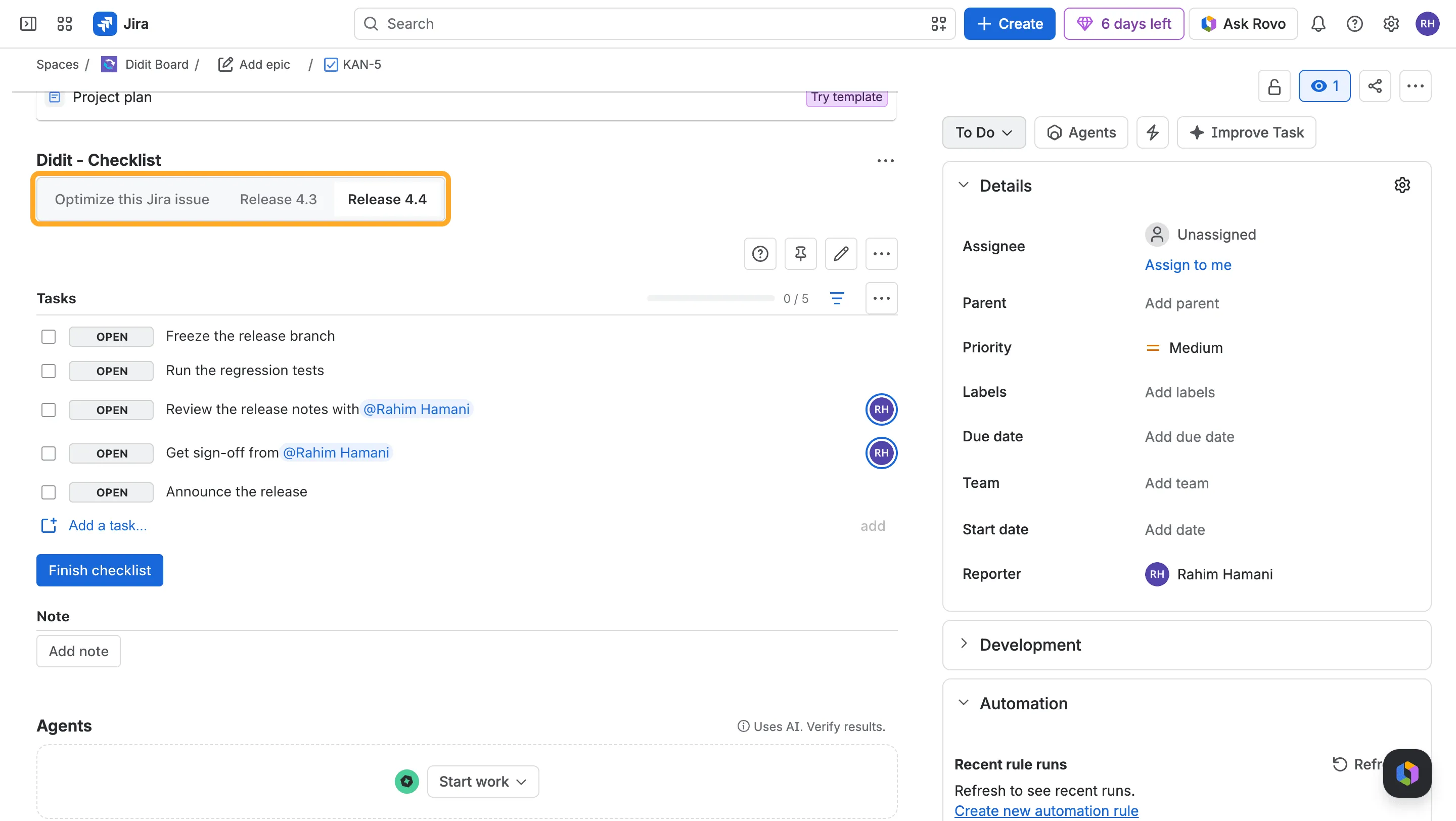
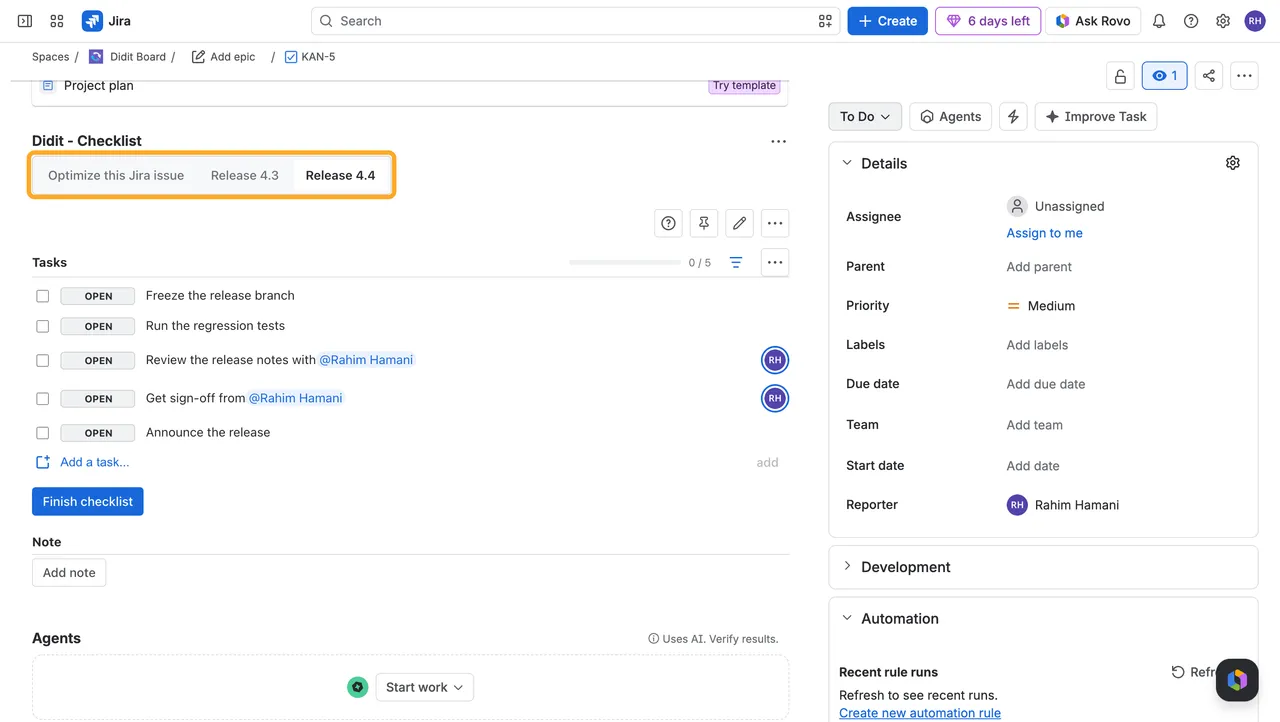
Checklists as Tabs NEW
A work item with several checklists can now show them as tabs, one per checklist. Choose Tabs under User settings in the Didit hub. The choice is yours alone, and List stays the default. Adding a checklist opens it in a New checklist tab.
New Workflow Validators NEW
Four new validators stop a Jira transition until the checklist is ready:
- The work item has a checklist
- Every checklist task is completed: every task checked, none skipped
- The checklist task is completed: the task you name by its title is checked
- The mandatory checklist tasks are checked
See Validators for Jira workflow transitions.
Three New Jira Automation Actions NEW
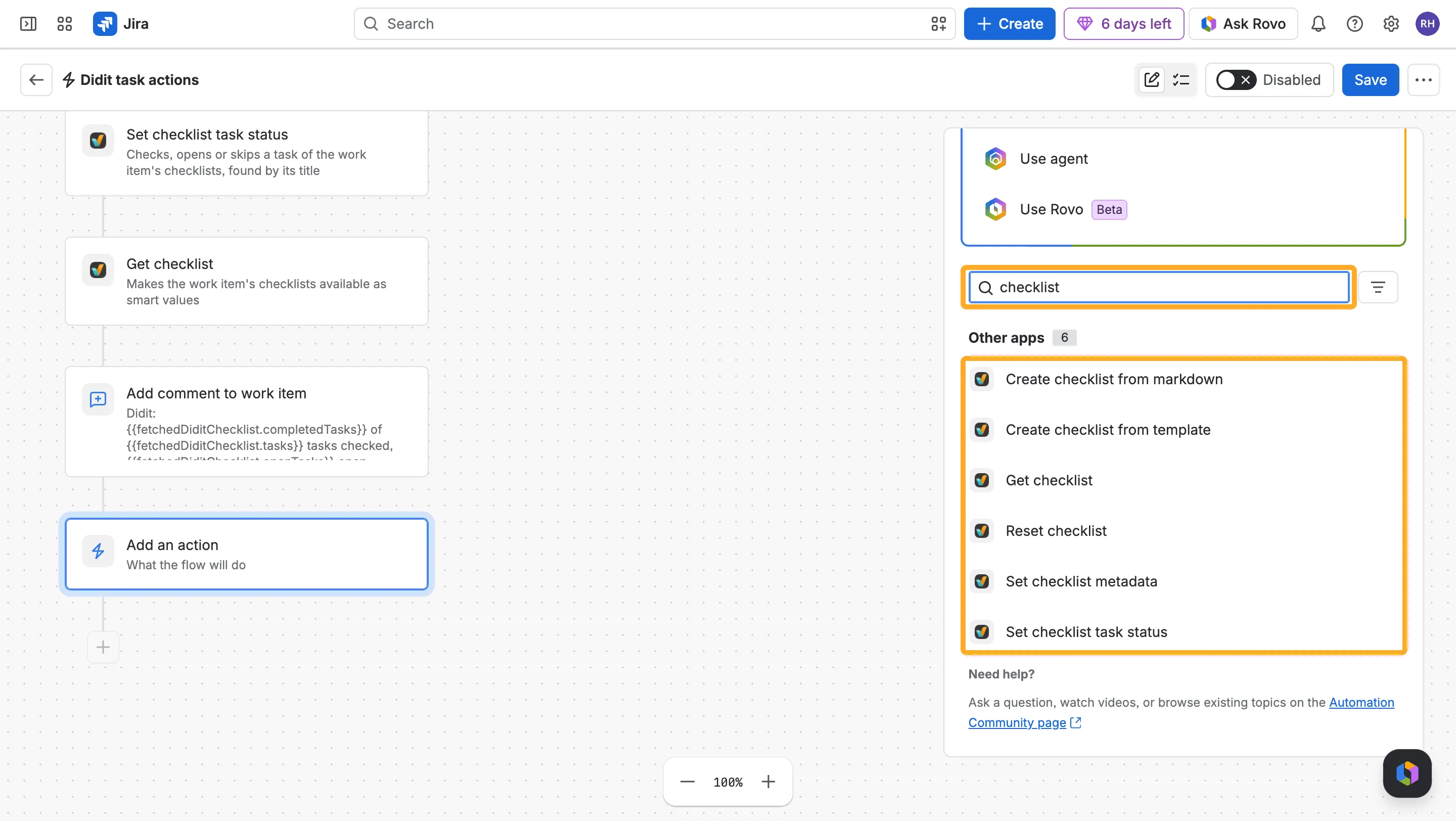
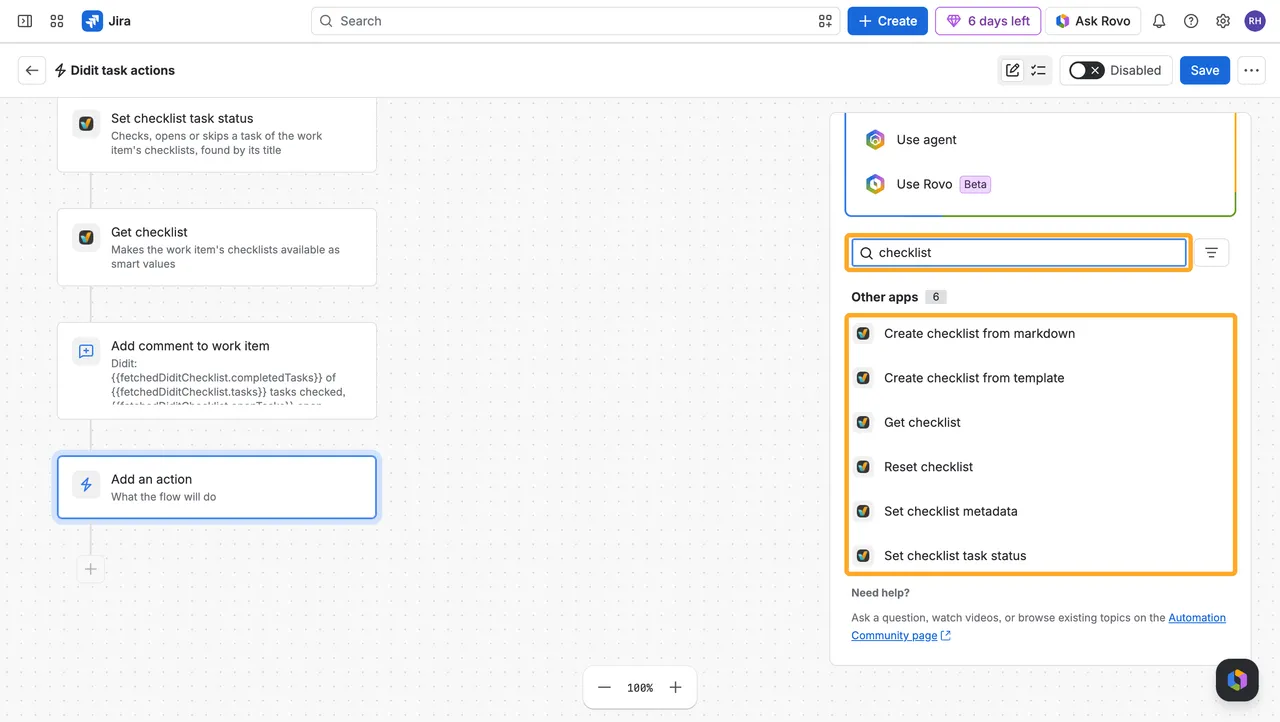
- Set checklist task status: Checks, opens or skips a task found by its title, or gives it a custom status.
- Reset checklist: Opens every task again and reopens finished checklists, for example at the start of each sprint. Notes and photos stay.
- Get checklist: Hands the next steps the checklist’s numbers and open tasks as smart values, like
{{fetchedDiditChecklist.progress}}.
See How to use the Didit actions in Jira Automation.
Questions or feedback? Our support team is happy to help.