Edit a checklist as text
Reword, reorder, add or check many tasks at once. Edit as text opens the whole checklist as text, one line per task. You find it on a Jira work item, in the Didit hub and when you edit a checklist on a Confluence page.
-
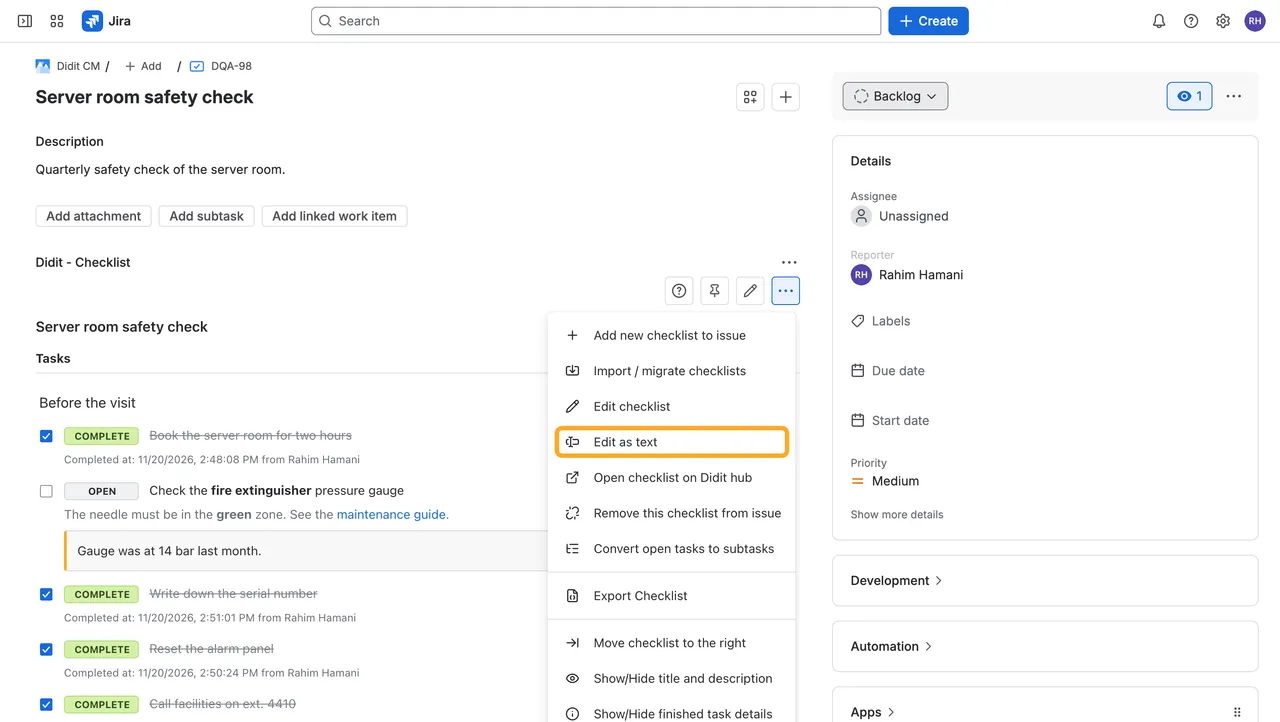
Click the ”…” in the top right of the checklist and choose “Edit as text.”
In the Didit hub, open the checklist first. The ”…” is at the top of its page. On a Confluence page, edit the page, then the checklist: the ”…” is in the checklist’s dialog.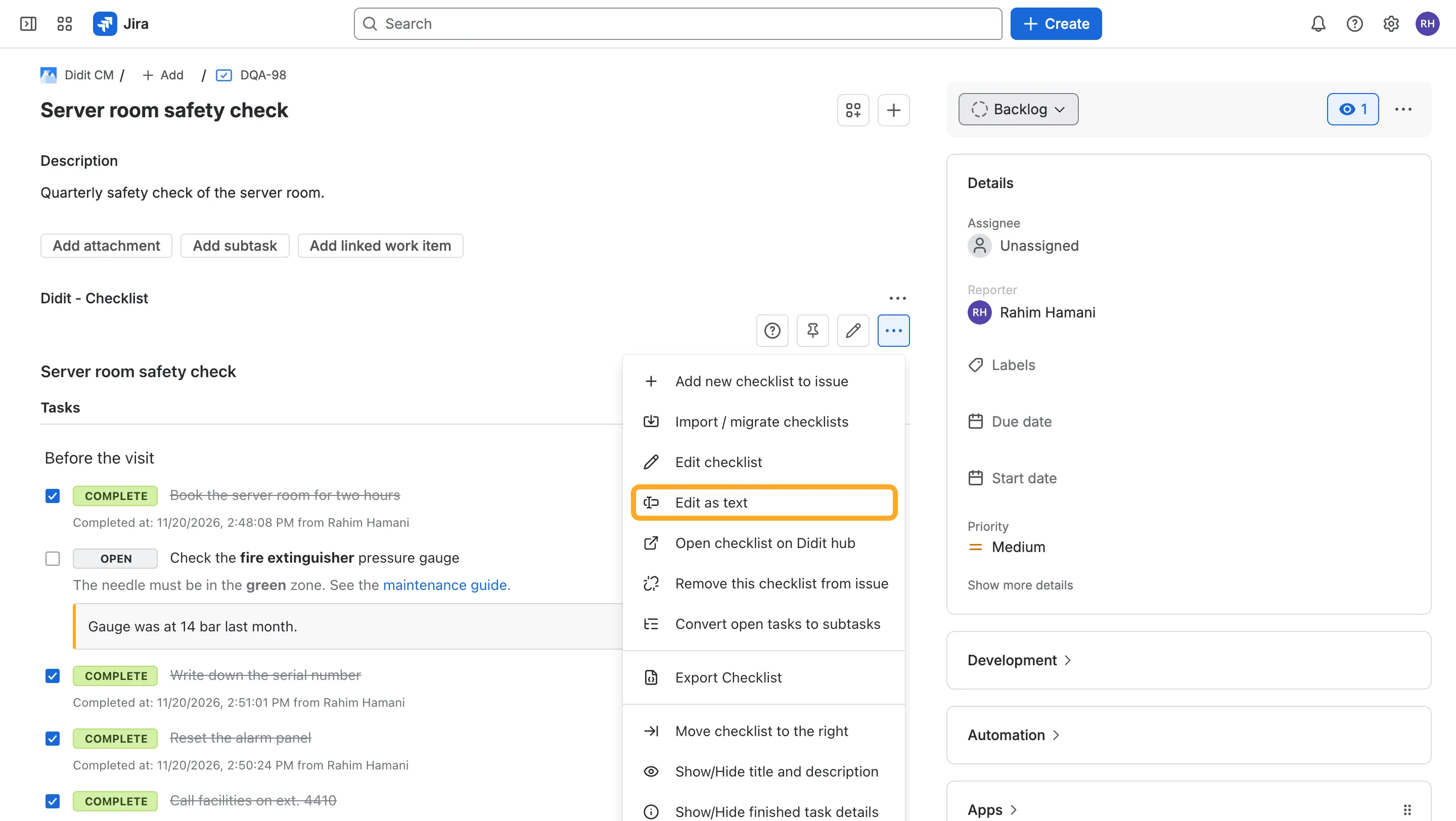
-
Change the text and click “Save.”
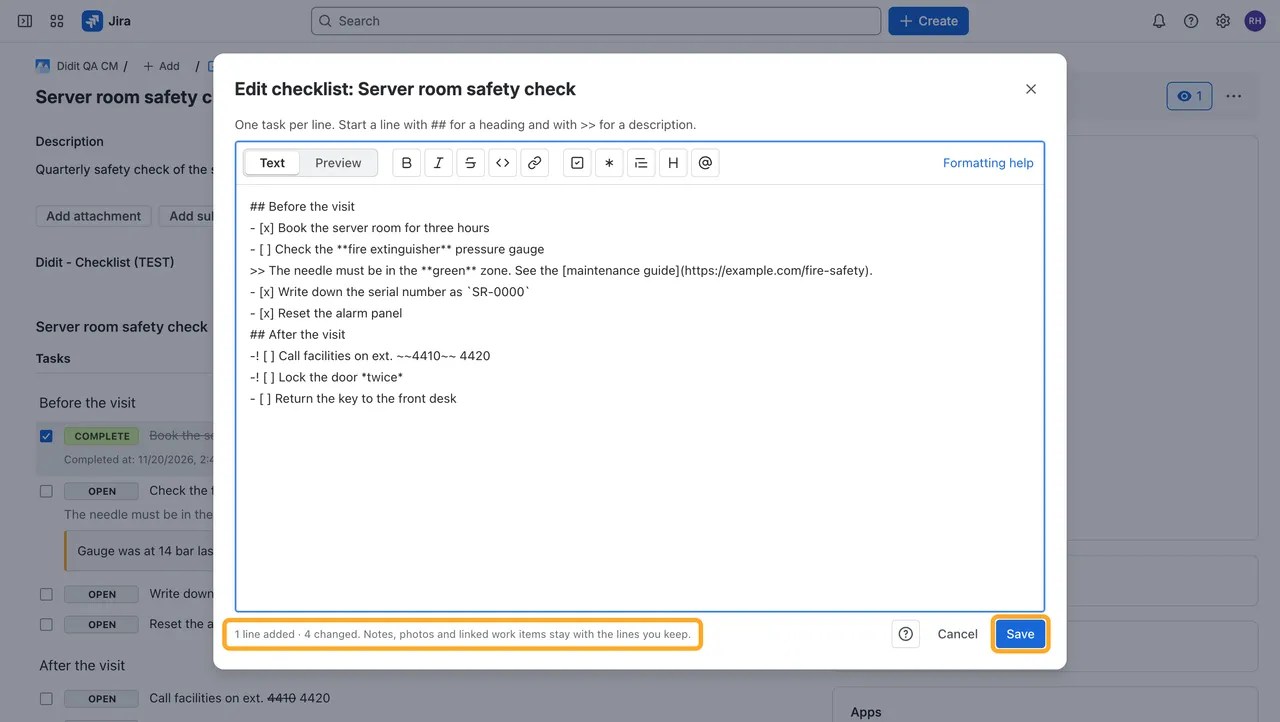
The line under the text counts what a save adds, changes and removes. “Preview” shows the checklist as it will look after the save; “Text” takes you back to typing.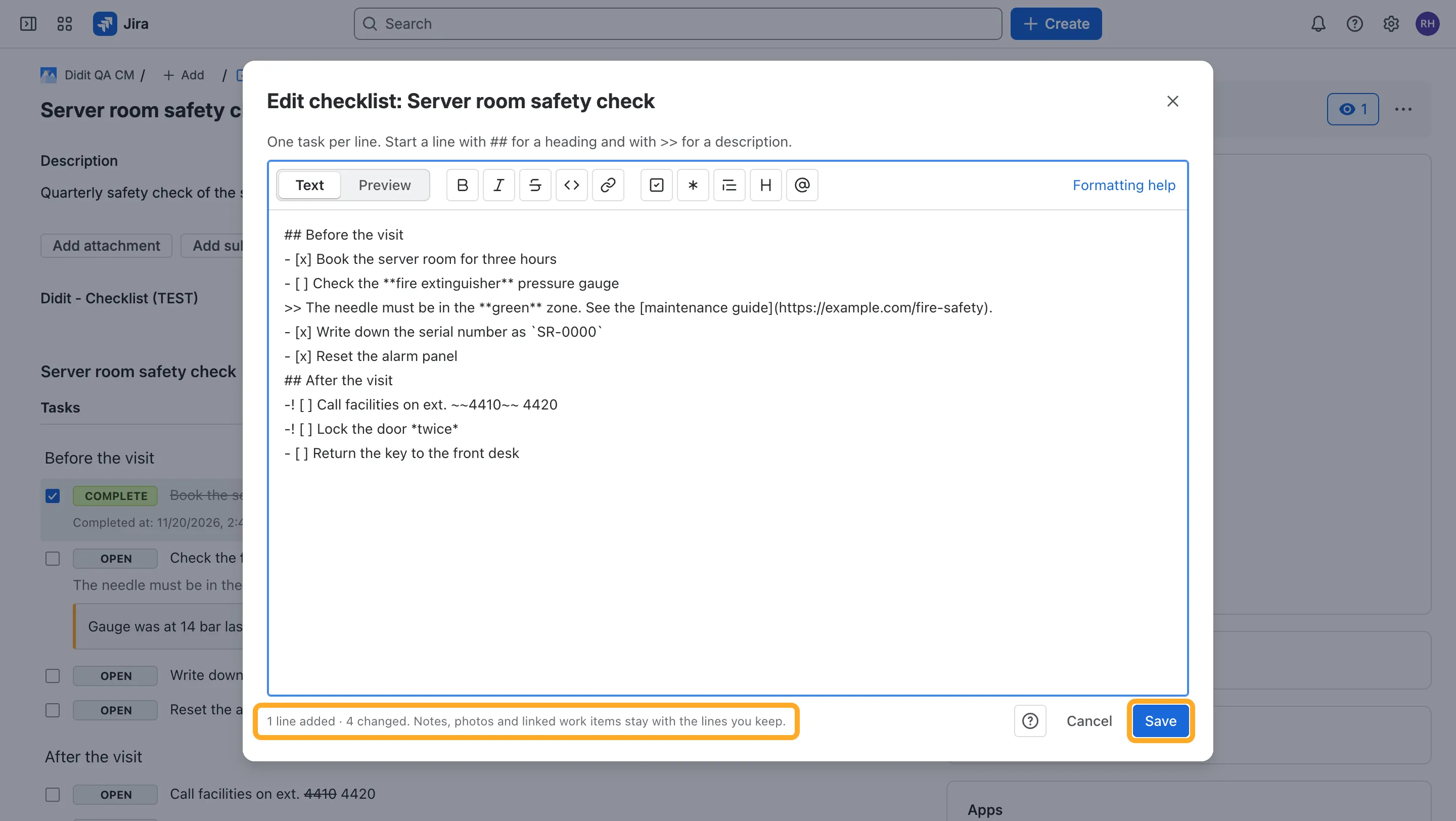
How to write a line
| You type | You get |
|---|---|
- [ ] Reset the alarm panel | An open task |
- [x] Reset the alarm panel | A checked task |
- [skipped] Reset the alarm panel | A skipped task |
- [In review] Reset the alarm panel | A task with one of your custom statuses |
-! [ ] Reset the alarm panel | A mandatory task |
## After the visit | A heading |
>> Hold the button for five seconds. | The description of the line above |
A new line without a box, like Reset the alarm panel, becomes an open task. So you can paste a plain list.
The toolbar
The buttons type the marks for you.
- Bold, italic, strikethrough, code and link format the words you selected, or the word at the caret. Click again to take the formatting off. See Format text in checklists.
- Check, mandatory and heading switch the selected lines.
- Description starts a description under the line at the caret.
- @ opens the list of people. See Mention people and assign tasks.
Formatting help lists every mark. Ctrl or Cmd with B, I or K types bold, italic or a link, and Ctrl or Cmd with Z undoes typing and buttons alike.
What a save keeps
- A line you keep stays the same task. Reword it or move it, and its notes, pictures and linked work items stay with it. So does who checked it, and when.
- A new line is a new task. A line you delete removes its task, with its notes and pictures. Before you save, the text names every task that would go with notes, photos or linked work items.
- Only the boxes you change are saved. A task someone else checked while you were typing stays checked.
The audit log records the edit and the status changes.
Good to know
Why don't I see Edit as text?
It shows where “Edit checklist” shows. A finished checklist can’t be edited: reopen it first. A checklist from a template can only be edited when the template’s “Editable” option is on. On a Confluence page, it’s there for a checklist that’s already on the page; save the changes you made in the checklist’s dialog first.
Why is Save turned off?
Either nothing changed yet, or the red line under the text names what to fix. A checklist needs at least one task. A mandatory task can’t be skipped. A Yes/No question is answered in the checklist, not in the text. And a custom status that was deleted can’t be given to another task.
How does Didit know which line is which task?
It compares your text with the checklist: unchanged lines first, then moved lines, then reworded ones, also when you moved them too. A line you rewrite so much that it no longer resembles its task is a new task. The line under the text then counts one line added and one removed.
Does checking the last task finish the checklist?
As a click does. A checklist that finishes automatically finishes when you save.
Do the people I mention get an email?
Yes, as everywhere else in Didit. See The email.
Can I edit a template as text?
No, only checklists. In the template editor, you can paste a list of tasks.