Migrate from Smart Checklist to Didit
Bring your checklists from Smart Checklist for Jira by TitanApps (Railsware) into Didit. Import every work item at once, or one work item at a time. The import copies the checklists, so Smart Checklist keeps its own until you uninstall it.
Before you start
- Both apps are installed on the same Jira Cloud site. For Smart Checklist on Data Center, move to Cloud first.
- To keep statuses such as In progress, turn on custom task statuses and add Didit statuses with the same names before you import.
Import all checklists
Jira administrator permission required.
Only Jira administrators can open Didit’s admin settings.
-
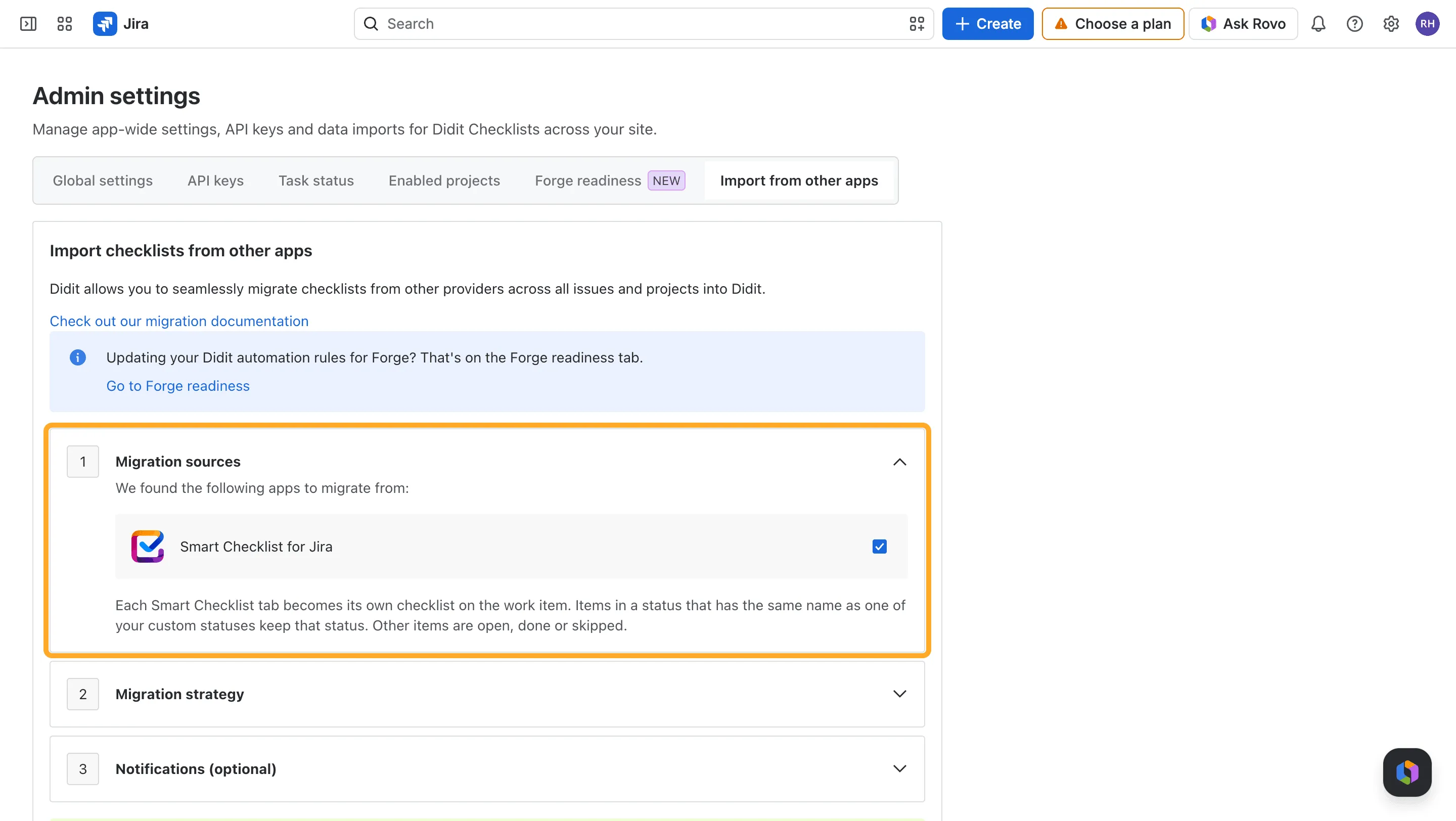
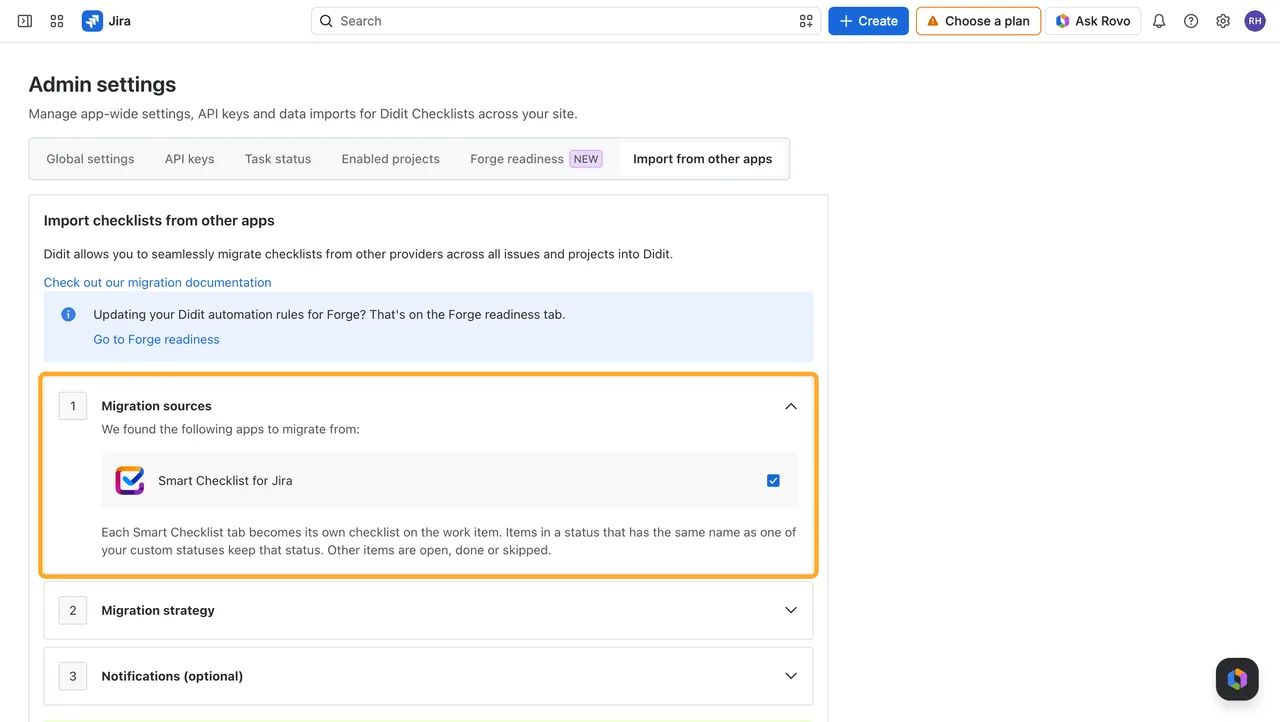
In Jira, go to Settings → Apps, open Didit’s admin settings and go to the Import from other apps tab.
-
Under Migration sources, choose Smart Checklist for Jira.
-
Under Migration strategy, choose Add to keep the Didit checklists the work items already have, or Replace to remove them first.
If you import a second time, choose Replace: Add would give the work items the same checklists twice. -
Optionally, add people to email when the import is done, then click Start Migration.
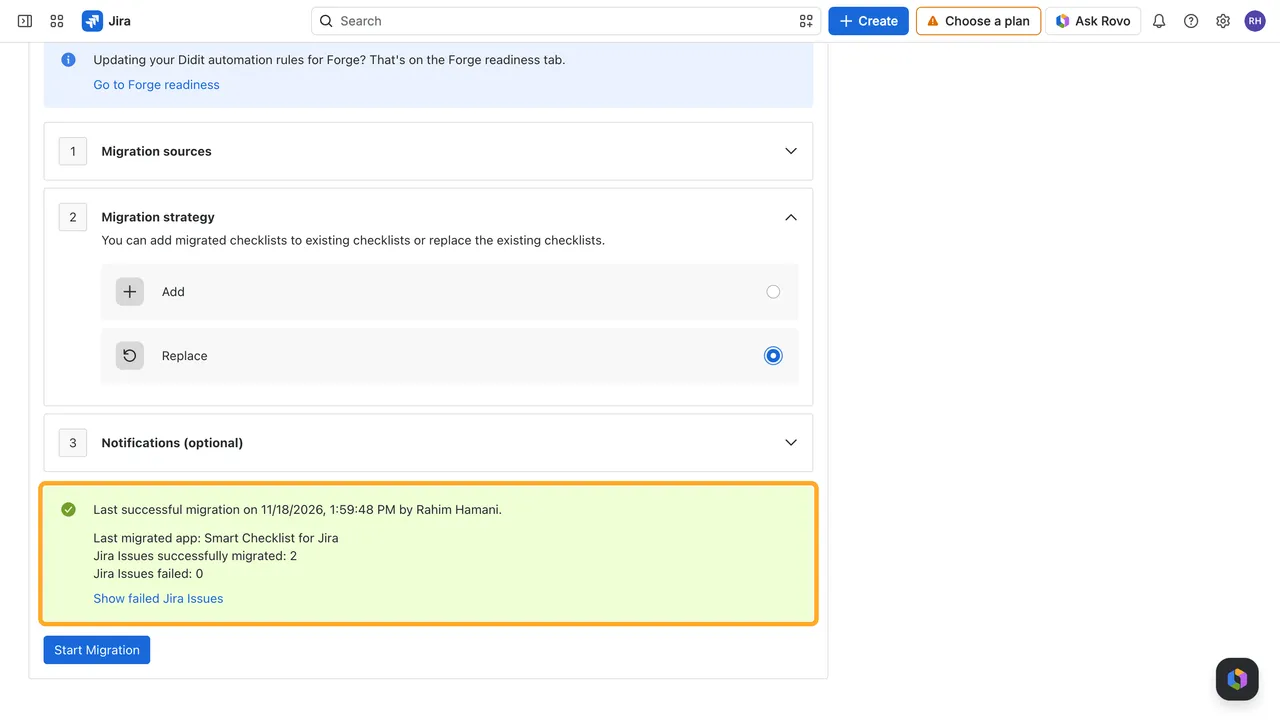
When it’s done, the page shows how many work items were imported and lists any that failed.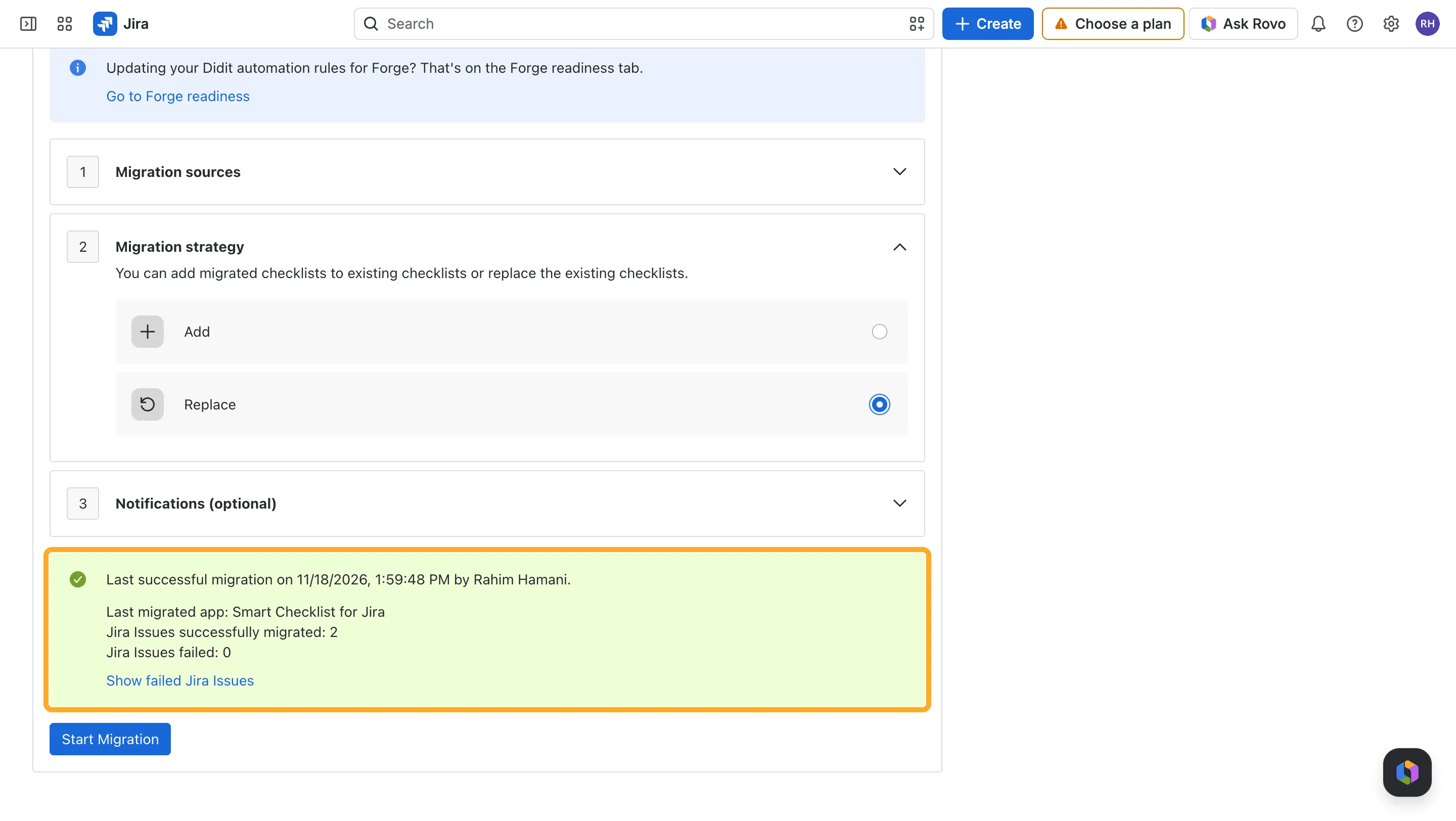
Import one work item
-
Open the work item, then the Didit panel.
-
Click … in the top right of the panel and choose Import / migrate checklists.
-
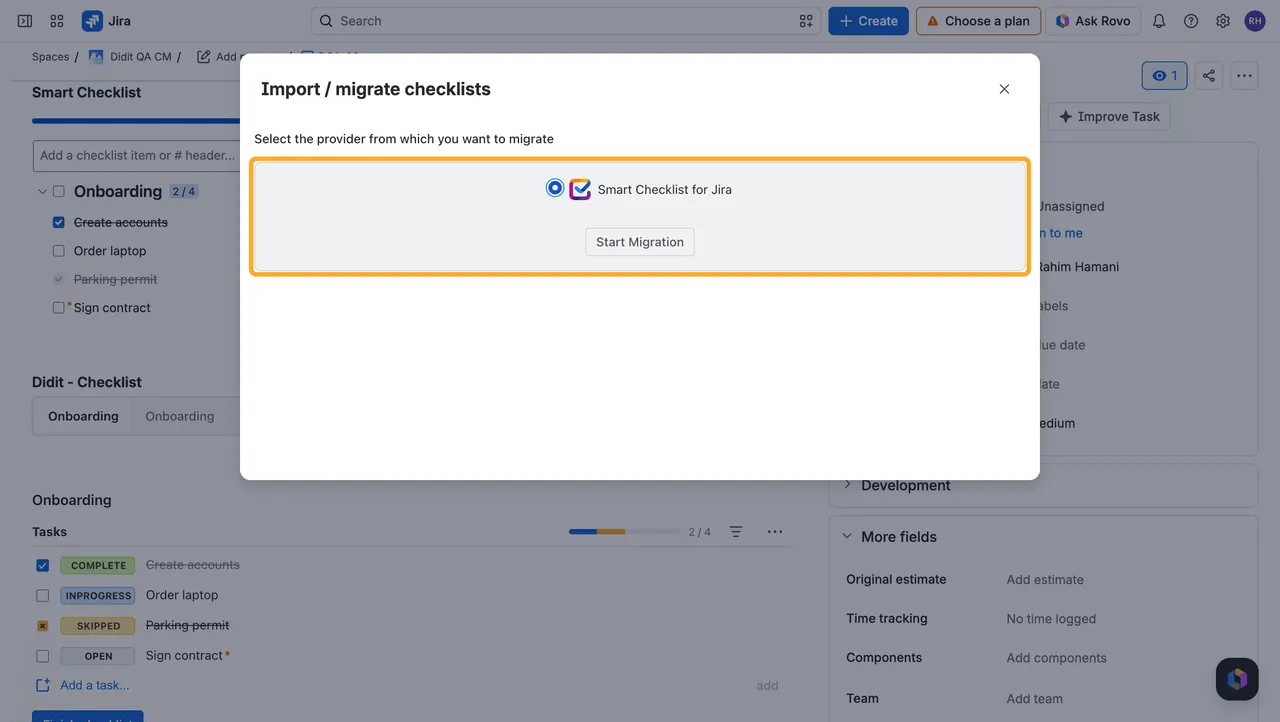
Click Migrate checklists, choose Smart Checklist for Jira and click Start Migration.
The checklists are added next to the work item’s other Didit checklists.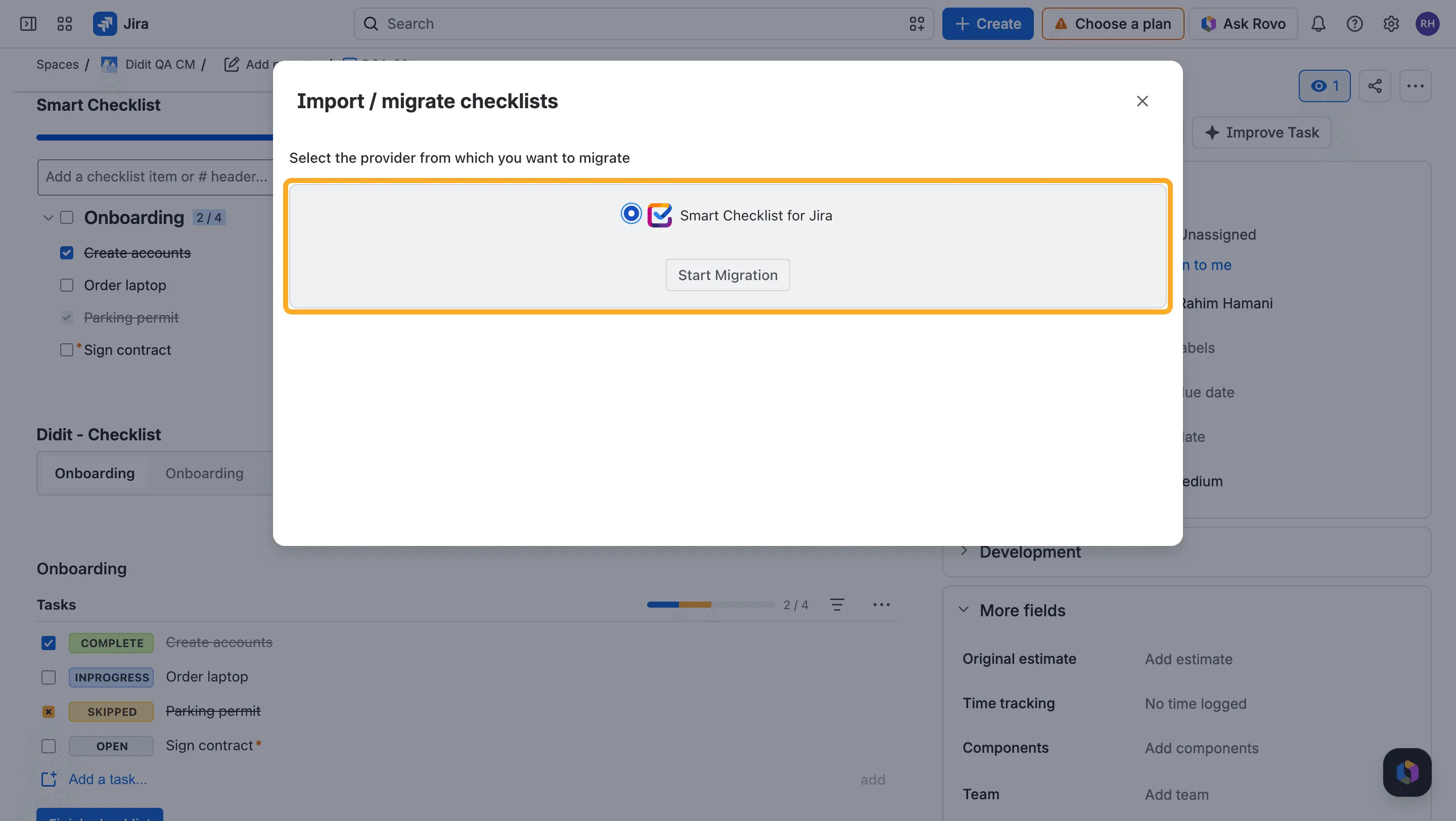
How checklists are converted
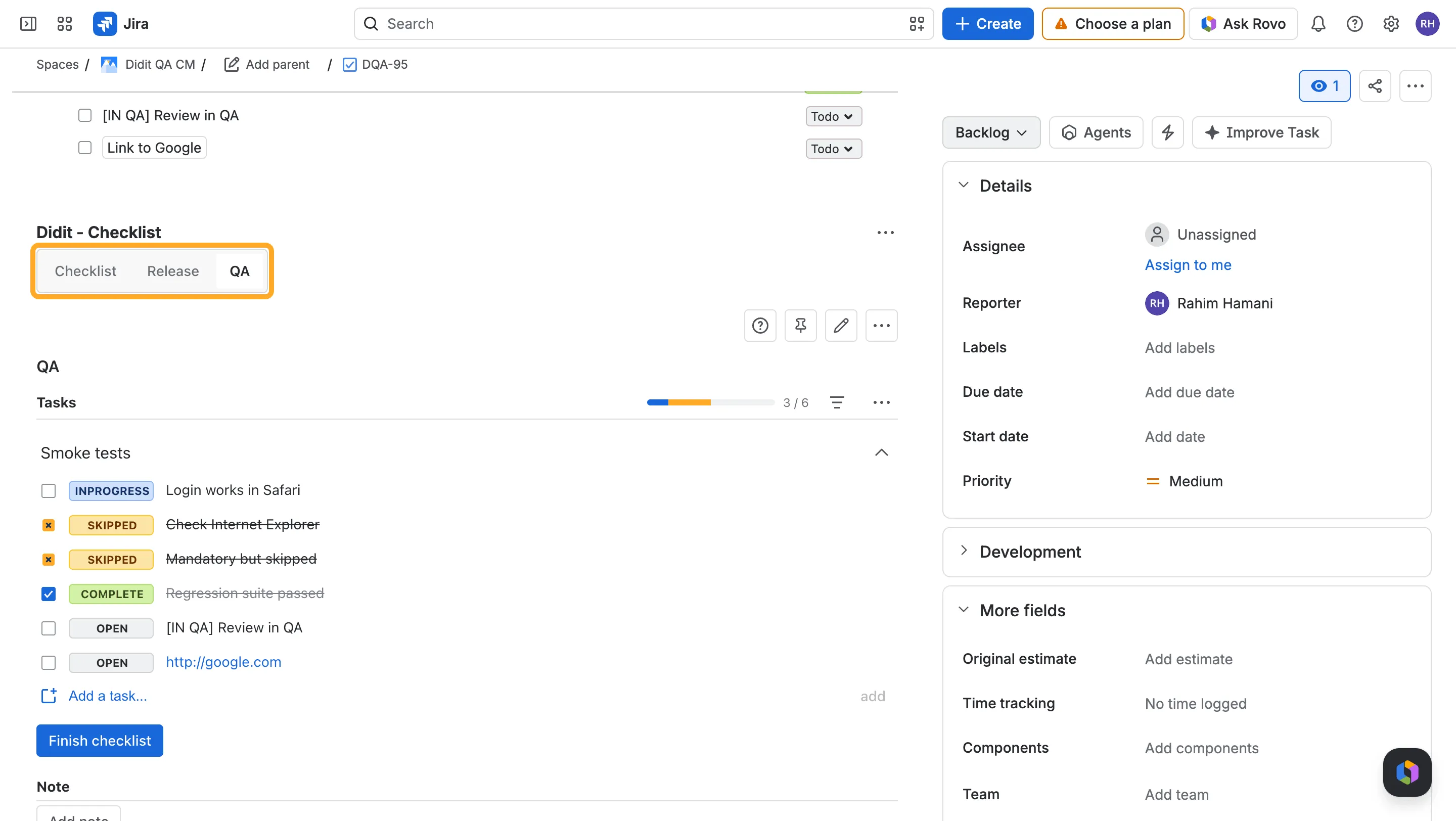
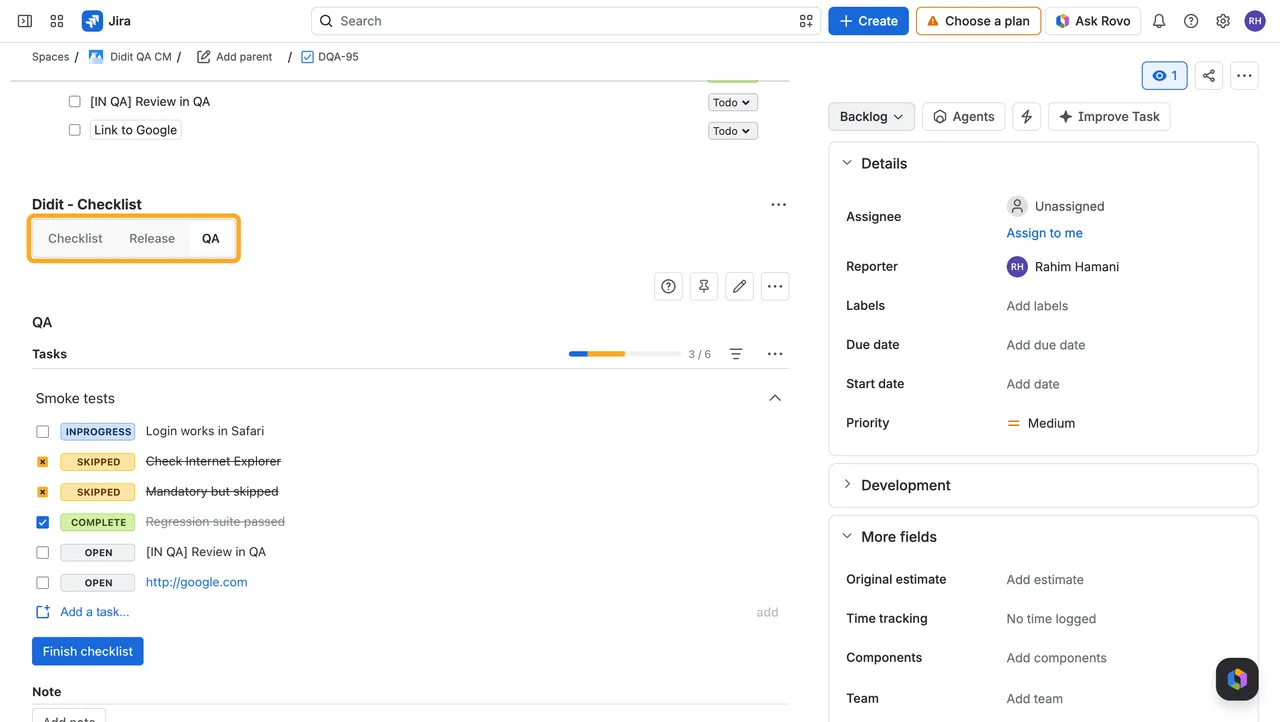
Every Smart Checklist tab becomes its own Didit checklist on the work item.
| In Smart Checklist | In Didit |
|---|---|
Tab (# Name) | A checklist with the tab’s name. Items above the first tab go into a checklist called Checklist. |
Header (## to ######) | Heading |
| To do, Done, Skipped | Open, Completed, Skipped |
| In progress and custom statuses | The Didit custom status with the same name. Without one, a status that counts as checked is Completed and any other is Open, and a custom status name stays at the start of the task, like “[IN QA] Review”. |
| Mandatory item | Mandatory task. A skipped one becomes optional. |
| Details | Task description |
| Assignee | A mention at the start of the task, which makes that person the task’s assignee |
| Mentions of people | Mentions |
| Priority and due date of an item | The last line of the description, like “Priority: High · Due: 2026-12-01” |
| Bold, italics, links and images | Plain text. Links and images keep their address. |
Separator (---) | Left out |
What isn’t imported
- Smart Checklist templates. Rebuild them as Didit templates.
- The status colors and the checklist history.
Need help with a large migration? Our support team is happy to help.